
By the LinkDrop team.
The short answer
Share the deck with each prospect on their own LinkDrop link. When a teammate has the next version, they add it as a draft: your prospects keep seeing the live version until someone who can publish the document reviews what changed, page by page, and clicks Publish. Then every link shows the new version, and History says who drafted it and who published it.
Teammates can do it in the web app or through their AI agent, and so can you. Inviting teammates, drafts and the Team tab on Metrics are Pro features.
The walkthrough, recorded in October 2026 on a LinkDrop test workspace. Nadia, Leo, Grace, Ottermark and its prospects are invented, and so is every number in the deck. Narrated with a synthetic voice, with word-by-word captions under the picture. Waits are sped up and marked on screen; dates, clock times, relative times, email addresses, link addresses and private file paths are blurred. Watch on YouTube
Prefer slides? Flip through this example as a LinkDrop presentation: the same steps, shared the way this page describes.
The team
Nadia founded Ottermark, a three-person startup that sells shift scheduling to restaurant groups. She owns the workspace. Leo sells, and keeps the deck's numbers current. Grace is an advisor who wants to see how the deck is landing. Their prospects include Dana at Harbor & Pine and Sam at Northloop. Everyone here, the company and its numbers are invented for this example.
Before
The deck lived in a shared folder. Leo would fix the pricing slide, export a new PDF and email it round; someone would forward an older copy to a prospect; nobody could say which version Dana had seen. When a number changed, there was no single place to check it before it went out, and no record of who changed what.
With LinkDrop
1. Invite the team
On Pro, Nadia opens Dashboard, then Members, then Invites. She picks a role and either clicks Generate link or enters an address under Invite by email. Leo joins as a Member: he can upload, share and add drafts. Grace joins as a Viewer: she sees every document and all the analytics, changes nothing, and takes no seat. Pro covers 4 people who can upload and share, the owner included; viewers are free and unlimited.
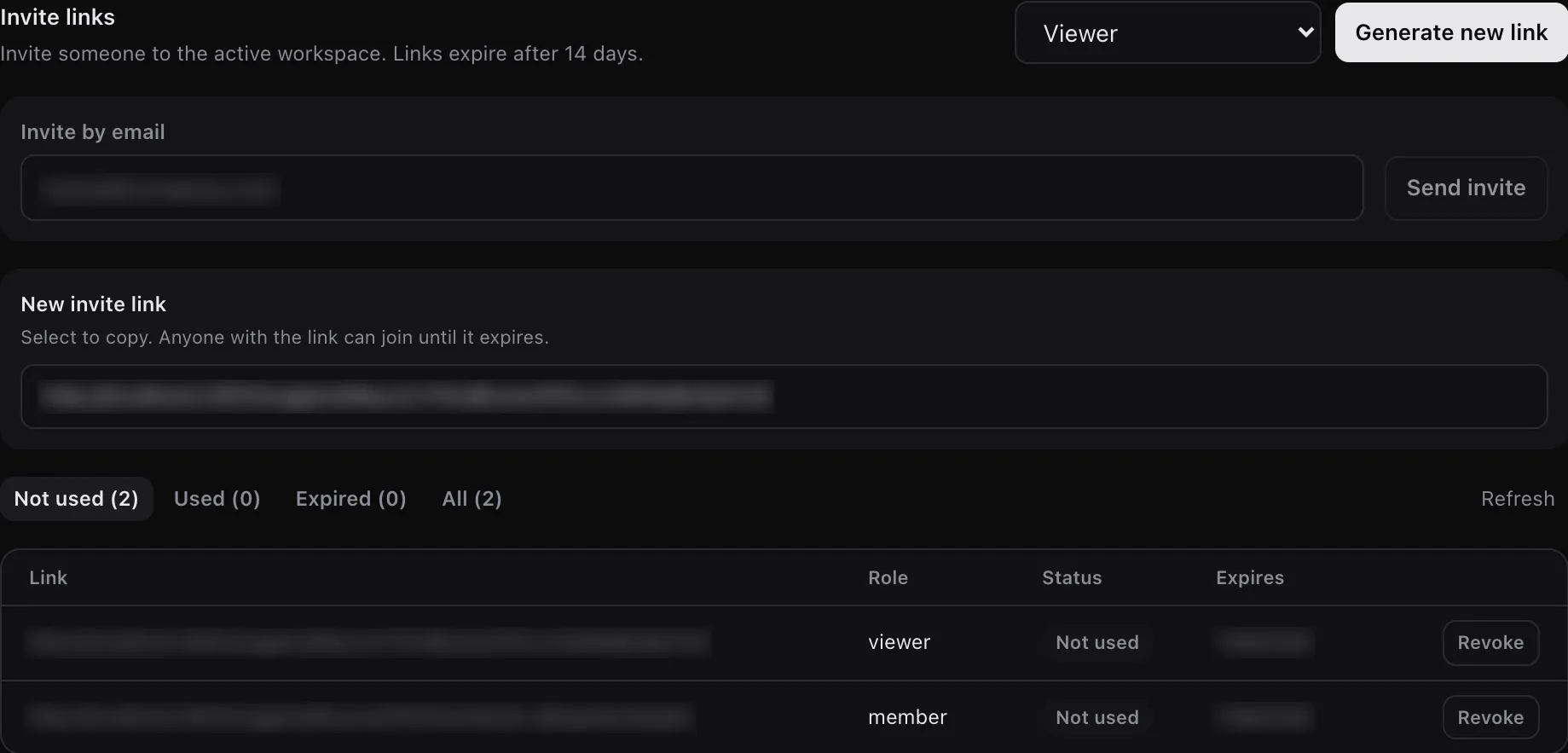 Invites: one link for a viewer, one for a member. Link addresses and expiry dates are blurred. Tap to enlarge.
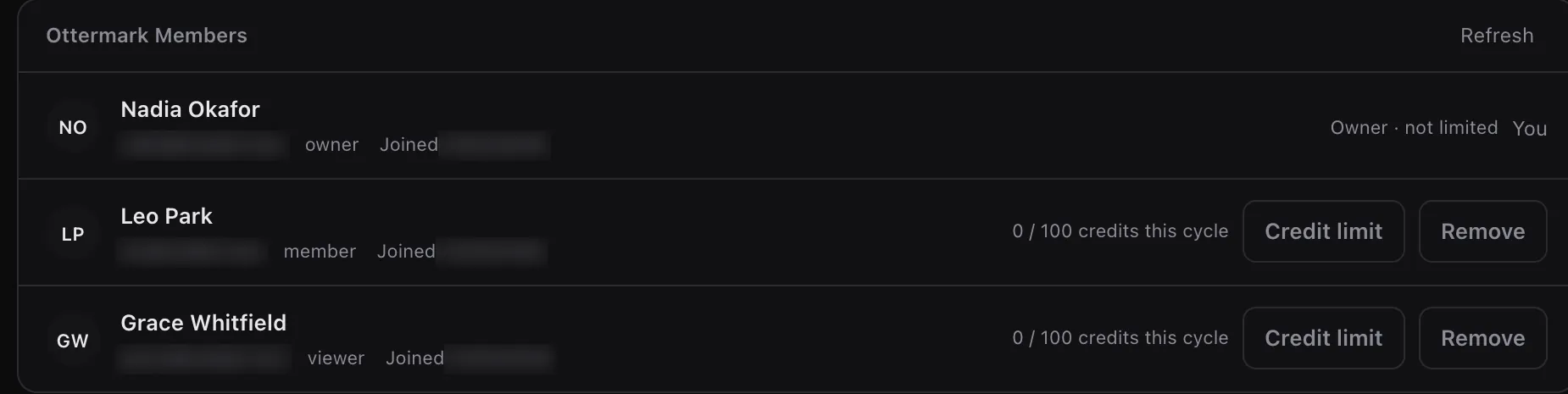 Members after both joined: Nadia the owner, Leo a member, Grace a viewer. Email addresses and join dates are blurred. Tap to enlarge.
2. One link for each prospect
Nadia uploads the deck and opens its Links page. She clicks New link once per prospect, with a label only her team sees: "Harbor & Pine – Dana" and "Northloop – Sam". Each link has its own numbers, so she can tell who read what.
Dana opens hers and stays longest on the pricing slide. Sam stops after the results.
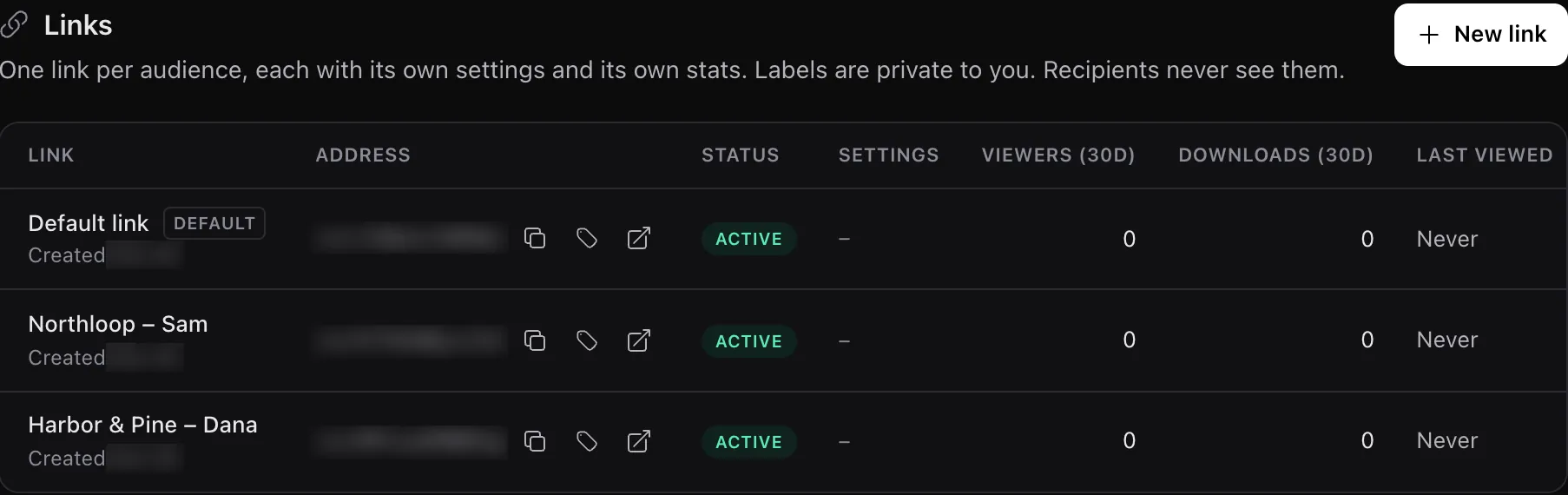 The Links page: one link per prospect, plus the Default link every document starts with. Link addresses and creation dates are blurred. Tap to enlarge.
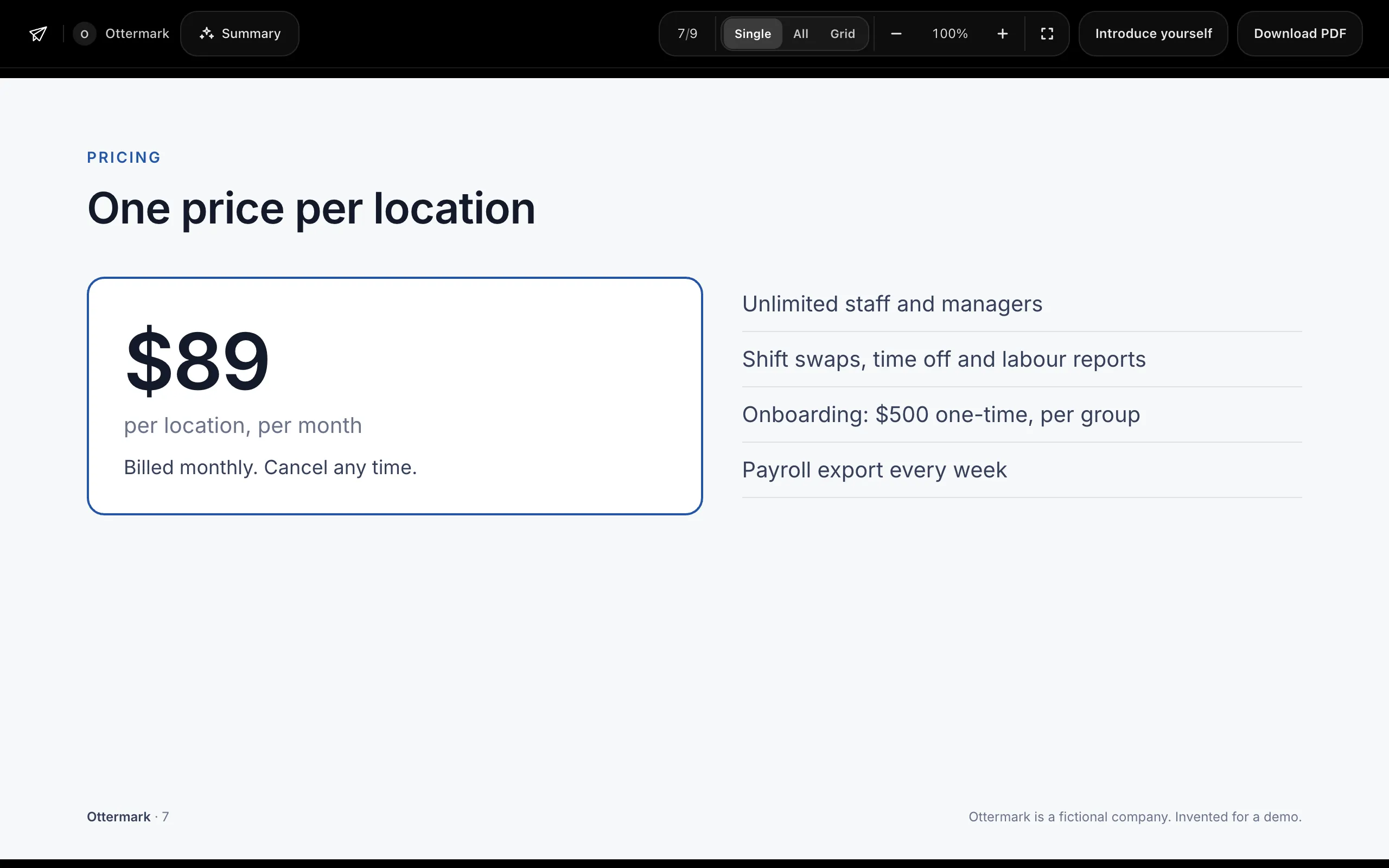 Dana's link, before the change: page 7 shows $89 a month and a $500 onboarding fee. Tap to enlarge.
3. A teammate's agent adds a draft
Leo reworks the pricing and saves the new PDF on his computer. He uses Claude Code with LinkDrop connected to the Ottermark workspace, under his own account, and asks:
Add ~/ottermark/ottermark-sales-deck-v2.pdf to LinkDrop as a draft of the Ottermark sales deck. It has the new pricing slide. Nadia will review it.
Claude Code finds the document and saves the file as a draft. (How a file on your computer reaches LinkDrop depends on how your agent is connected: Getting a file to your agent.) LinkDrop compares it with the live version page by page: one of nine pages changed, page 7. Leo is a member and Nadia uploaded the deck, so Leo cannot publish it; by default a document is published by the person who uploaded it and the workspace's owners and admins. His agent has exactly his access, so it adds a draft, and Dana's link keeps showing the live version. LinkDrop tells the people who can publish in Needs you.
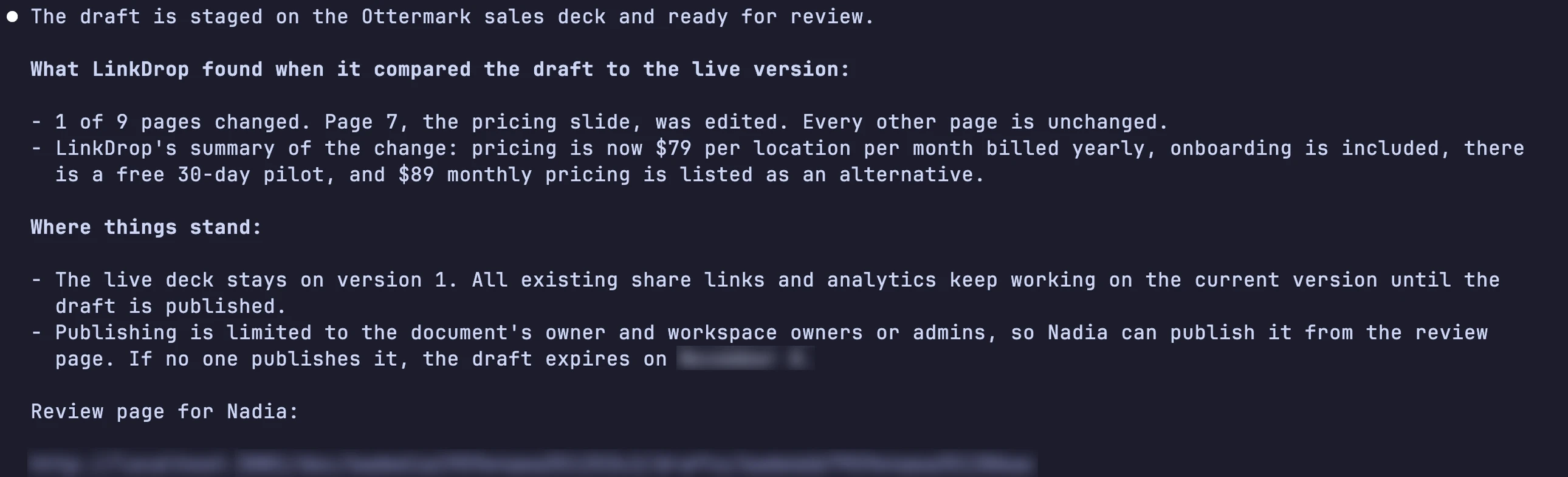 Claude Code's answer to Leo's prompt. The prompt has scrolled above this frame; it is in the video. The review link and the expiry date are blurred. Tap to enlarge.
4. Review what changed, then publish
Nadia opens Drafts in the left sidebar; beside it, "1 to review". Under Added by she chooses Needs my review, the drafts she can publish. The row says who added it: "by Leo Park's agent (Claude Code)".
Review shows the AI summary of what changed and each changed page, the live version on the left and the draft on the right. Compare full size marks the changed areas: $89 a month became $79 billed yearly, onboarding is included, and there is a free 30-day pilot.
She clicks Publish, and confirms Publish as version 2. Every link shows version 2 straight away, so the link Dana already has opens on the new price. Version 1 stays in History.
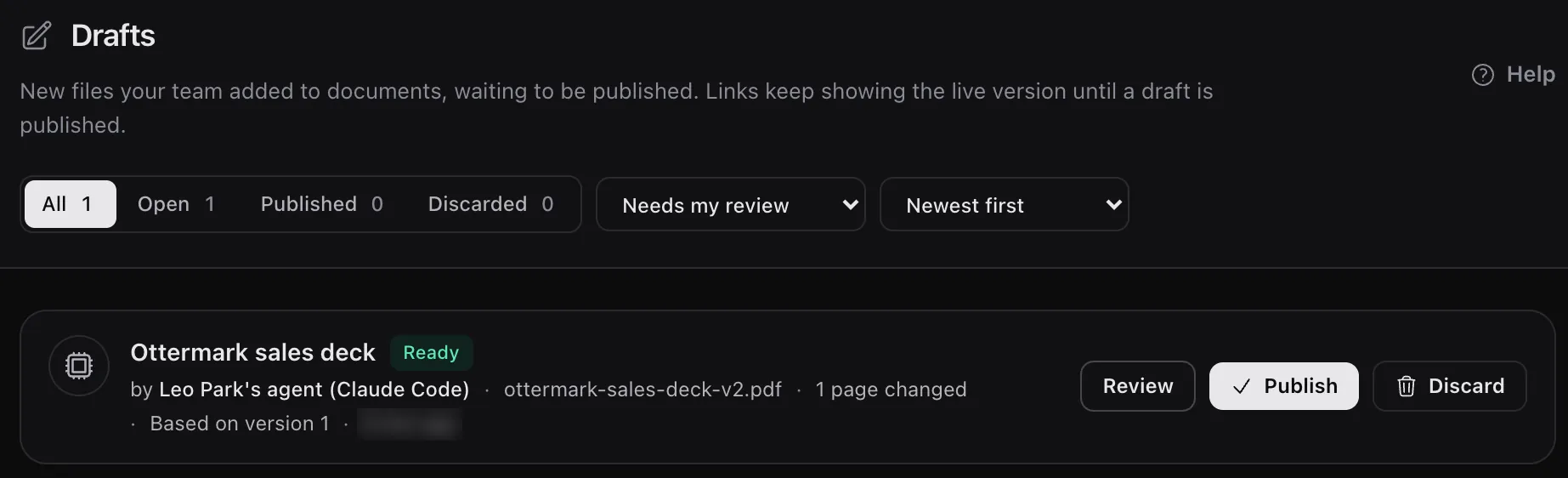 Drafts, filtered to Needs my review. The time is blurred. Tap to enlarge.
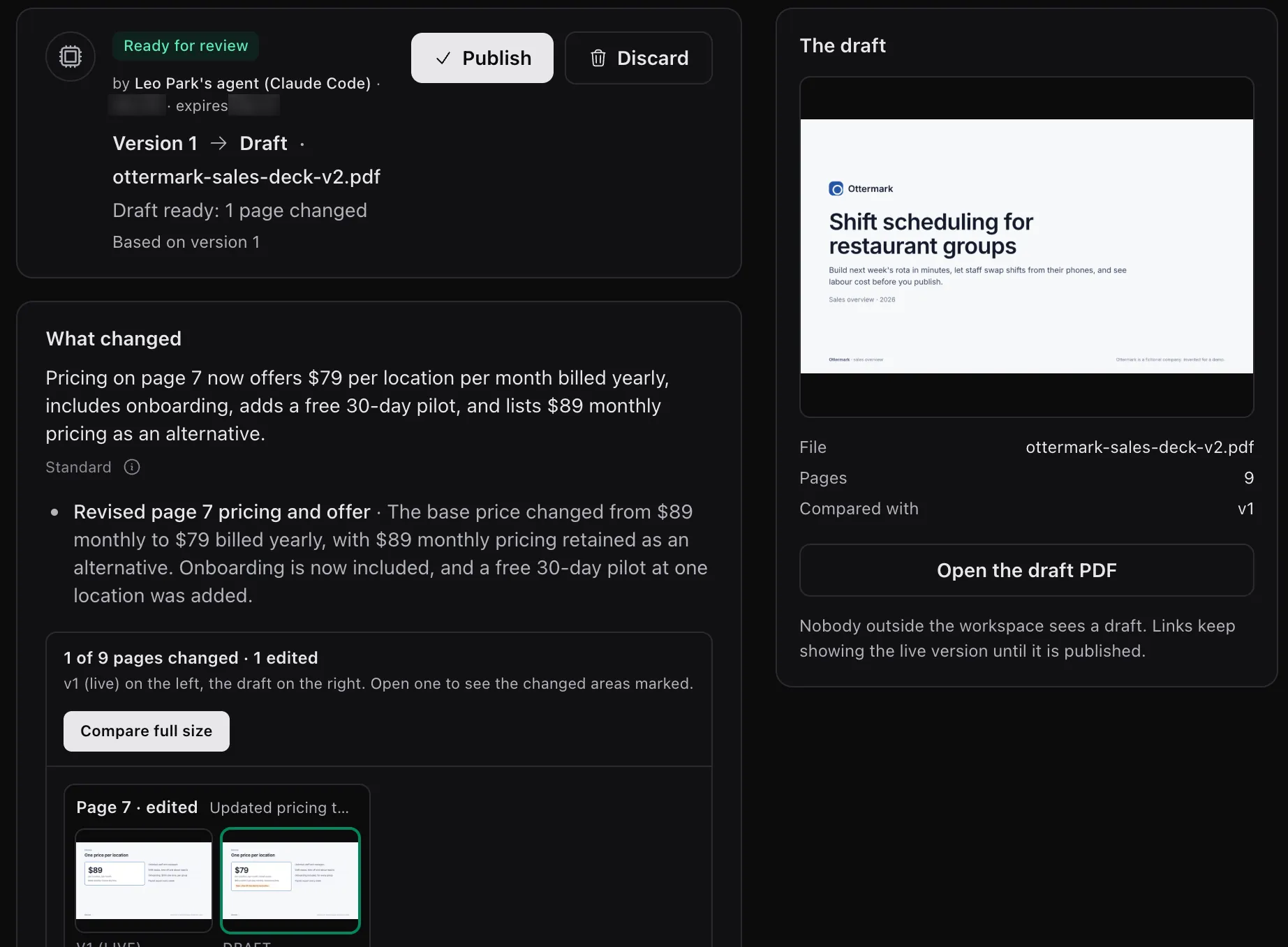 Review: what changed, in words and page by page. Dates are blurred. Tap to enlarge.
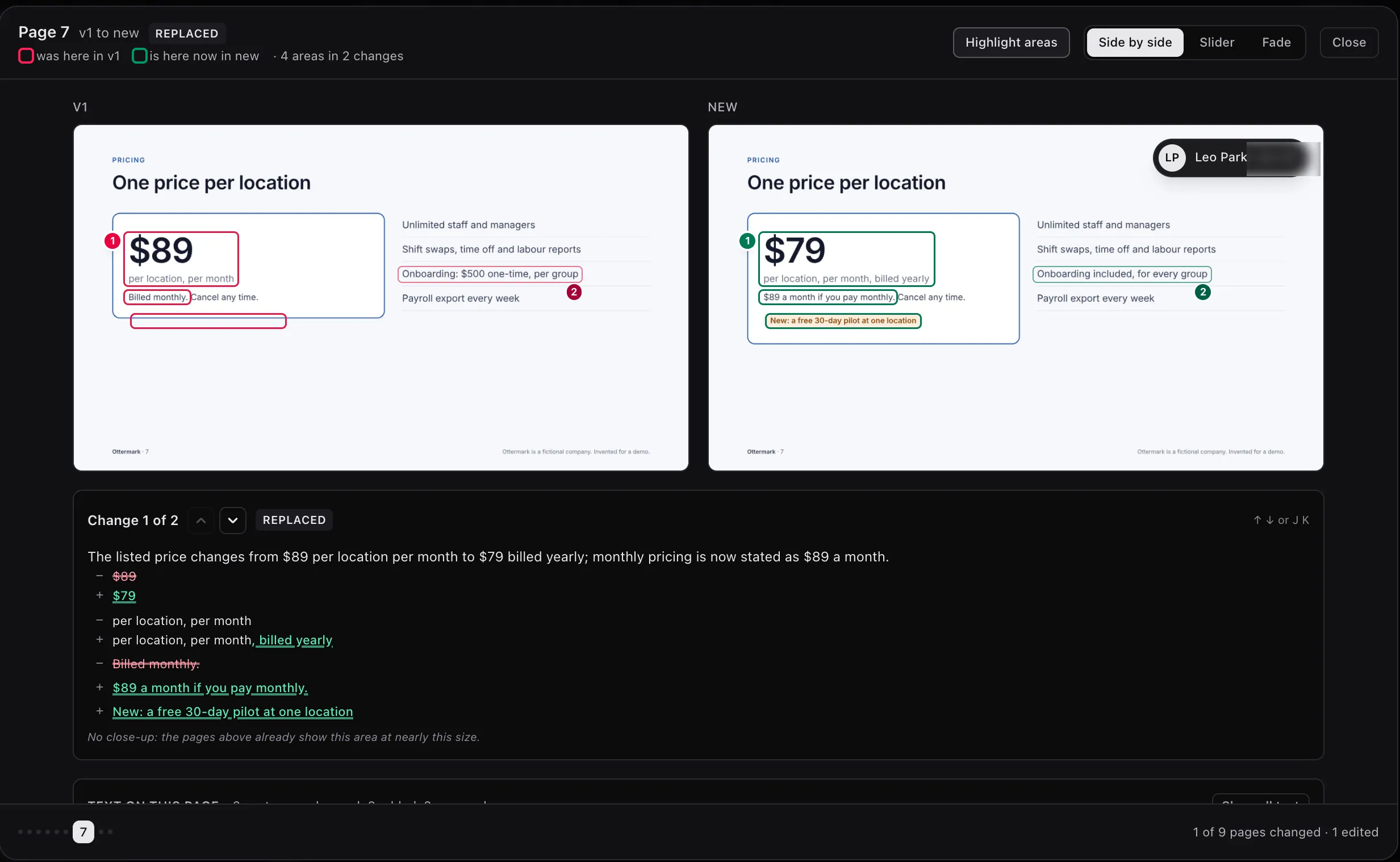 Compare full size, page 7. The date on Leo's chip is blurred. Tap to enlarge.
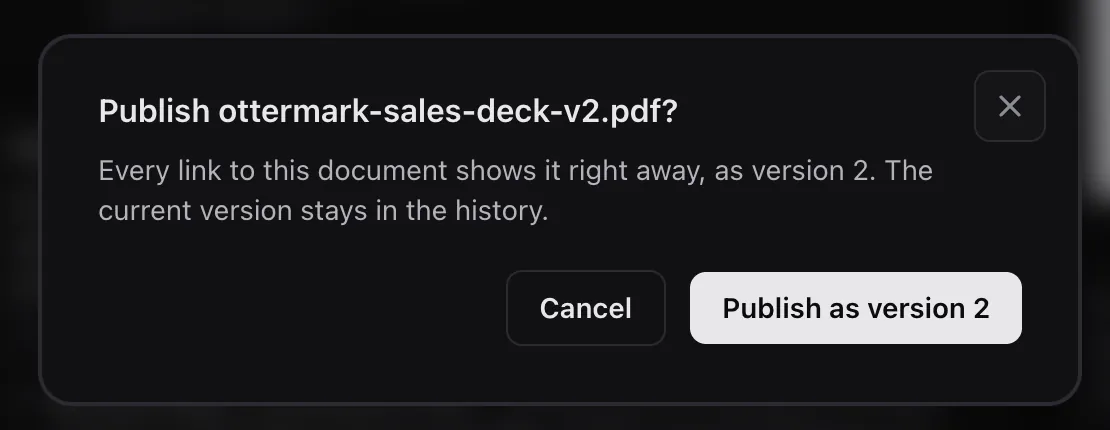 Publishing asks once. Tap to enlarge.
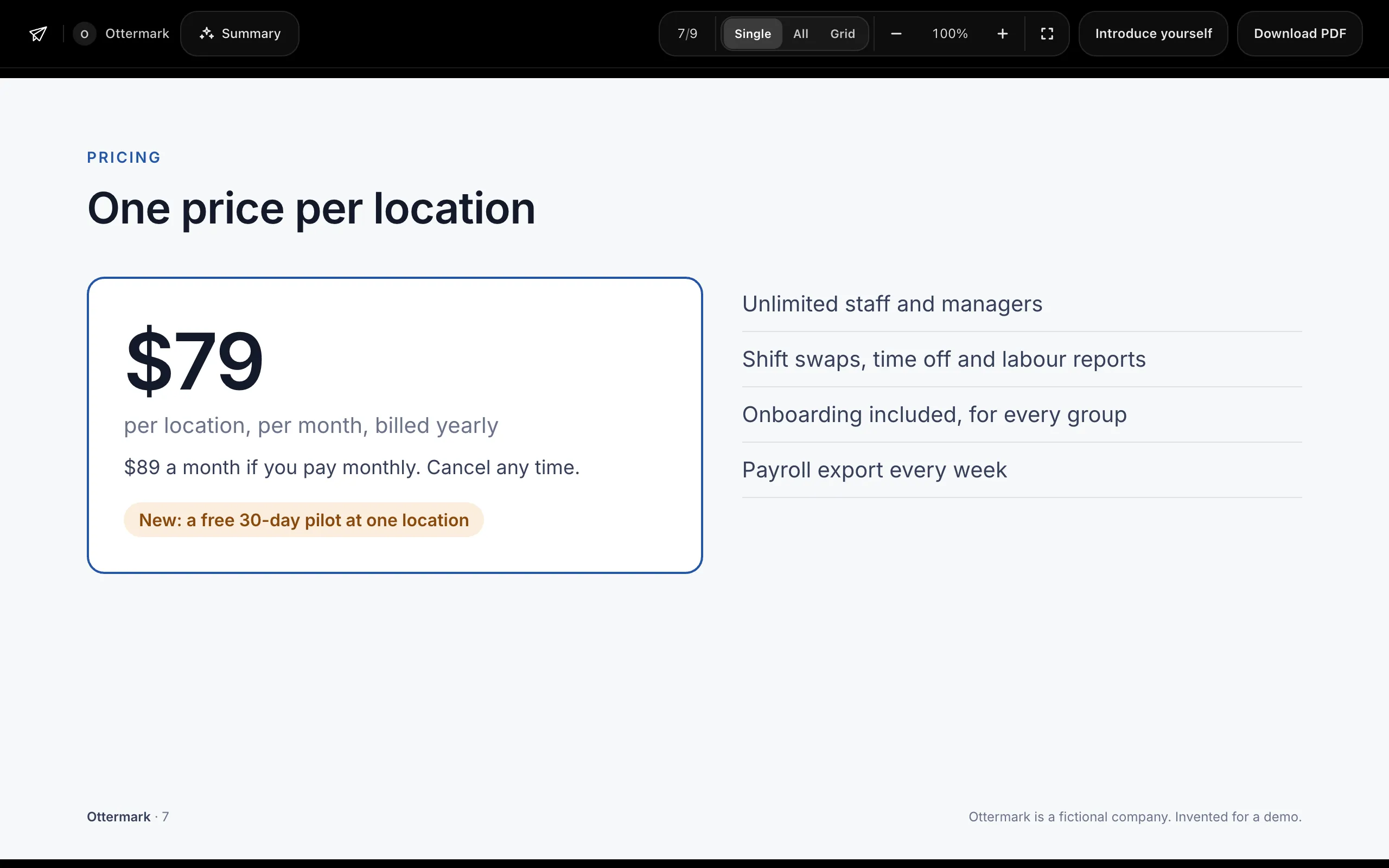 The same link after the publish, opened signed out: page 7 now shows the new pricing. Tap to enlarge.
Nobody outside the workspace ever sees a draft: not on a link, a project room or the viewer's version list. If a draft is not published within 14 days, it is discarded, and its owner is told two days before.
5. Who did what
History marks the new version From a draft, with "draft by Leo Park's agent (Claude Code)" and "published by Nadia Okafor" (Nadia herself sees "published by you"). Activity names the agent on every row it caused. Team, on Metrics, counts what each member and their agents added, published and drafted, and the views on the links each one made.
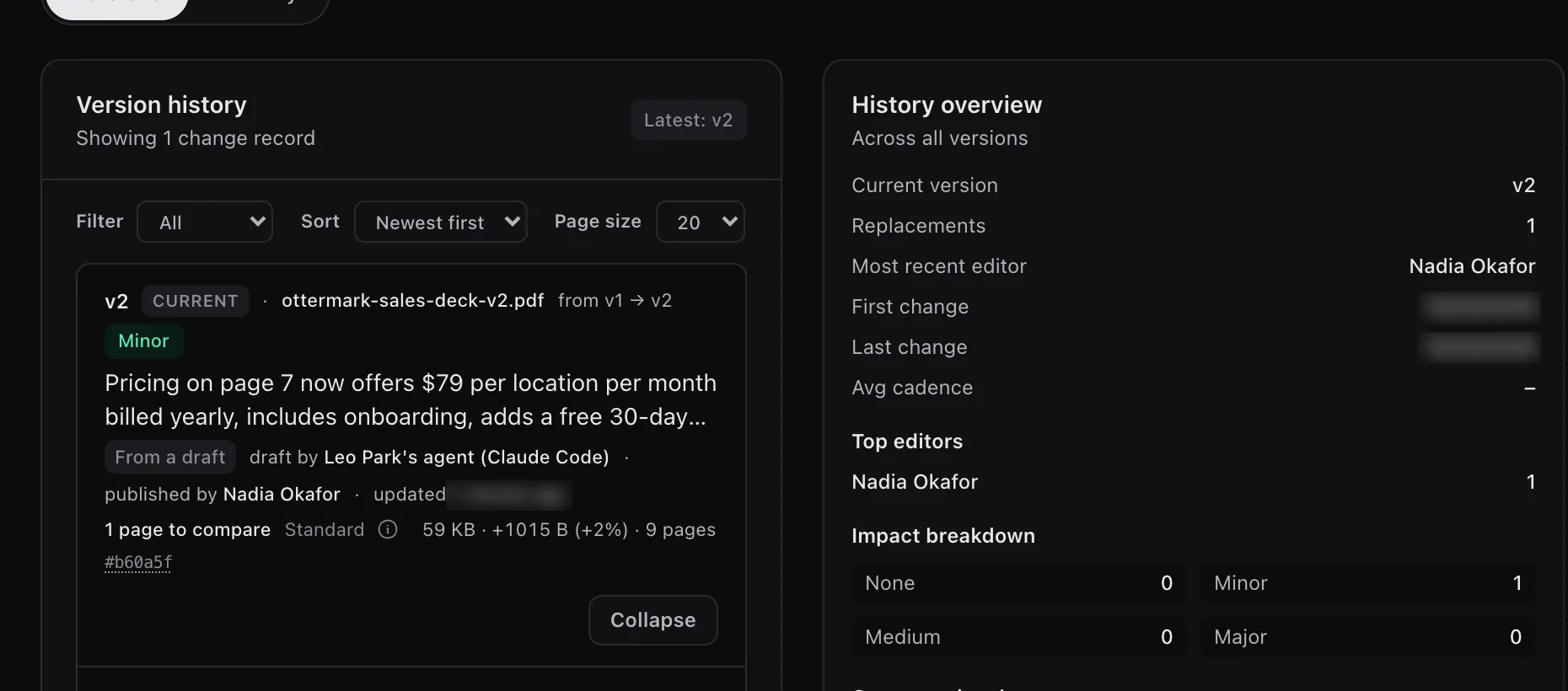 History as Grace sees it. Dates and the update time are blurred. Tap to enlarge.
 Activity: the draft, credited to Leo and his agent. The time is blurred. Tap to enlarge.
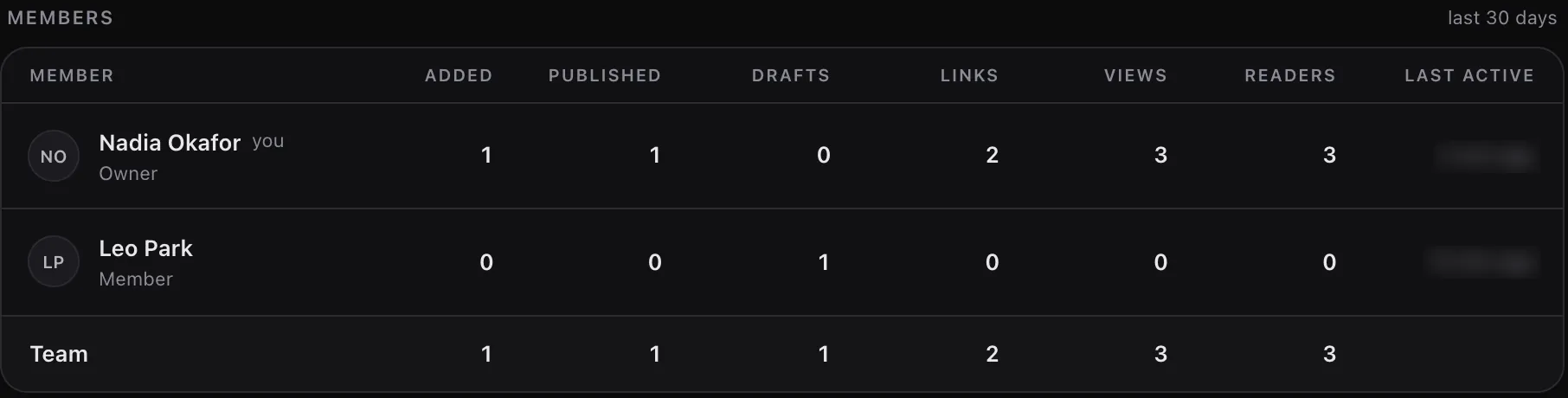 Metrics, Team, last 30 days. Last active times are blurred. Tap to enlarge.
6. Or just ask your agent
Nadia can do the review through her own agent too. The next week Leo's agent adds another draft, a change to the rollout slide. Nadia asks Claude Code:
Is anything waiting for my review on LinkDrop?
It lists Leo's draft and what changed: only page 6. Then:
Publish Leo's draft.
Because prospects have already opened the deck, LinkDrop asks Nadia to confirm in Claude Code first ("Yes, do it"), and then the draft is live as version 4 on every existing link. An agent can publish or discard only where its person can.
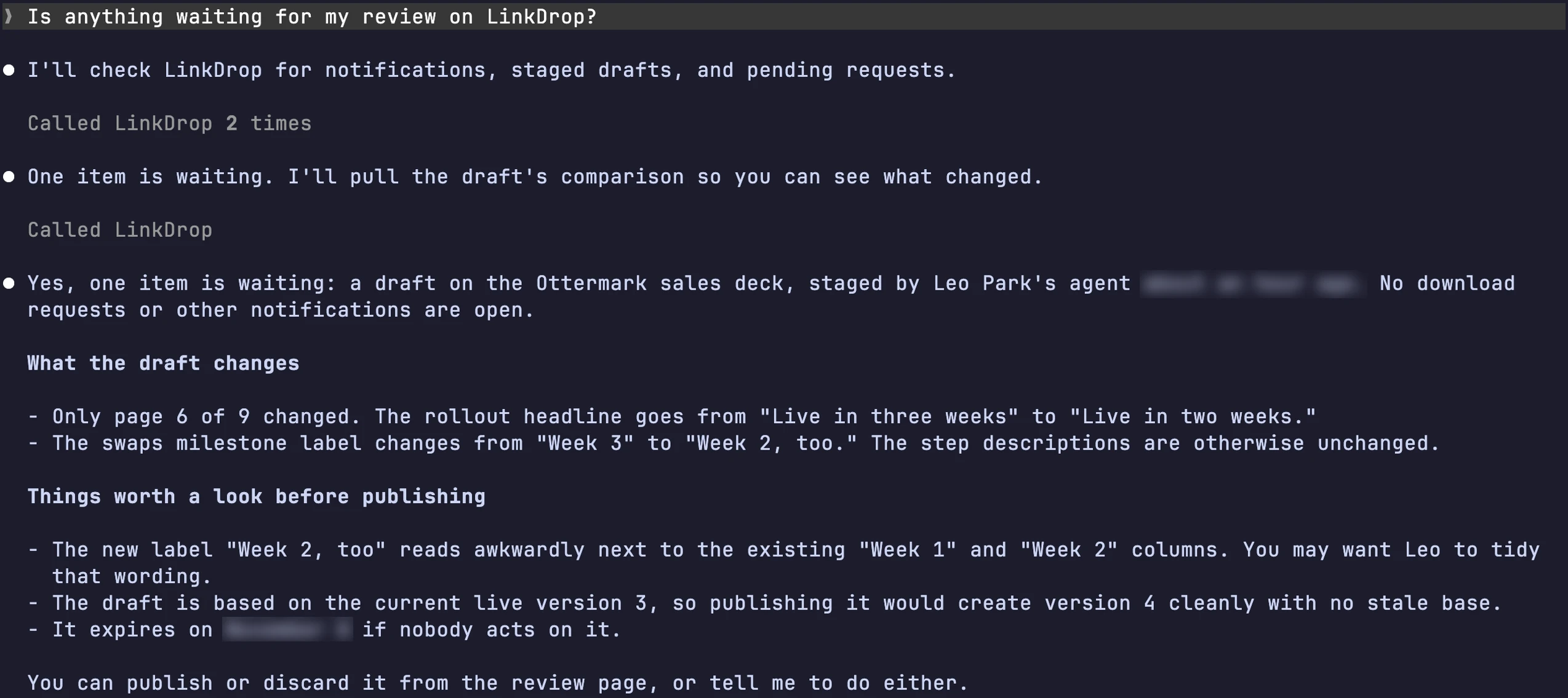 Nadia's agent finds the draft waiting for her. A relative time and the expiry date are blurred. Tap to enlarge.
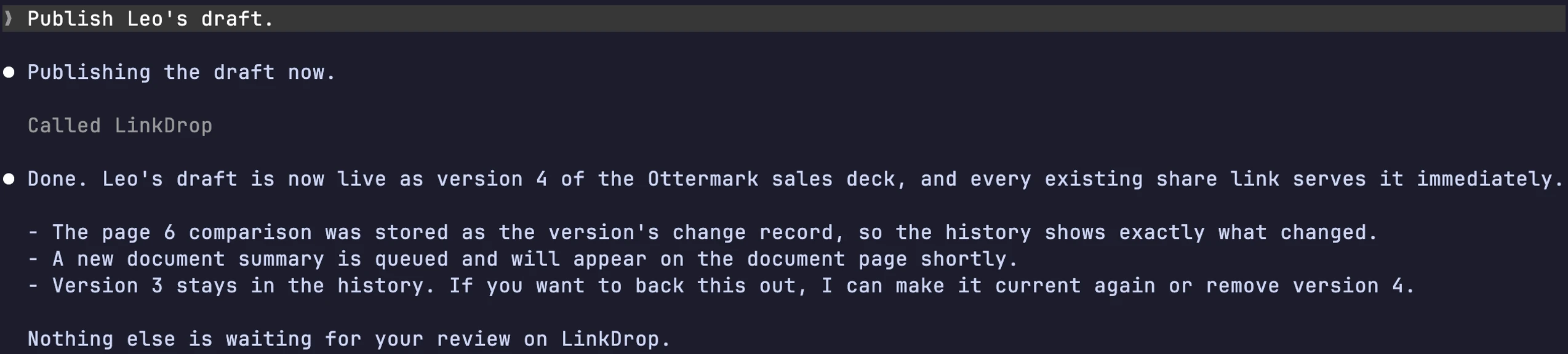 After Nadia confirmed in the prompt LinkDrop showed (in the video), the draft is live as version 4. Tap to enlarge.
The result
Leo kept the deck current without waiting on anyone, and nothing reached a prospect until Nadia had looked at it. Dana's link never changed, and she saw the new pricing the next time she opened it. Grace followed along without a seat, and the record of who drafted and who published stays with the deck.
The same idea for one person: a founder sends her pitch deck to three investors, or a homeowner sends deck photos to two contractors.
Without an agent
Everything above works in the web app. Leo opens the deck, clicks Upload new version and chooses Save as a draft, then picks the file. Nadia reviews and publishes from Drafts exactly as in step 4.
Good to know
- Who can publish. By default, the document's owner (who uploaded it) and the workspace's owners and admins. On Pro, Who can publish in the document header can add up to five teammates, or let everyone on the team publish; an owner or admin can change the workspace's default under Manage workspace. Viewers never publish. See Versions and history.
- One open draft each. A newer draft from the same person replaces their earlier one on that document.
- Credits. Comparing a draft with the live version uses credits when the draft is prepared, like the compare for a replacement; the new version's summary is written when it is published. A failed draft is never charged. Teammates' AI runs can be capped per person. See Teams and workspaces.
- Your plan. Free workspaces are single-user and replace files directly; inviting anyone, drafts, choosing more publishers and the Team tab need Pro. See Credits and plans and Pricing.
- Testing your own link. Opens while you are signed in to LinkDrop, or by a teammate, are not counted. Open it signed out and it counts as a reader.