
By the LinkDrop team.
The short answer
Add LinkDrop to Claude Code with one command, sign in once, and then ask in plain words:
Share ./board-deck.pdf with Priya at Northwind. Password "northwind-q3", no downloads.
Claude Code uploads the file to LinkDrop, makes a link labelled for Priya, and gives you the link to send. Later you can ask "Did Priya open the board deck?" and it reads the answer from LinkDrop: when her link was opened, which pages were read, and for how long.
LinkDrop connects over MCP, the protocol Claude Code uses for outside tools. The server is remote, so there is nothing to install.
The whole flow, recorded in a real Claude Code session on 20 October 2026, narrated with a synthetic voice and word-by-word captions under the picture. Waits are sped up, and each sped-up stretch is marked in the bar on top. A CLI warning line and the local clock times were taken out. Watch on YouTube
Prefer slides? Flip through this guide as a LinkDrop presentation: the same steps as a PDF, shared the way this guide describes.
The recording runs against a test workspace called ACME. From the workspace check onwards its connection is named LinkDrop-Reviewer, because that machine had other LinkDrop connections too; yours is LinkDrop. Every prompt typed in it is quoted in this guide, word for word.
Step 1: Add LinkDrop
In a terminal, run:
claude mcp add --transport http --scope user LinkDrop https://mcp.lnkdrp.com/mcp Claude Code confirms it added the server to your user config. Tap to enlarge.
 Before you sign in, claude mcp list shows LinkDrop as needing authentication. That is expected. Tap to enlarge.
--scope user matters. Claude Code's default scope is local: it registers the server only for the folder you ran the command in, and a session started anywhere else will not list it.
If you want everyone working in one repository to get LinkDrop, use --scope project instead. That writes the server into a .mcp.json file at the root of the repository, which you check in. In an interactive session, Claude Code asks each person to approve a server from that file before it uses it.
Step 2: Sign in
Start Claude Code and run /mcp. Pick LinkDrop and follow the sign-in. You can also run claude mcp login LinkDrop from your shell.
 The /mcp menu, before sign-in. Tap to enlarge.
 claude mcp login --no-browser prints the address to open instead of opening it; the address is cut off here. A warning line the CLI printed in this run was removed from the picture. Tap to enlarge.
LinkDrop opens in your browser. Sign in, pick the workspace this agent should work in, and click Allow. No key changes hands, and Claude Code refreshes its own credential from then on. The recording does not show this browser step: it is the LinkDrop sign-in page, then a short screen where you choose the workspace and allow the agent.
To check, ask: "Which LinkDrop workspace are you connected to?" It answers with the workspace name, the plan and the credits left.
 The check, answered from LinkDrop. This test workspace is ACME and its connection is named LinkDrop-Reviewer; yours is LinkDrop. Tap to enlarge.
Connecting an agent works on every plan, Free included. Agents never take a seat. The full reference, including the API key route for scripts and CI, is on the Claude Code setup page.
Step 3: Share a PDF
Say where the file is and who it is for. Claude Code picks the way in:
- A file in your project or on your disk. The hosted LinkDrop server cannot read your disk. So Claude Code asks LinkDrop for a one-time upload address, sends the file there with
curl, and then shares it. The address takes one PDF up to 50 MB, works once, and expires after 15 minutes. By default Claude Code asks you before it runs a shell command such ascurl, so expect to approve it unless your permission settings already allow it. - A small file can also be sent inside the tool call itself, if it is under 3 MB after LinkDrop optimizes it.
- A file in Google Drive. Connect Drive once on the Integrations page, then name the file. LinkDrop fetches it from Google. Docs, Slides and Sheets become PDFs.
- A public web link to a PDF. LinkDrop downloads it, up to 50 MB.
Then it creates the document and its link, waits for processing, and returns the link. LinkDrop writes the document's summary itself; the agent cannot supply its own. The summary uses a credit. Getting a file to your agent explains every route.
This is the prompt from the recording, for a file on disk:
Share ./board-deck.pdf with Priya at Northwind. Password "northwind-q3", no downloads.
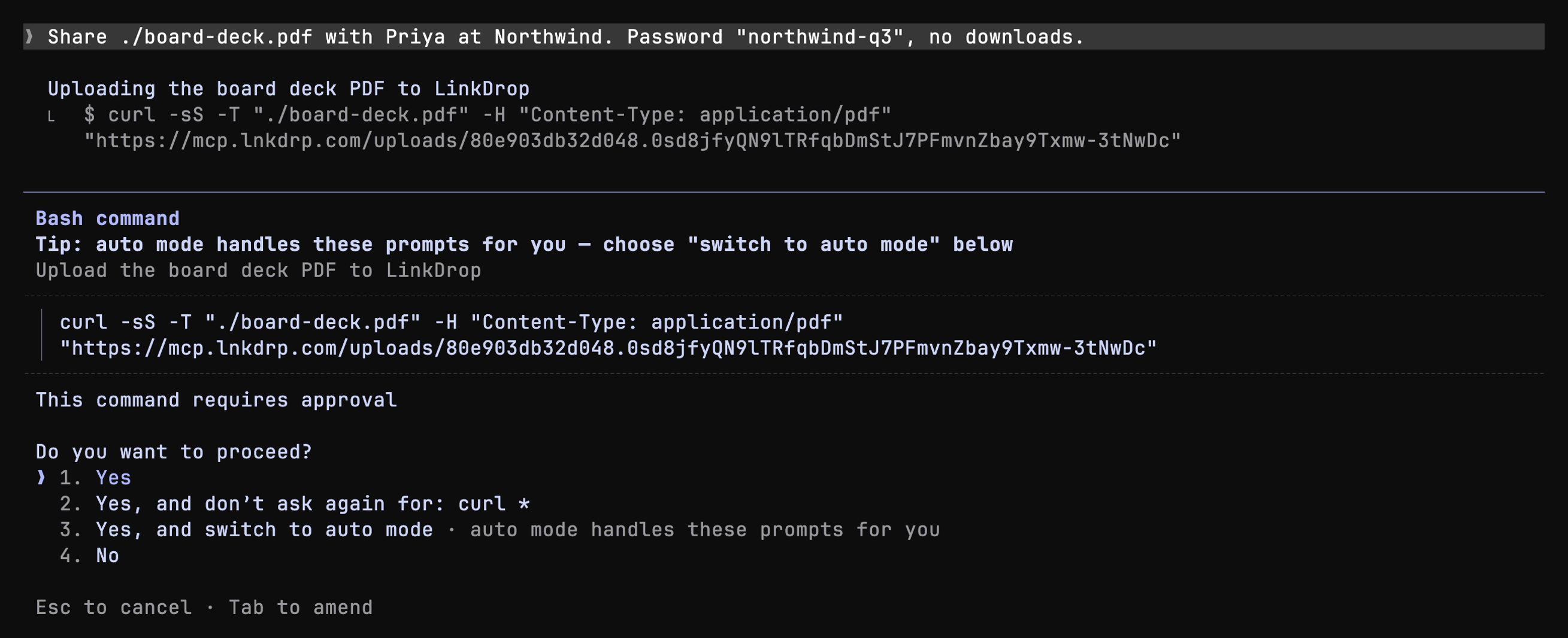 The approval prompt for the curl upload. The one-time address in it has already been used and has expired. Tap to enlarge.
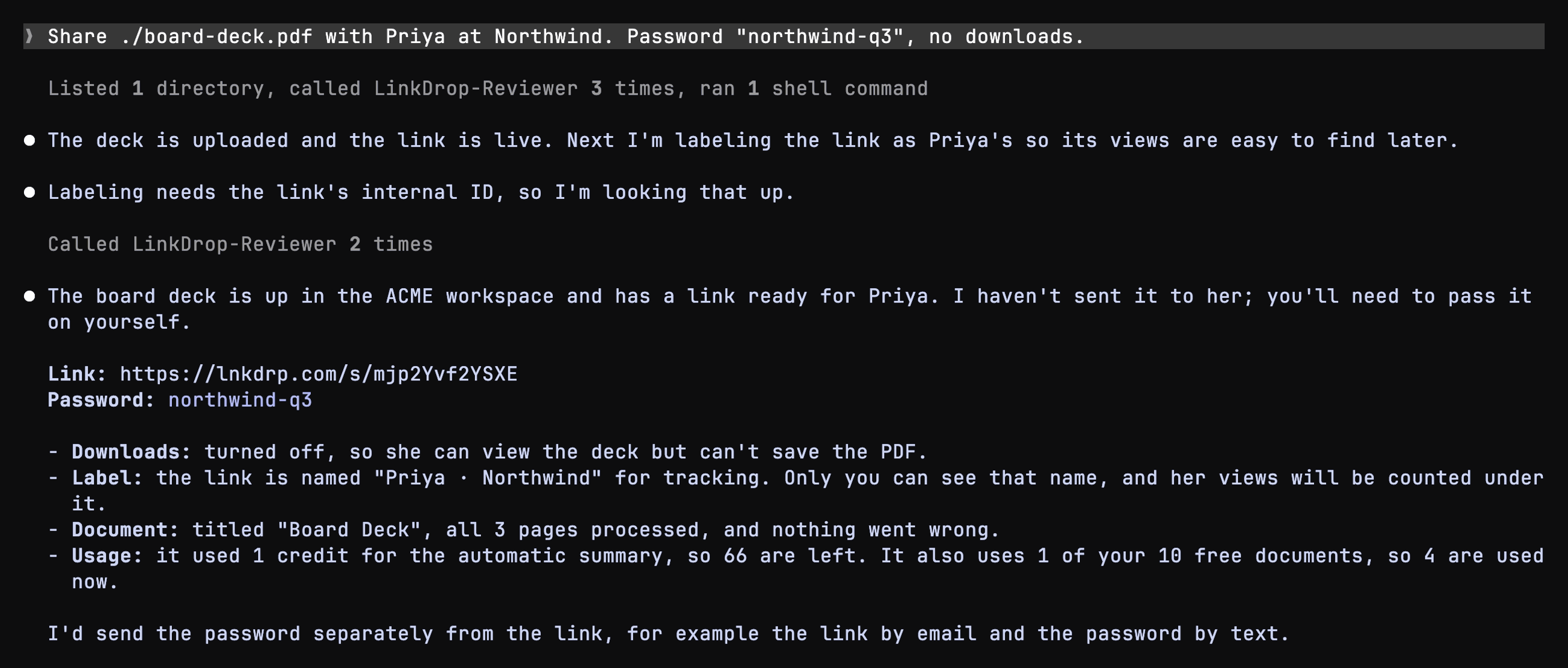 The link to send, with its password, downloads off and a private label for Priya. The connection here is named LinkDrop-Reviewer; yours is LinkDrop. Tap to enlarge.
Priya opens the link and enters the password. With downloads off she can read every page but cannot save the PDF. The Download PDF button she still sees asks you for a copy; it does not hand her the file.
 What Priya sees first: the password gate. Tap to enlarge.
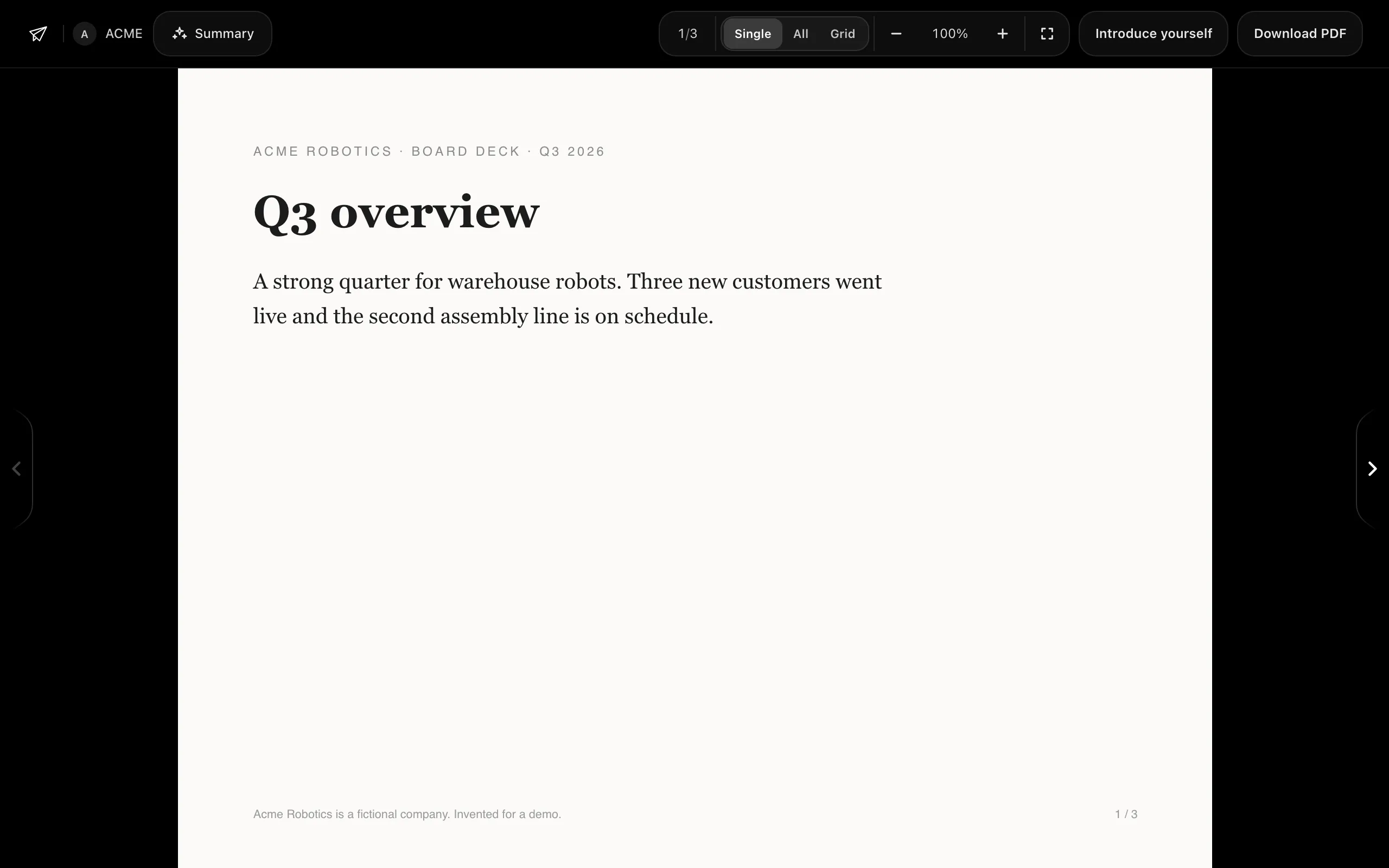 After the password: page 1 of the deck. With downloads off, Download PDF opens a request to you instead of a file. Tap to enlarge.
Prompts that work:
- "Share ./out/report.pdf as a LinkDrop link for the finance team. Expire it on Friday."
- "Make a separate link of the pricing deck for each of these three people."
- "Put the three PDFs in ./dataroom into a new LinkDrop project called Seed round and give me one link for Northwind Ventures."
Give each recipient their own link. Each link has its own private label, password, expiry and analytics, so you can tell readers apart and turn one off without touching the others. See Share links.
Step 4: Replace the file without breaking the link
When you regenerate the PDF, ask:
Replace the board deck with the new ./board-deck.pdf. Keep the same link.
Claude Code uploads the new file the same way, so expect the curl approval again.
The new file goes onto the same document as a new version. Every link keeps its address, its settings and its analytics, and readers see the new version on the link they already have, straight away. LinkDrop writes a new summary and compares the versions, which uses credits.
In a team, only people who can publish a document can replace it: its owner, the workspace's owners and admins and, on Pro, anyone else allowed under Who can publish. Claude Code acts as you. If you cannot publish that document, LinkDrop refuses the replace and nothing changes; on Pro, Claude Code can save your file as a draft instead, for someone who can publish to review. See Versions and history.
This is the part a build script likes: the link you sent last week stays right.
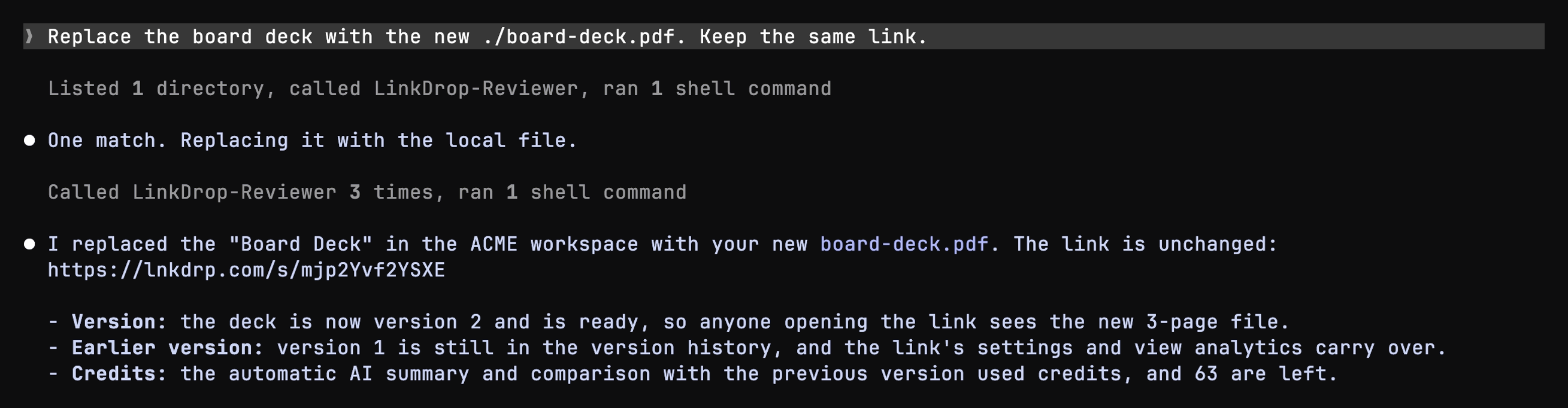 The replace, done: the same link, now on version 2, with version 1 kept in history. Tap to enlarge.
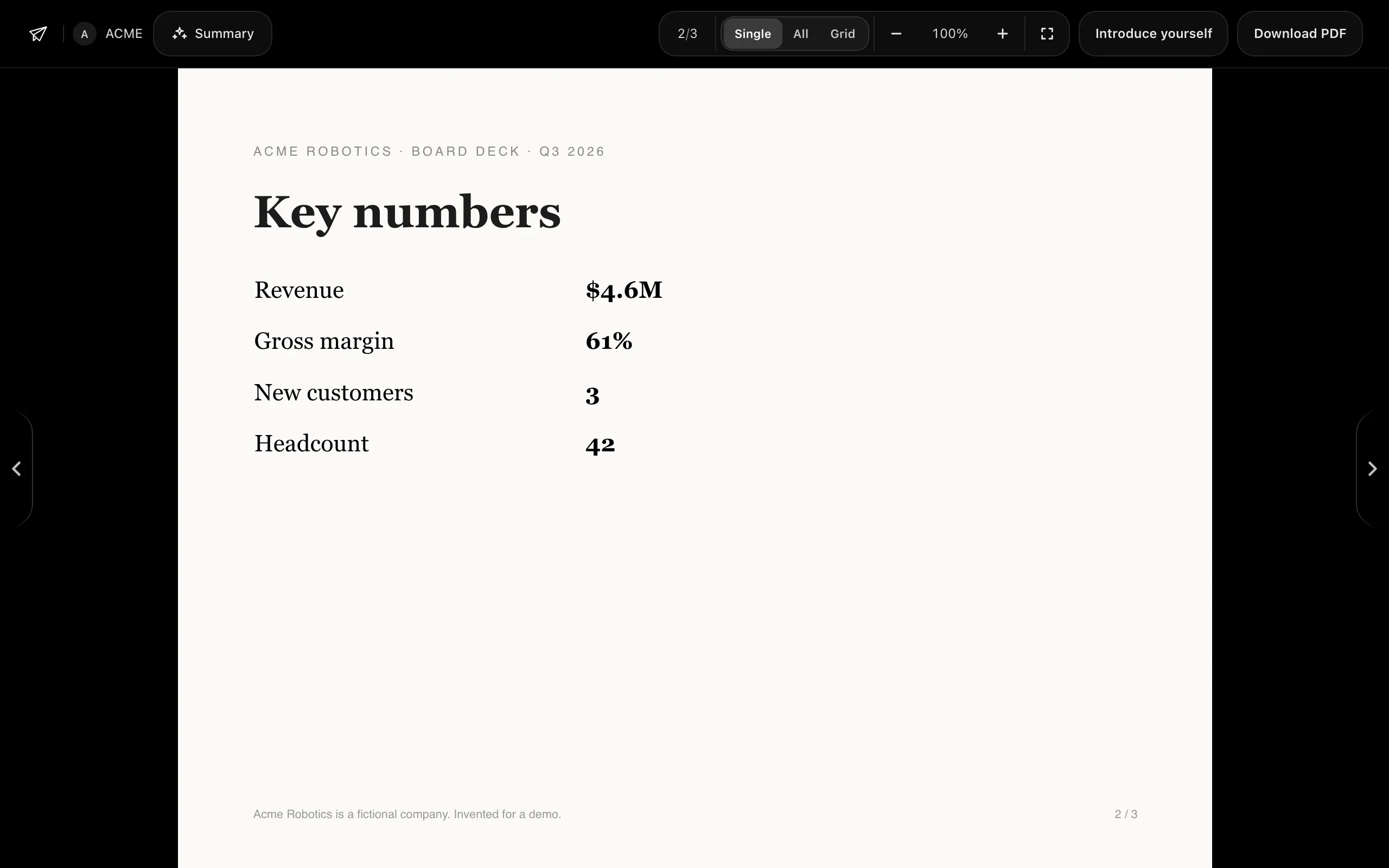 The same link after the replace. Page 2 now says revenue $4.6M; version 1 said $4.2M (not pictured). Tap to enlarge.
Step 5: Ask who read it
Claude Code can read the same numbers you see in the app, on every plan:
- "Who opened the board deck this week?"
- "Which pages got the most time on Priya's link?"
- "What did my agents do in LinkDrop today?"
For a document or a link it gets views, pages read and time on each page, and the recent visits, up to 50 at a time, each with its visit brief or the reason there was none. Your own and your teammates' opens are not mixed in; they are counted separately. Analytics explains each number.
A link labelled for Priya tells you which link was opened, not who held the screen. A reader is named only when they tell LinkDrop who they are: they introduce themselves, sign in, or give an address when they ask for a copy.
In the recording the question was "Did Priya open the board deck? Which pages?" The two views it found were the recording's own test visits, so Claude Code reports them as anonymous and does not claim they were Priya.
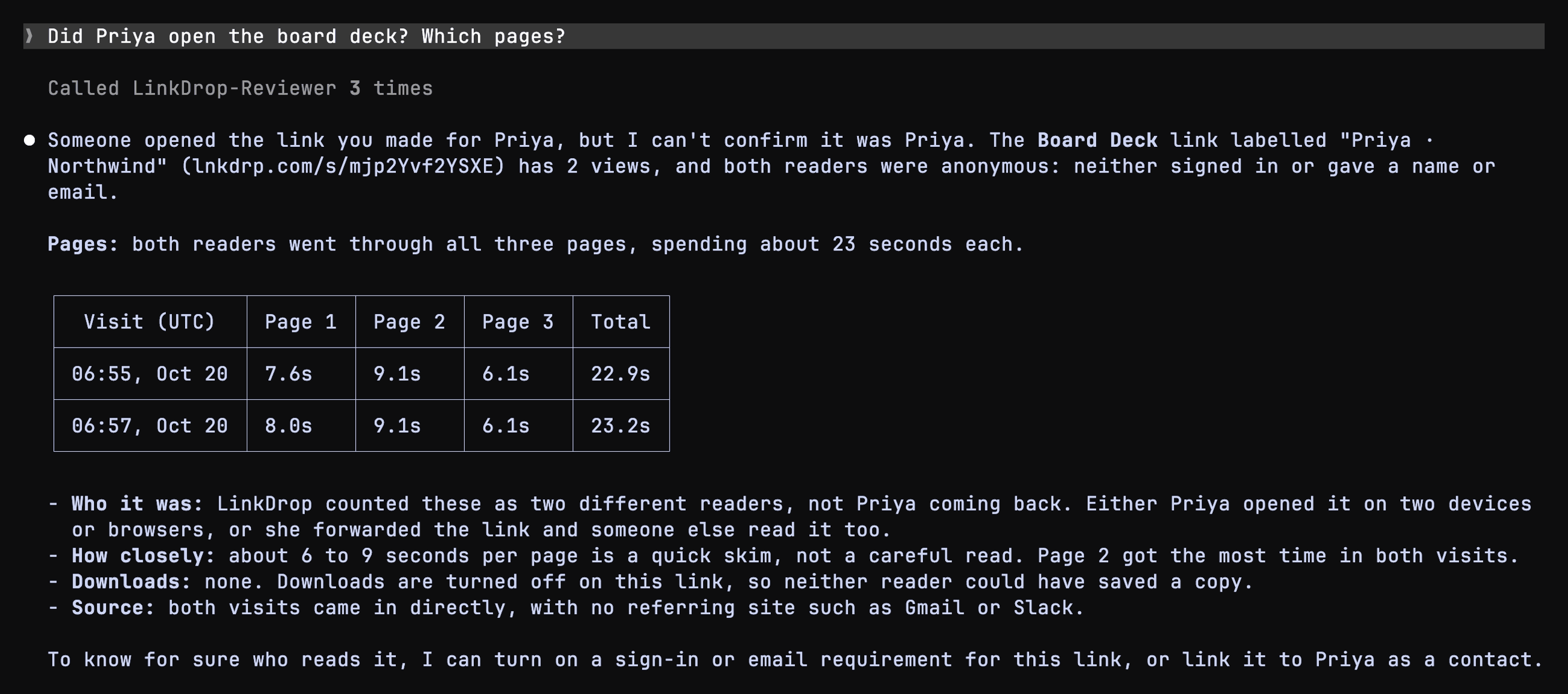 Two anonymous views on Priya's link, with time on each page. These were the recording's own short test visits. Tap to enlarge.
What asks you first
LinkDrop asks you before a delete takes effect (a share link, a document, a project, a project link or a contact) and before your agent changes your settings. It also asks before changing who can publish a document, discarding a draft or removing a version, and before rolling back or publishing a draft once recipients have opened the document. The prompt shows what would be affected, such as how many people opened the link. If Claude Code cannot show that prompt, it shows you the same details in the chat and waits for your yes. You can let one agent do one of these without asking: tick Always allow in the prompt, or choose it on the agent's page in LinkDrop, where you can change it later.
The recording ends with "Delete the board deck from LinkDrop."
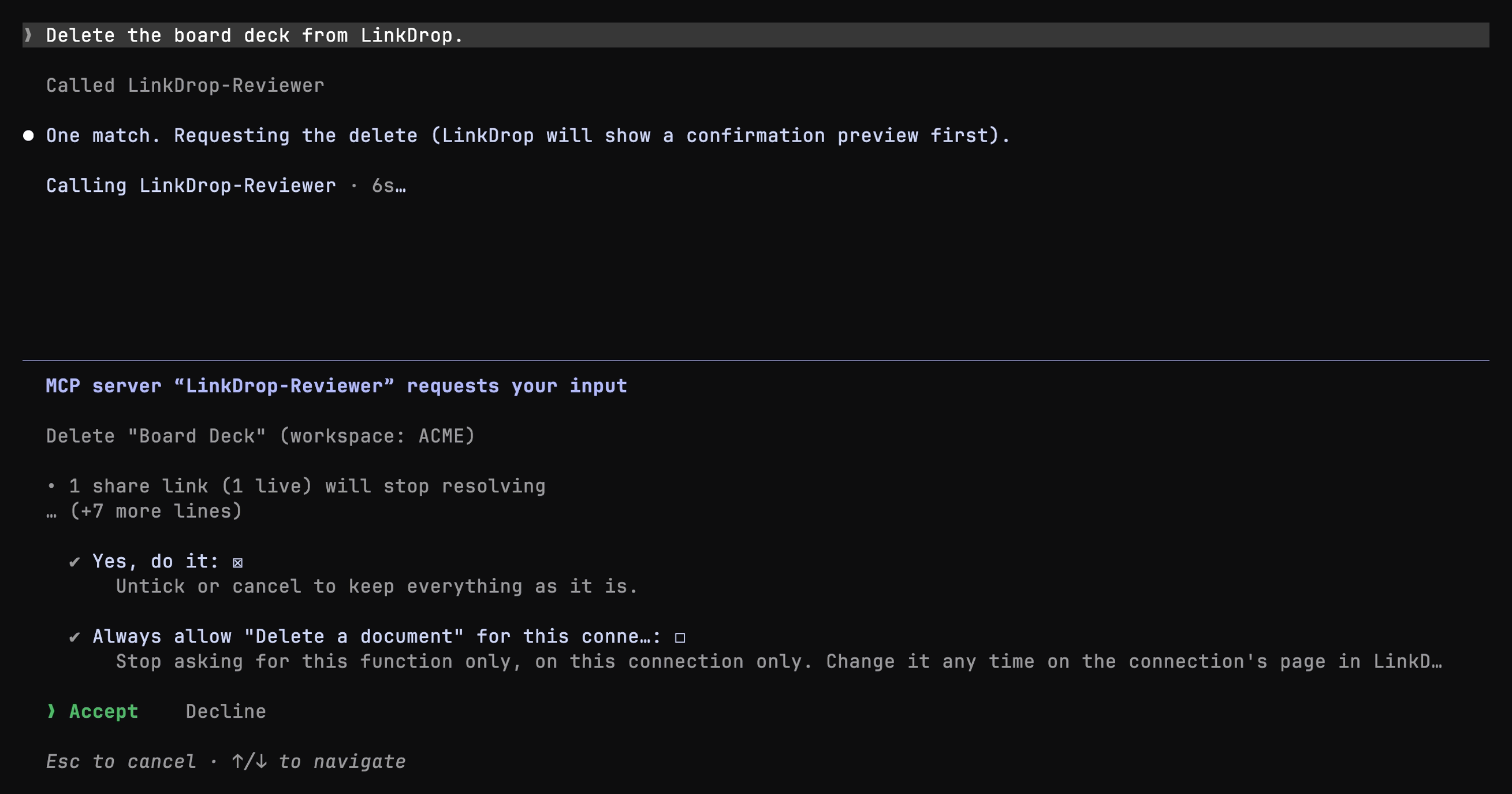 LinkDrop shows its own prompt inside Claude Code, naming what will stop working. Always allow is left off. Tap to enlarge.
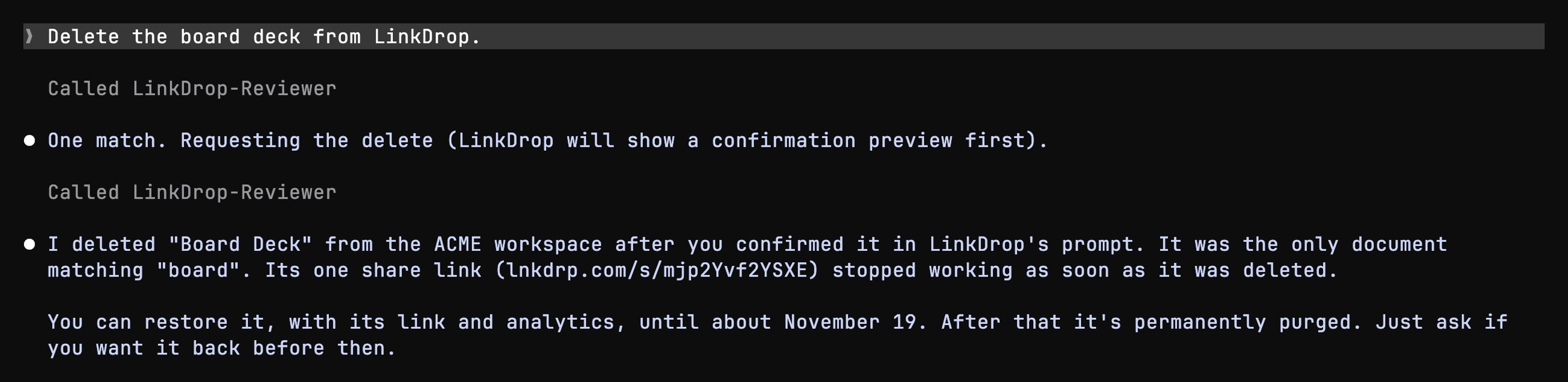 After you accept: the link stops working, and the document can be restored for 30 days. Tap to enlarge.
Archiving asks first only if someone already opened or downloaded the document. Disabling a link does not ask, because it can be undone. A deleted document can be restored, file and links included, for 30 days.
Billing, keys, your sign-in email, deleting your account or a workspace, and who is in your workspace stay with you in the app.
Everything is attributed
Everything the agent changes shows in the workspace's activity feed under the agent's name, for example "Claude Code created a link". The Agents page lists each connected agent with when it was last used. You can revoke an agent you connected, and owners and admins can revoke anyone's; it stops at once. See Activity.
Troubleshooting
- LinkDrop needs authentication. Run
/mcp, pick LinkDrop and sign in again. - "LinkDrop already exists". Claude Code will not add a second server with the same name in the same scope. Run
claude mcp remove LinkDropfirst, or add a second workspace under another name, such asLinkDrop-Acme. - The upload never reached LinkDrop. If you declined the
curlprompt, or your network blocks the upload, nothing is created. Ask Claude Code for an upload link instead: you open it in your browser and choose the PDF. Google Drive and a public link also work, because LinkDrop fetches those itself. - A file sent inside the tool call is refused as too large. Ask for the one-time upload address instead, which takes PDFs up to 50 MB.
- Still stuck. The Agents page in the app shows the exact command for your workspace. Connect your agent has the full list of fixes, or contact support.
What it costs
Connecting Claude Code is free. Agents work under the same plan limits and credits you do. Free covers 10 shared documents and starts with 100 credits. Uploads, links, passwords and analytics never cost credits. AI runs do: the summary on each upload, compares, visit briefs and reader profiles. See Credits and plans, what credits cost and Pricing.