
By the LinkDrop team.
The short answer
You cannot reliably track a PDF once you attach it to an email. The file goes to the other person's computer, and nothing in it reports back.
What you can track is a link. Put the PDF behind a link, send the link, and the page that shows the PDF records the visit. That is how LinkDrop works: you upload the PDF once, make a link for each person you send it to, and see who opened it, which pages they read and how long they spent on each.
The rest of this guide shows how, and what the numbers mean.
The whole flow, recorded on 20 October 2026 on a LinkDrop test workspace (the workspace and account shown are test ones). Narrated with a synthetic voice, with word-by-word captions under the picture. Waits are sped up, and each sped-up stretch is marked in the bar on top. The full link addresses (from the local test server), the test account's email and clock times are blurred, and the recorder's pointer and the support-chat button were taken out of the frames. The reader's visit is shown in part. Watch on YouTube
Prefer slides? Flip through this guide as a LinkDrop presentation: the same steps, shared the way this guide describes.
Why the attachment cannot tell you
Email has read receipts, but they track the email, not the file.
- In Outlook, a read receipt confirms the message was opened. Microsoft's own help says the recipient can decline to send one, and "there is no way to force a recipient to send a read receipt" (Microsoft Support, read October 14, 2026).
- In Gmail, read receipts work only for work or school accounts, not personal @gmail.com addresses, and the recipient may have to approve sending one (Gmail Help, read October 14, 2026).
Even when a receipt comes back, it says the email was opened. It does not say the PDF was opened, or how far anyone read. An attachment still has its uses; see when an attachment is still the better choice.
Step 1: Put the PDF in LinkDrop
Sign in and click Upload in the left sidebar. It takes you to the home page: drop the PDF anywhere on it, or click Choose a PDF. You see a preview first, and nothing is uploaded until you click Upload & create link. LinkDrop takes PDFs up to 50 MB and 300 pages.
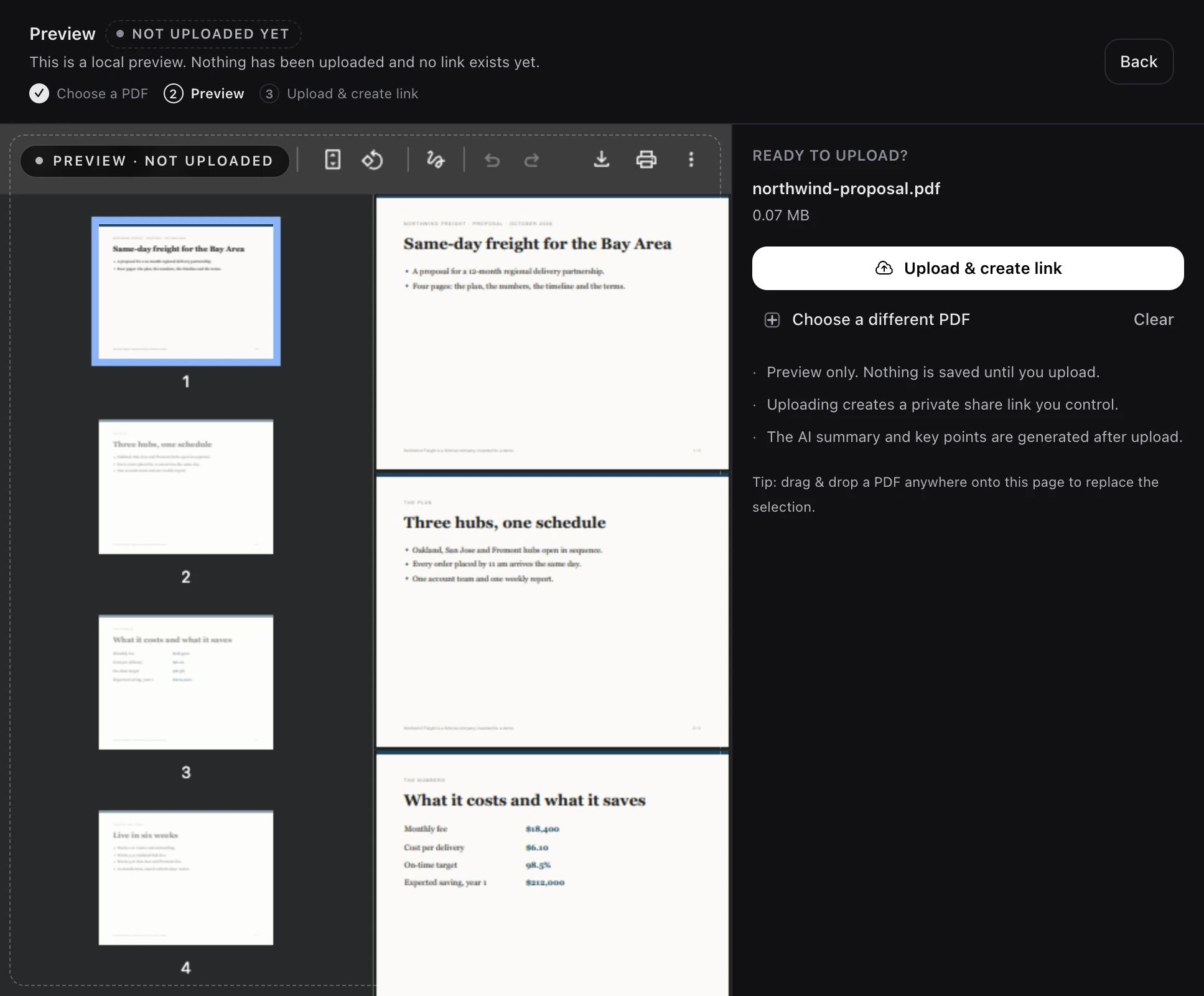 The preview. Nothing is uploaded until you click Upload & create link. Tap to enlarge.
LinkDrop then prepares the document. You can leave the page while it does.
There are two other ways in:
- From Google Drive. Connect Drive on the Integrations page, then ask your agent to share a file by name or link. Google Docs, Slides and Sheets are turned into a PDF first. See Google Drive.
- From an AI agent. Claude Code, ChatGPT, Cursor and other MCP clients can upload and share for you. See how to send a PDF from Claude Code, or every supported client.
By default, LinkDrop writes a short summary of each PDF you upload, which uses 1 credit; owners and admins can switch this off. See Credits and plans.
Step 2: Make one link per person
Every document starts with a Default link. For tracking, make a new link for each recipient instead of sending the same one to everyone.
Open the document's Links page (the link icon in its header) and click New link. Give the link a Label, such as the person's name. The label is private: viewers never see it. You can also set:
- Expires (optional), a date after which the link stops working;
- Password (optional), any length from 1 to 128 characters;
- Allow download, which is off by default on a new link. With it off, a reader can still ask you for a copy, and you approve or deny each request.
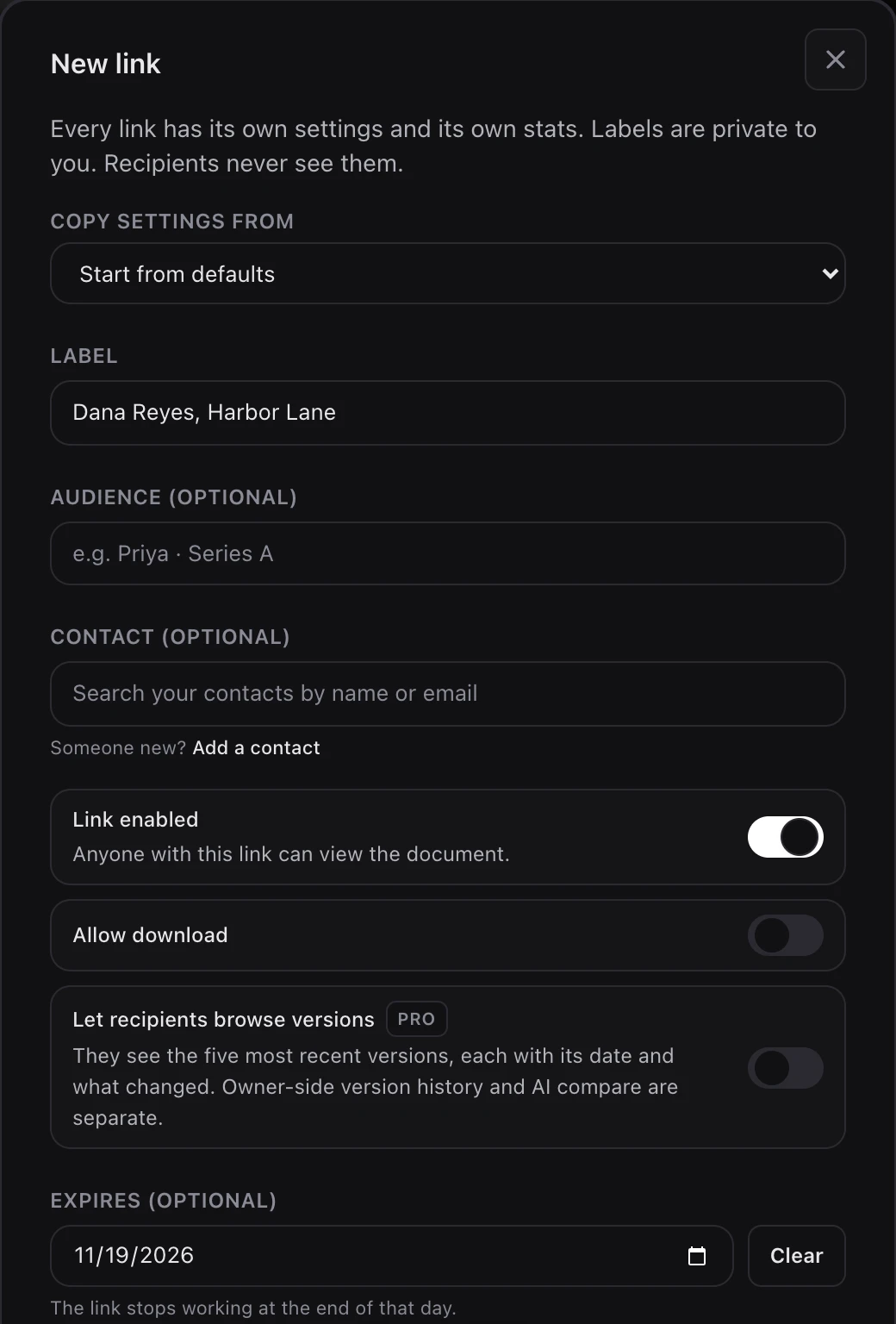 New link, with a label for one person, Allow download left off and an expiry date. Password (optional) and Create link are further down the dialog. Tap to enlarge.
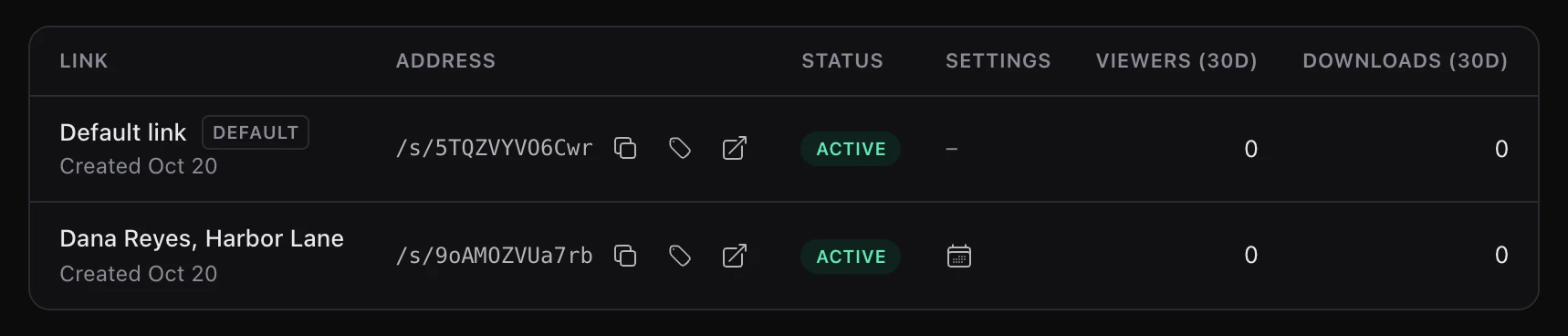 The links table after Create link: the Default link and the new one, each with its own stats. Cropped after the Downloads column. Tap to enlarge.
Why one link per person? Because a reader does not have to tell you who they are. When each person has their own link, the link itself tells you who opened it. A document can hold many links at once, and links are not a plan limit. See Share links.
Step 3: Send the link
Copy the link and send it however you like: email, chat, a calendar invite. LinkDrop links look like lnkdrp.com/s/....
Before you send it, you can click the open icon beside the link (its tooltip says Open in a new tab) to see what the recipient sees. Opens by you or a teammate while signed in to LinkDrop do not count as views.
The recipient does not need an account. The link opens in their browser.
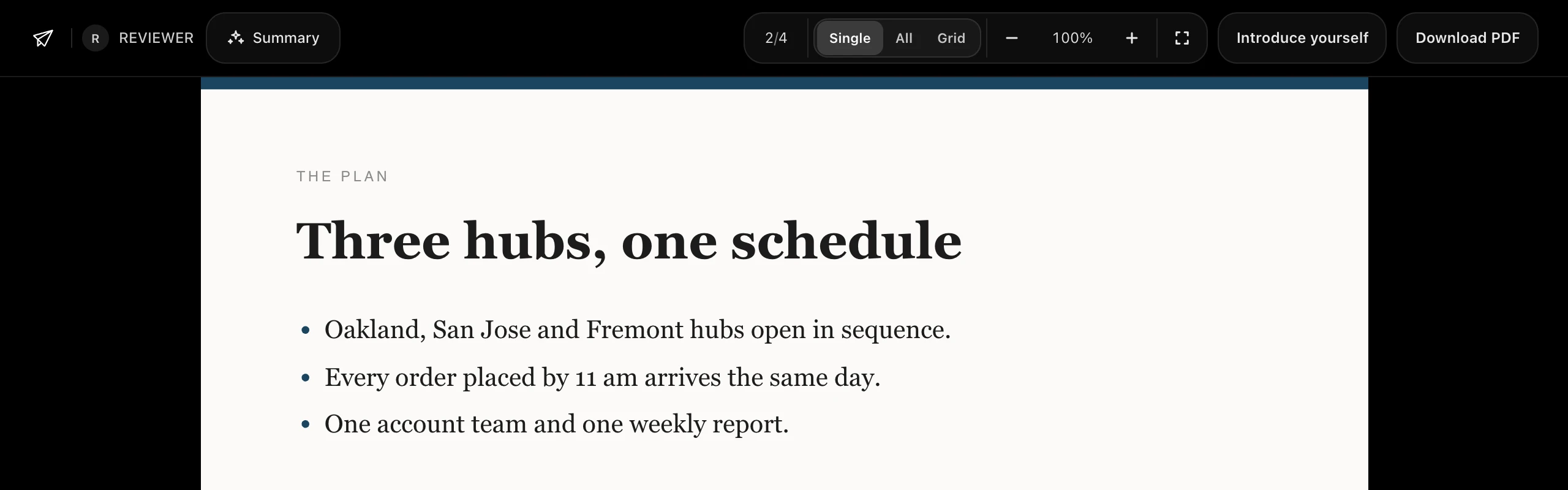 What the recipient sees, signed out: the viewer's toolbar and page 2. Tap to enlarge.
Once it is out, open the link's ... menu on the Links page and choose Mark as sent. Pick how you sent it (Email, Slack, Message or Other) and when; the time defaults to now. LinkDrop then measures how fast the link was opened from the moment you sent it, not from when you made it.
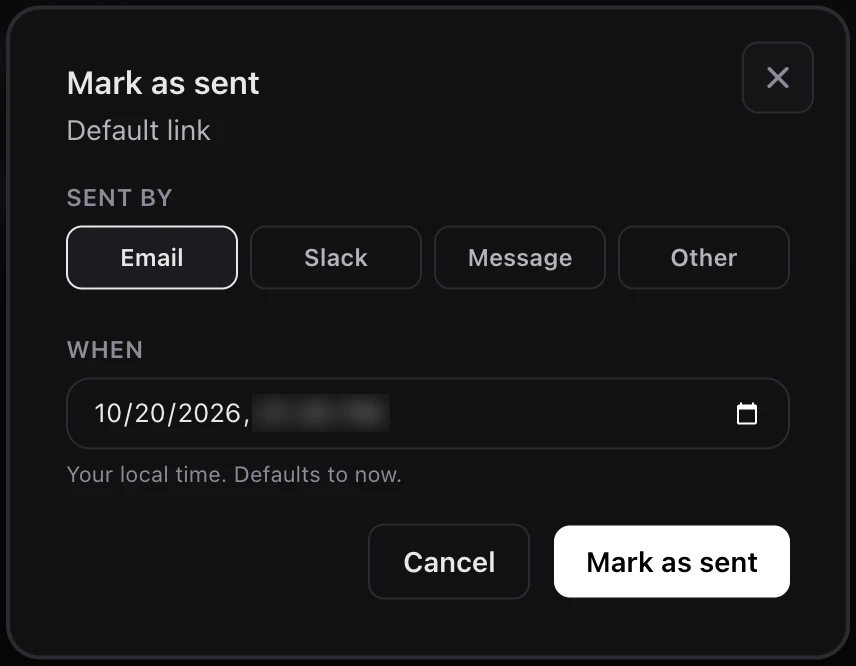 The Mark as sent dialog, here opened on the Default link. The clock time is blurred. Tap to enlarge.
After the first open, the link's row on the Links page says how soon that was, for example "Opened under a minute after you sent it".
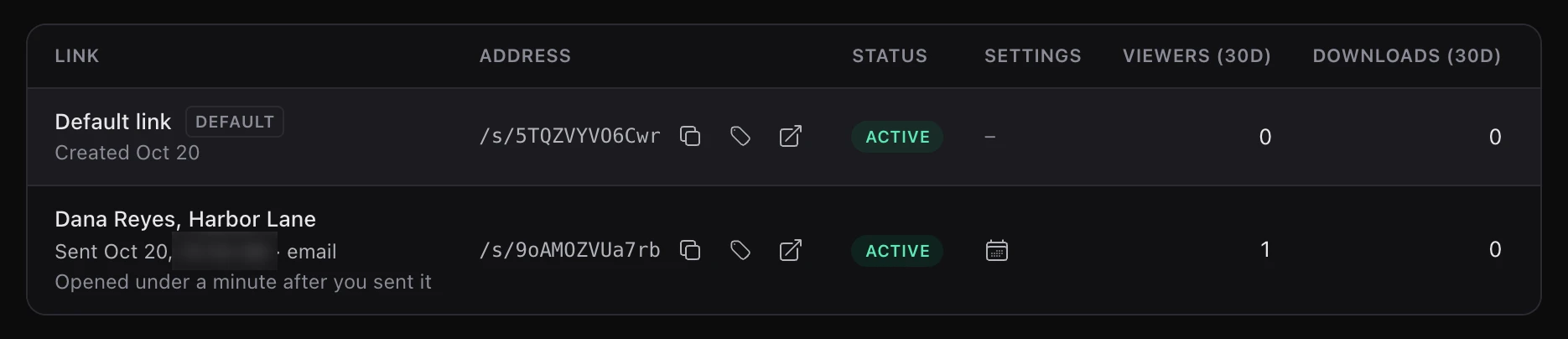 The sent link after its first open. The clock time is blurred. Tap to enlarge.
Step 4: Get told when it is opened
While someone has the document open, its page shows Reading now, with the page they are on, and a short notice pops up. The reader's own page in Metrics shows it too.
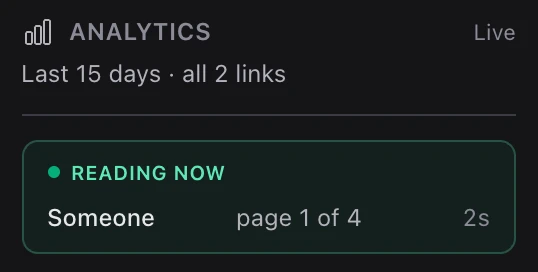 Reading now on the document page's Analytics card, while the recipient has the link open. Tap to enlarge.
By default, LinkDrop emails you the first time a reader opens one of your links, usually within a few minutes: open emails go out every five minutes. The email says which link was opened, when and how far they got, names the reader if they are known, and links to that reader's page. A reader coming back does not send a second open email.
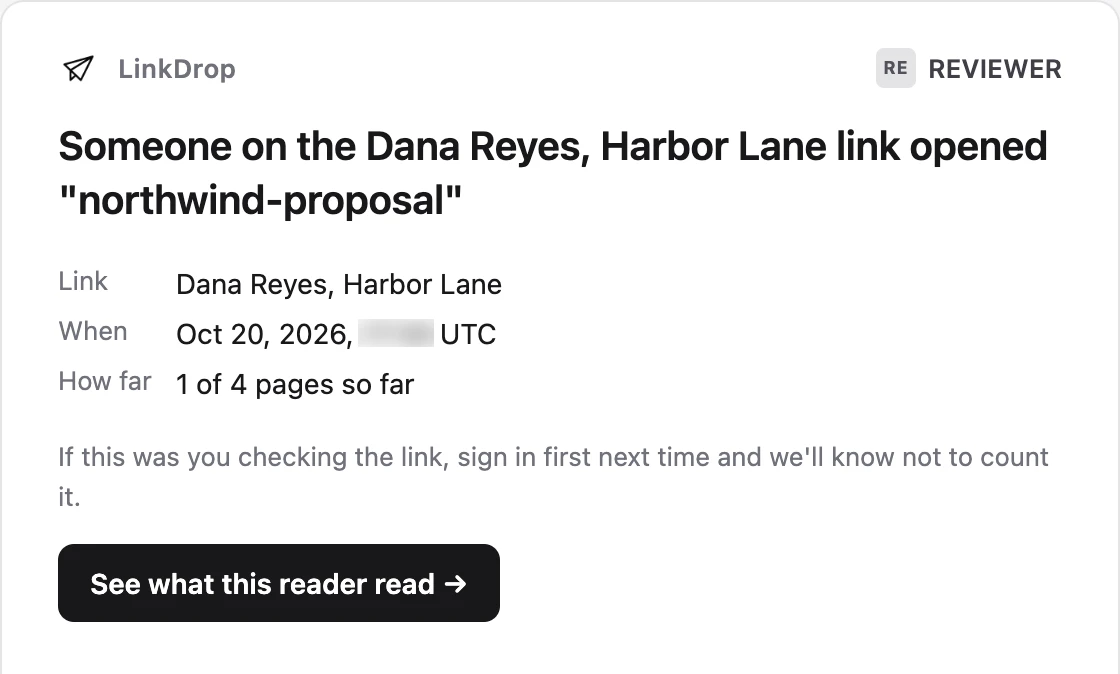 The open email. The link's label stands in for the reader, who did not sign in. The clock time is blurred. Tap to enlarge.
A few minutes after the reader stops, you can also get a visit brief: a short written account of the visit, the pages that held them, the pages they never opened, and whether they came back. A quick glance (under 20 seconds and fewer than two pages) gets no brief. Briefs use credits on every plan, and every Free workspace's first brief is on us.
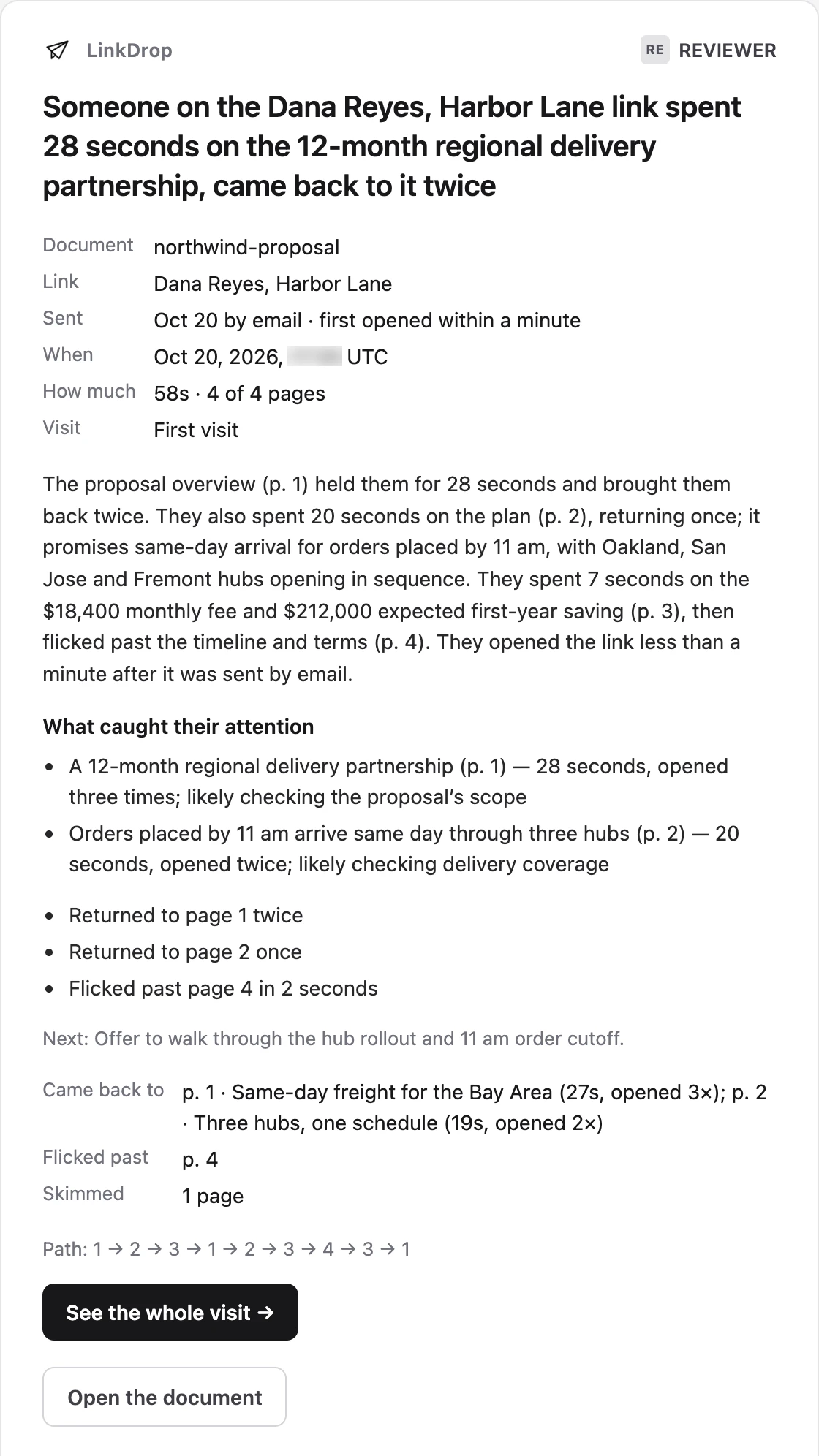 A visit brief by email, written from the recorded visit. The proposal and the people in it are invented. The clock time is blurred. Tap to enlarge.
Email settings live under Dashboard, on the Notifications tab. You can switch either email to a daily digest or off there. A Slack channel can get the same updates. See Notifications and visit briefs.
Step 5: Read the numbers
Open the document and click Metrics in its header (the chart icon). Pick 7d, 30d or 90d; the default is 30 days. You see:
- Opens and views, in the Views card. A reader who came back three times is one view and three opens.
- Each reader's pages viewed and time spent.
- A reading badge: Read, Skimmed, Started or Glanced (under 10 seconds).
- The link they came through, so an anonymous reader on a labelled link still tells you whose link it was.
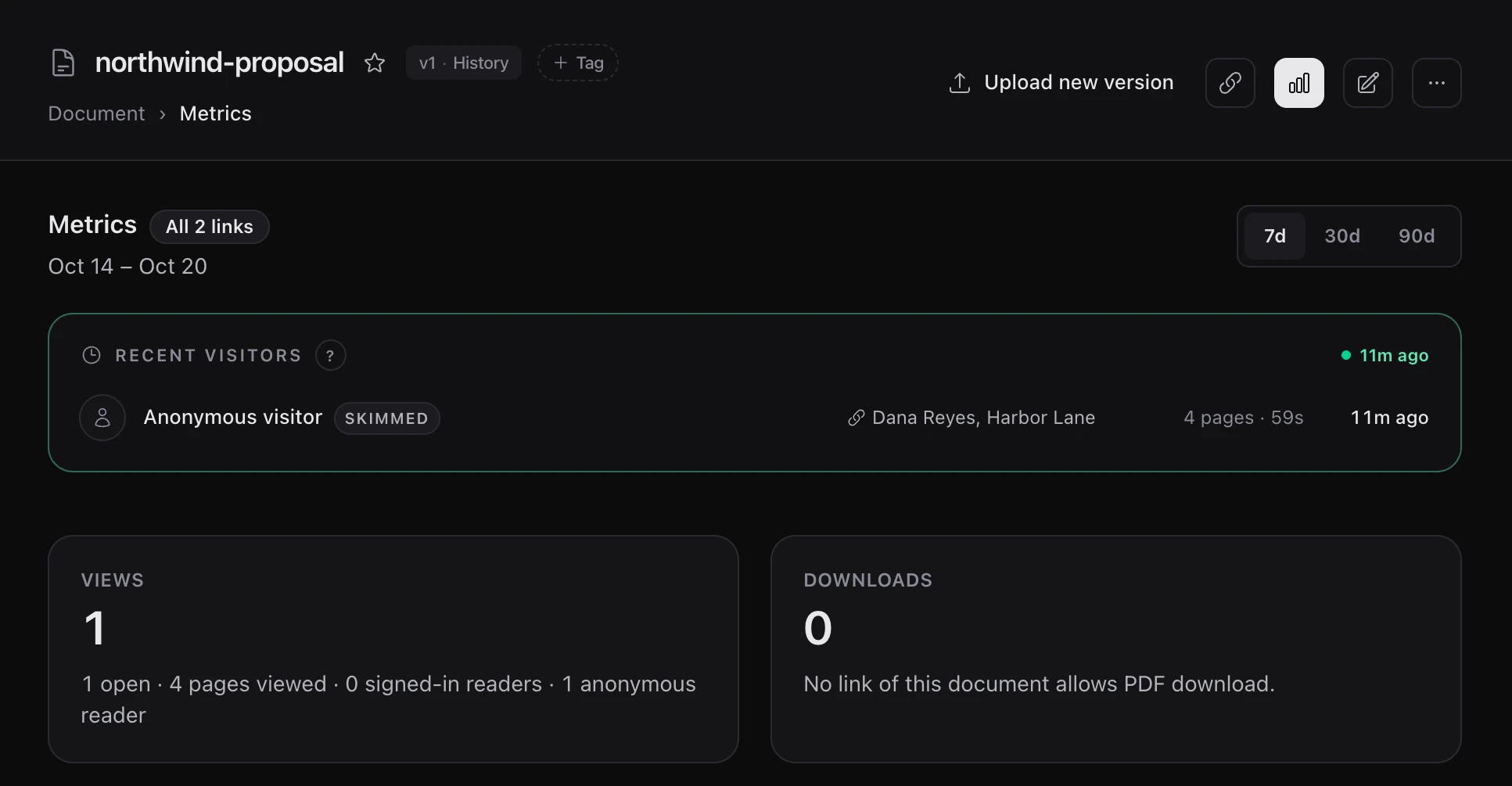 Metrics with the range at 7 days. The reader is anonymous, and the row names their link. Tap to enlarge.
Click a reader to open their page: which link they came through, every session one by one, the pages each covered, the time on each page and the visit brief, if one was written.
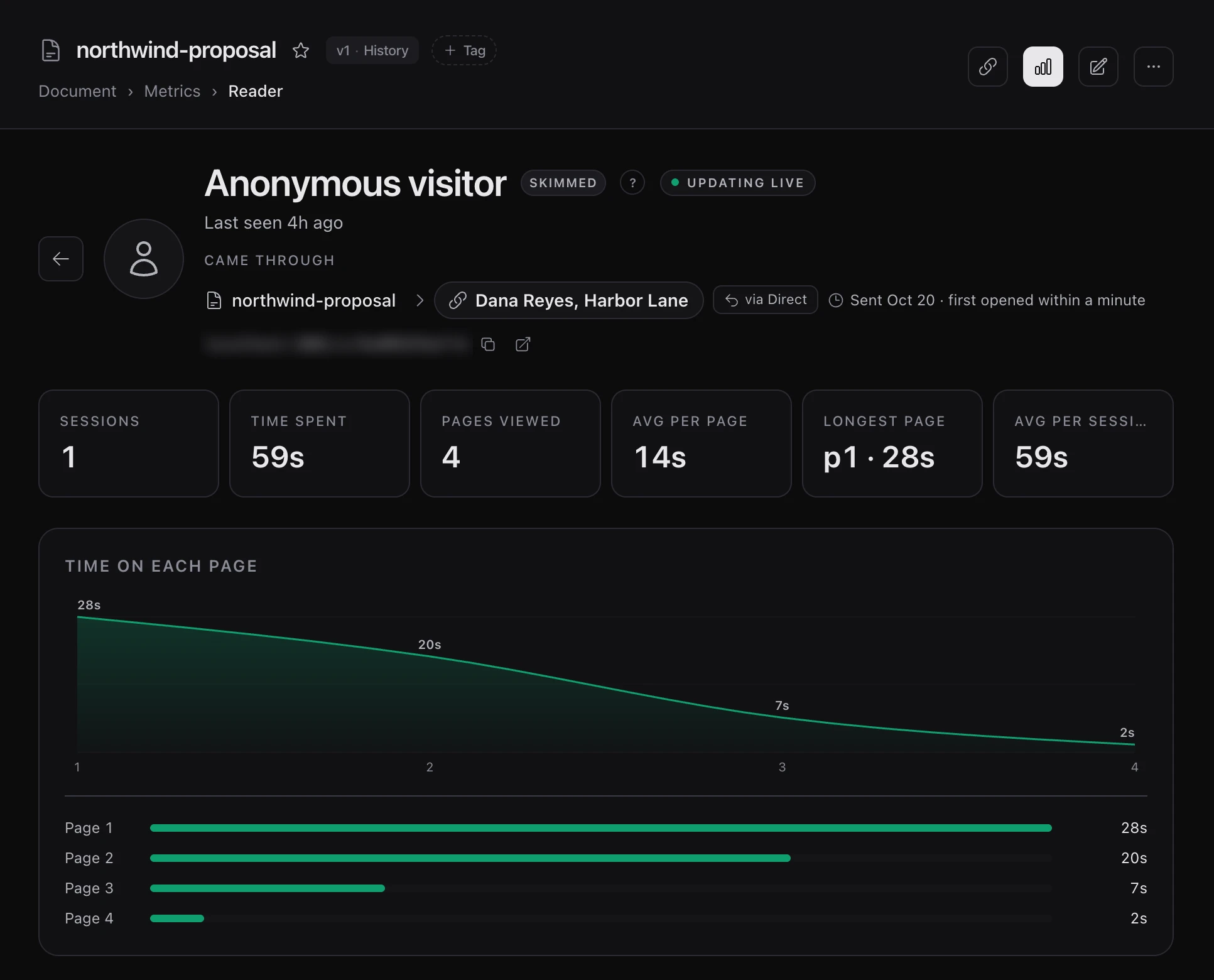 The reader's page: the link, the totals and the time on each page. The link's address is blurred. Tap to enlarge.
Time counts only while the tab is in front, and the clock stops after five minutes with no scrolling, mouse movement, clicking or typing. A tab left open overnight does not read as hours.
Free and Pro see the same reader analytics, and every visit is kept for two years. See Analytics for every figure.
Who is "Someone"?
LinkDrop names a reader in three cases:
- They are signed in to a LinkDrop account when they open it.
- They click Introduce yourself and give a name and email. This is optional, and what they type is marked as not verified until they confirm the email from the link LinkDrop sends them.
- You gave them their own link, so the link's label tells you who it was for.
Otherwise they appear as "Someone" in the activity feed and as an anonymous visitor on the metrics page, with what they read. LinkDrop does not fingerprint devices and runs no advertising trackers. Viewers' IP addresses are kept for security and are never shown to you. That is a deliberate choice, and it is why step 2 matters.
What to watch out for
- Test while signed in. If you open your own link from a private window or a signed-out browser, it counts as a reader's visit, and it can even be briefed.
- Forwarded links. Anyone who has the link can open it unless it has a password. LinkDrop tells readers apart by a random ID their browser keeps, so a second person who opens a forwarded link shows up as a separate viewer on that same link, anonymous unless they sign in or introduce themselves. One person reading on a laptop and then a phone can count as two viewers for the same reason. If you expect a link to be passed on, set its contact to Share: its readers then show as "via" that person. To cut a link off, disable it; the document's other links keep working.
- Bots. LinkDrop tells search engines not to fetch share links, which keeps most bots out of your counts. A crawler that ignores those rules could still register a view.
- The file changes. Click Upload new version on the document page. Every link keeps its address and its history, and readers see the new version. On a team, the document's owner and the workspace's owners and admins can replace it, and on Pro so can anyone listed under Who can publish. On Pro, other members save a draft for one of them to publish; on Free, they ask someone who can publish. See Versions and history.
What it costs
Tracking itself never costs credits: storing the PDF, links, passwords, expiry, downloads and analytics are free on every plan. Credits pay only for the AI work: the automatic summary of each upload, compares, visit briefs and reader profiles. The Free plan covers 10 shared documents and starts with 100 credits. See Pricing.