
By the LinkDrop team.
The short answer
Put every document for one listing in a LinkDrop project, then give each buyer their own project link. One link opens the whole packet in the browser, with no account and no attachments. You see which buyer opened which document and for how long, and when you replace a file or add a new one, every buyer's existing link shows it straight away.
Projects work on Free: a Free workspace can have 2 projects and 10 shared documents. Pro removes both limits.
The walkthrough, recorded in October 2026 on a LinkDrop test workspace. Elena Marsh, Marsh & Finch Realty, 14 Quillfeather Lane, Alder Cove and the buyers are invented, and so is every figure in the packet. Narrated with a synthetic voice, with word-by-word captions under the picture. The buyers' visits are sped up and marked on screen; dates, clock times, relative times, link addresses and private file paths are blurred. Watch on YouTube
Prefer slides? Flip through this example as a LinkDrop presentation: the same steps, shared the way this page describes.
What a project is
A project groups several PDFs so you can share them as one. Recipients get a page with your workspace name at the top, the project's name and description, and a card for each document; they open any of them in the same viewer as a single-document link. The list is read fresh on every visit, so a document you add to the project, replace, archive or take out shows up (or disappears) on the next load.
A project link is one link to that page. Every project has a default link, and you can add one per audience, each with its own label, settings and numbers. A document can be in several projects at once, and taking it out of a project never deletes it. See Projects.
The listing
Elena Marsh is an agent at Marsh & Finch Realty. She is selling 14 Quillfeather Lane, a three-bedroom house in Alder Cove. Two buyers are interested: Maya and Daniel Park, first-time buyers, and Jordan Lee, who is relocating from out of town. Everyone here, the brokerage, the house and its numbers are invented for this example.
Before
The packet was four PDFs: the seller's disclosure, a floor plan, the pre-listing inspection summary and the HOA rules. Elena attached them to an email for each buyer. When the association corrected the monthly dues, she had to send a "corrected HOA sheet" email to everyone and hope the old one was not the one they read. She had no idea which buyer had opened what.
With LinkDrop
1. Put the packet in one project
Elena clicks the + next to Projects in the sidebar. In New project she names it "14 Quillfeather Lane" and writes a short description, which buyers see at the top of the packet. She clicks Create project.
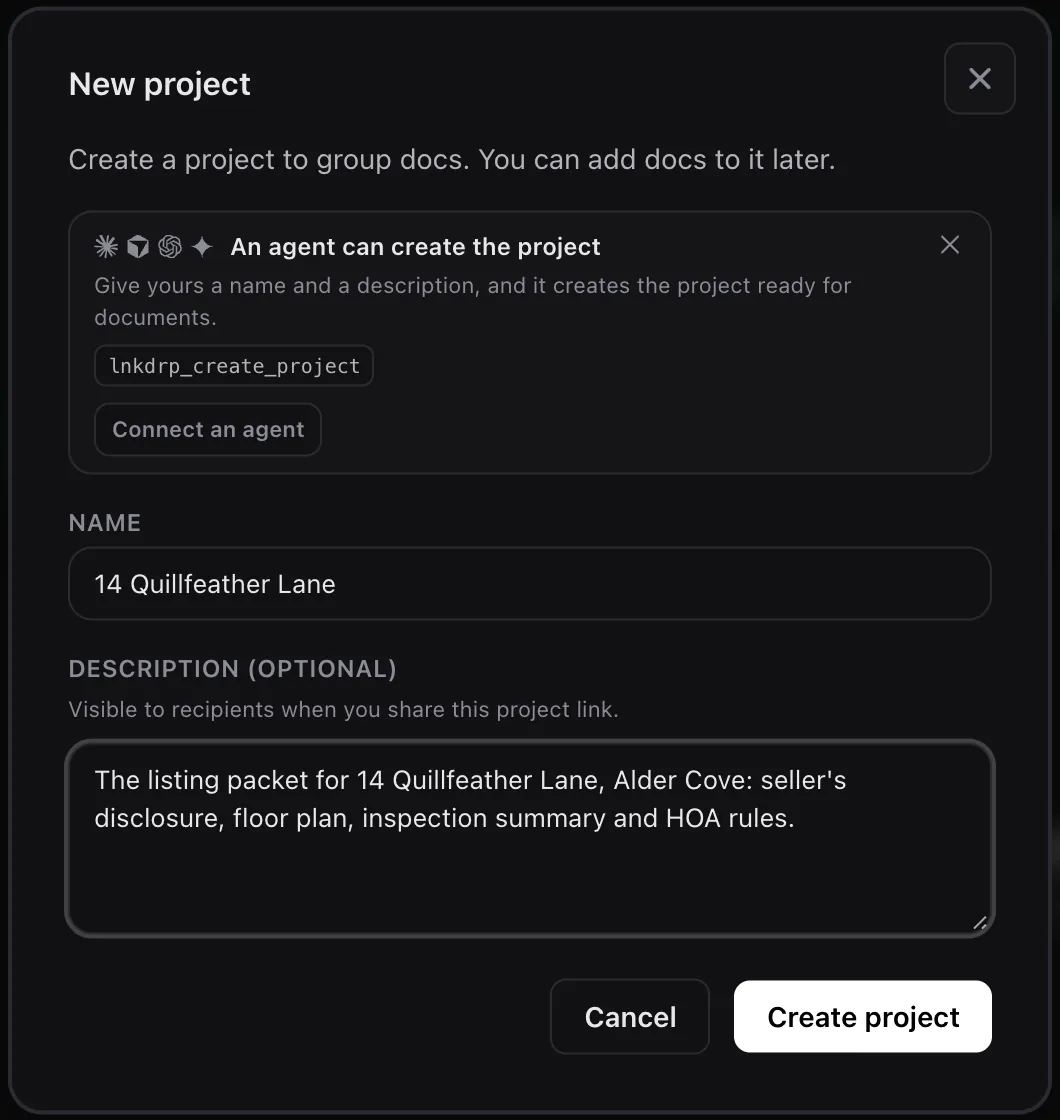 New project. The description is shown to recipients on the project's page. Tap to enlarge.
On the project page she clicks Upload here for each PDF. The upload page already has Add to a project set to 14 Quillfeather Lane, and Upload & create link puts the document in the project. LinkDrop writes a short summary of each one, which buyers see on its card.
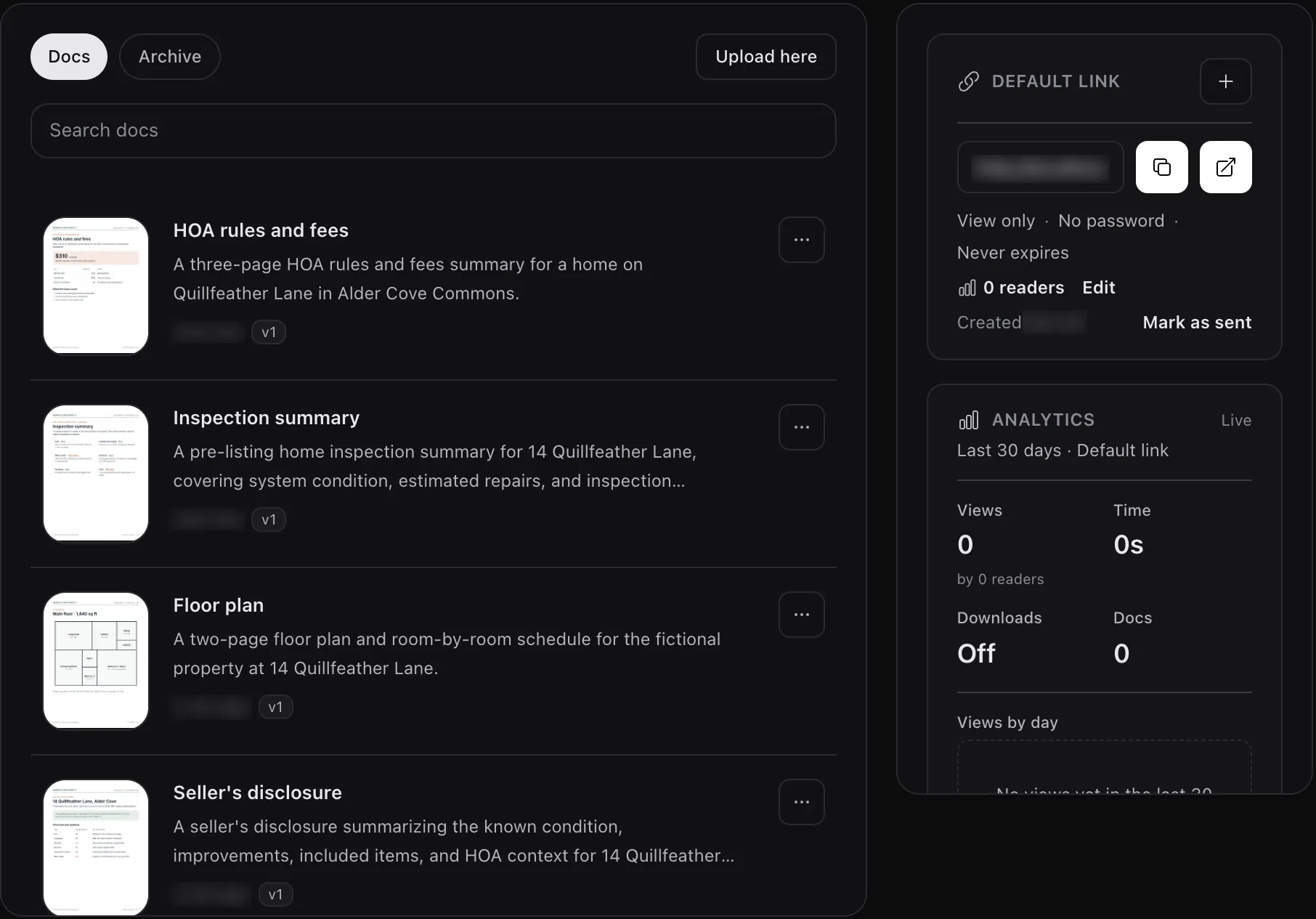 The project with the four documents of the packet. Upload times and the link address are blurred. Tap to enlarge.
2. One link for each buyer
In the project header Elena opens Links and clicks New link once per buyer. The Label is the buyer ("The Parks", "Jordan Lee") and the optional Audience is a note for herself. Labels are private: buyers never see them. She leaves Allow download off, which is the default for a new link.
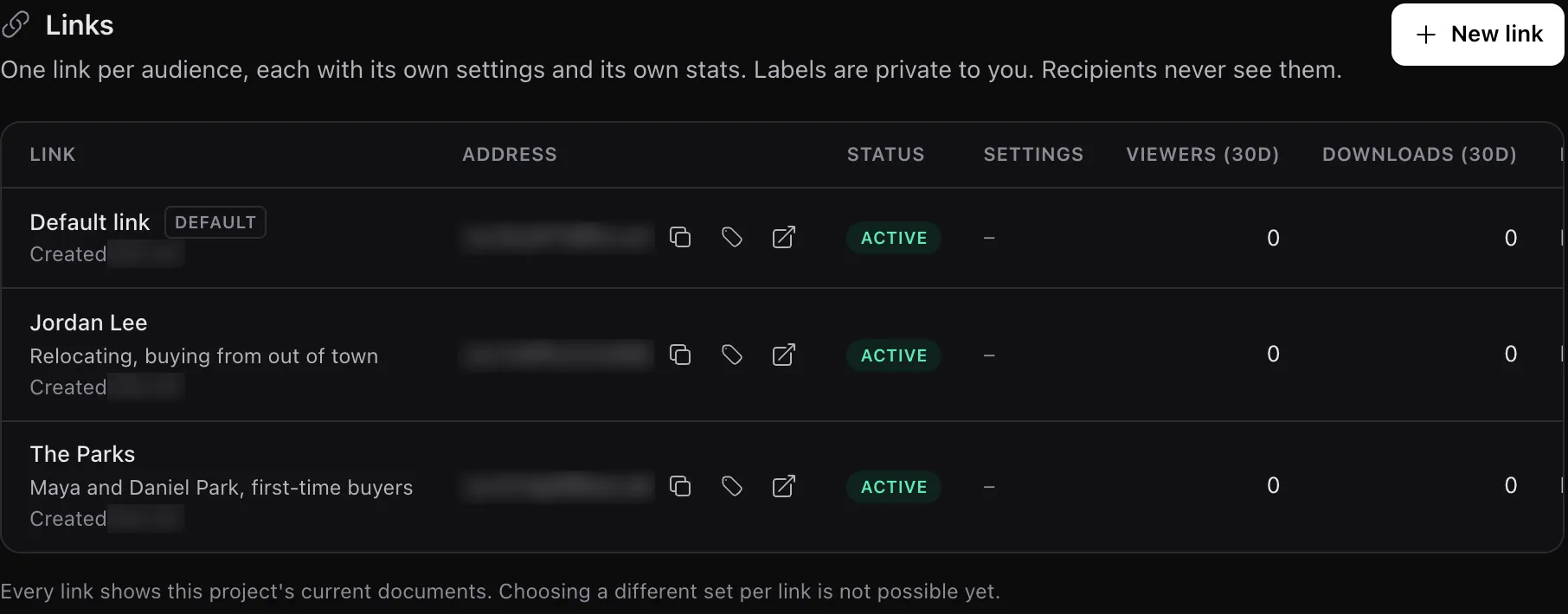 The Links page: one link per buyer, plus the Default link every project starts with. Every link shows the project's current documents. Link addresses and creation dates are blurred. Tap to enlarge.
She sends each buyer their own link. It opens the whole packet:
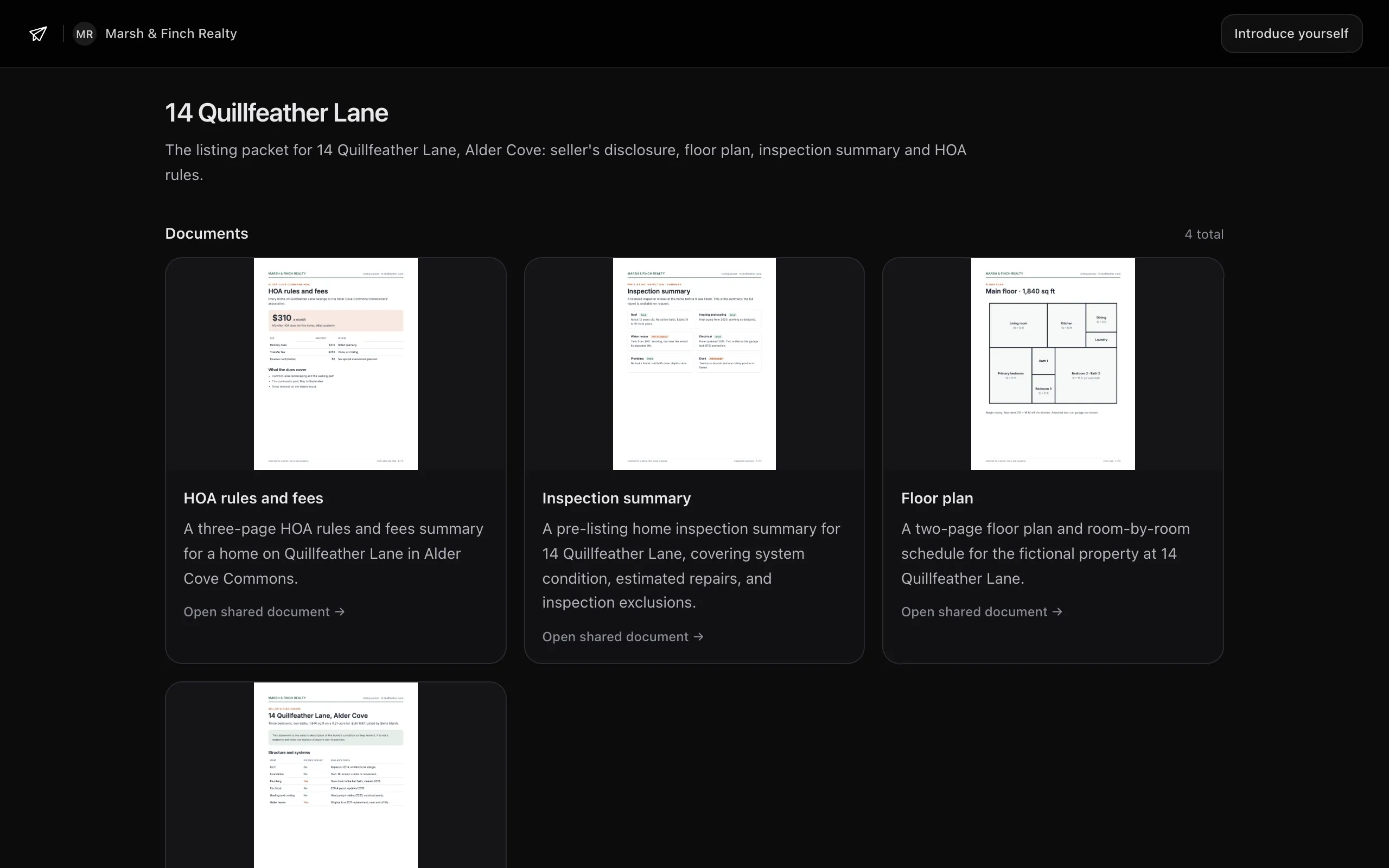 The Parks' link, opened signed out. Tap to enlarge.
3. See which buyer read what
The Parks open the disclosure, the inspection summary and every page of the HOA rules, and stay longest on page 1, the monthly dues. Jordan opens only the floor plan and the inspection summary.
When a buyer opens a document, LinkDrop emails Elena. The email names the link, so she knows which buyer it was without anyone signing in.
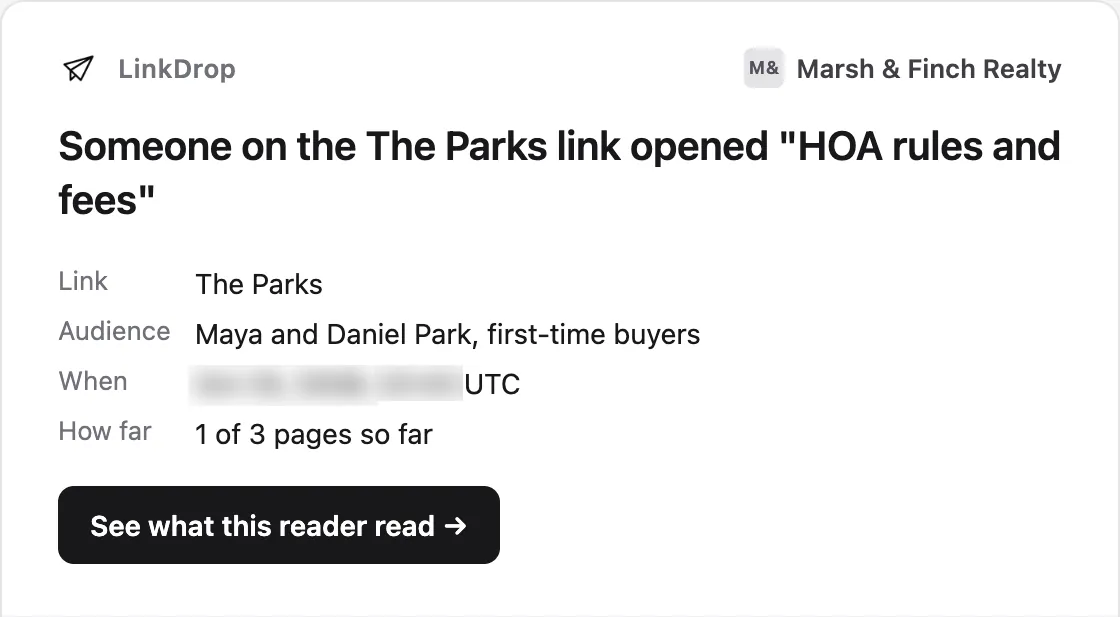 The email for one document opened on the Parks' link. The date and time are blurred. Tap to enlarge.
The project's Metrics lists recent readers, and the Links page shows each link's viewers. Clicking a reader opens their page: Came through names the project and the link, and Documents they opened lists each document with the time spent on it.
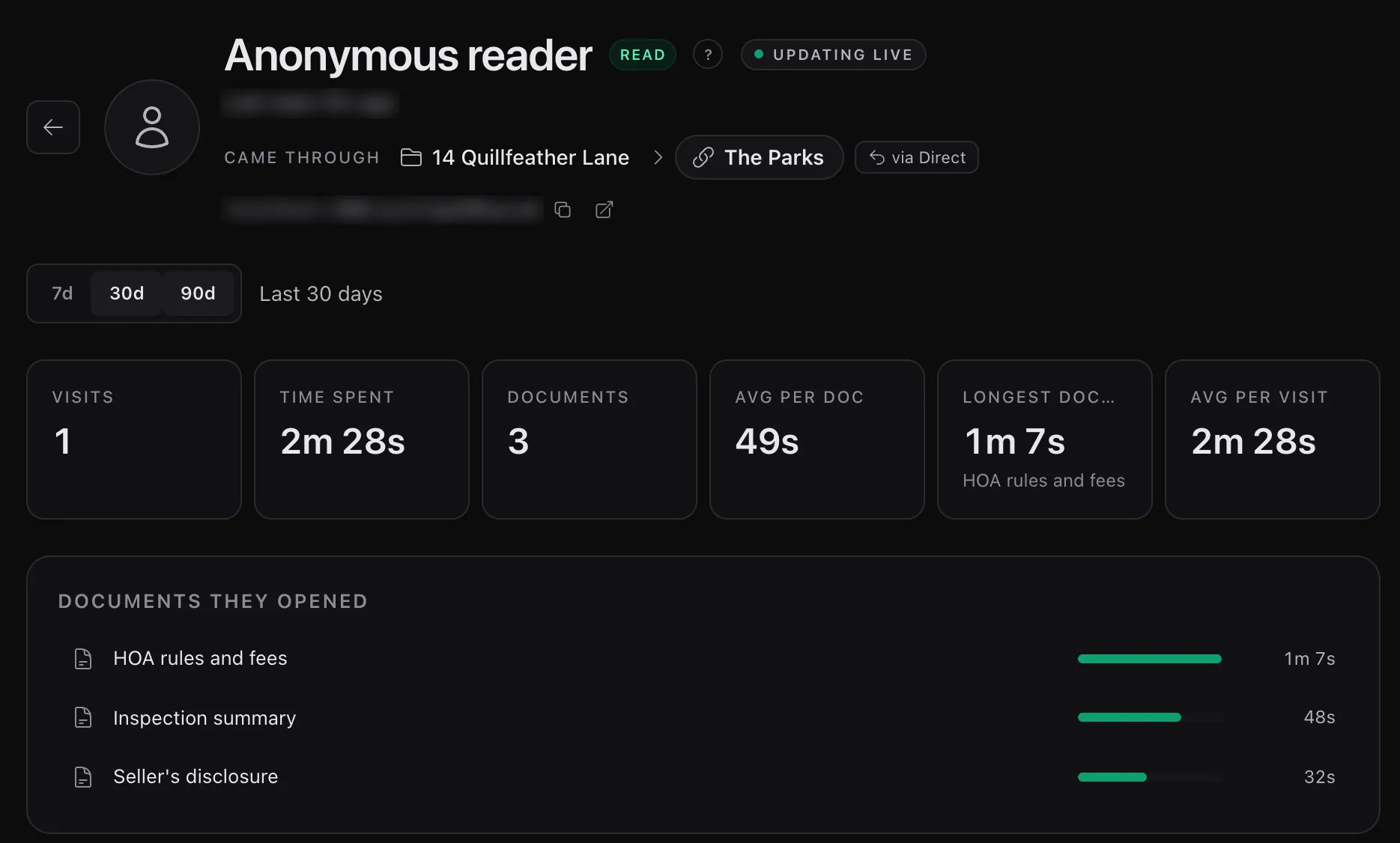 One reader on the Parks' link. They did not sign in, so the page names the link they came through. The link address and the last-seen time are blurred. Tap to enlarge.
A few minutes after a visit, LinkDrop can also write a visit brief of it: here, that the Parks spent 49 seconds on the $310 monthly dues and the inspection's water-heater estimate, with a suggested next step. One visit through a project link gets one brief, listing every document opened. Every Free workspace's first brief is on us; after that, briefs use credits.
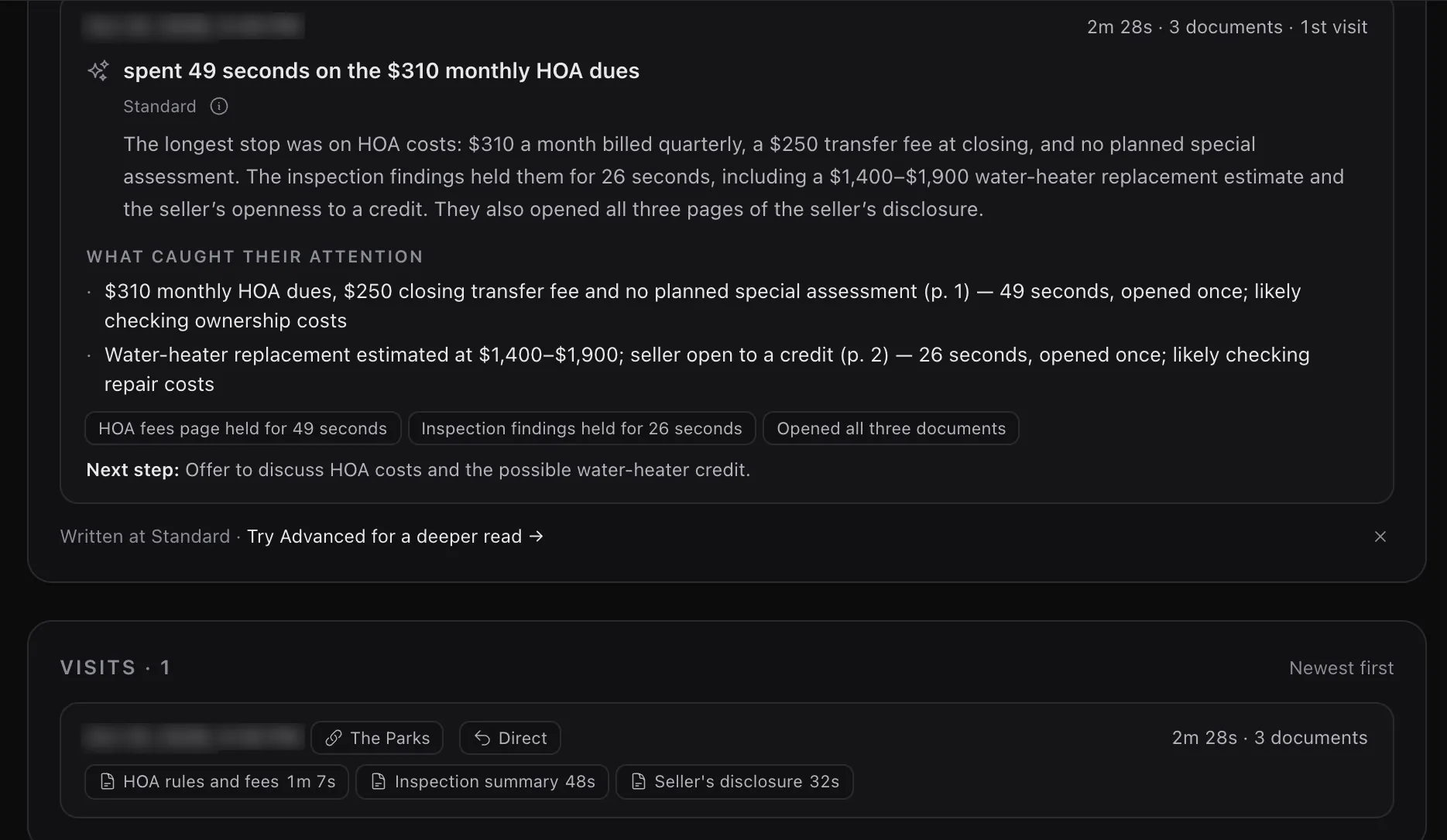 The visit brief, written from the recorded visit. Dates and times are blurred. Tap to enlarge.
4. Fix one file, and every link updates
The association confirms the dues are $265 a month, not $310. Elena opens HOA rules and fees, clicks Upload new version, chooses Replace the current version and picks the corrected PDF. The document becomes version 2. Both buyers' links keep their address and their numbers, and anyone who opens them now sees the new figure. History keeps version 1 and, using credits, says what changed.
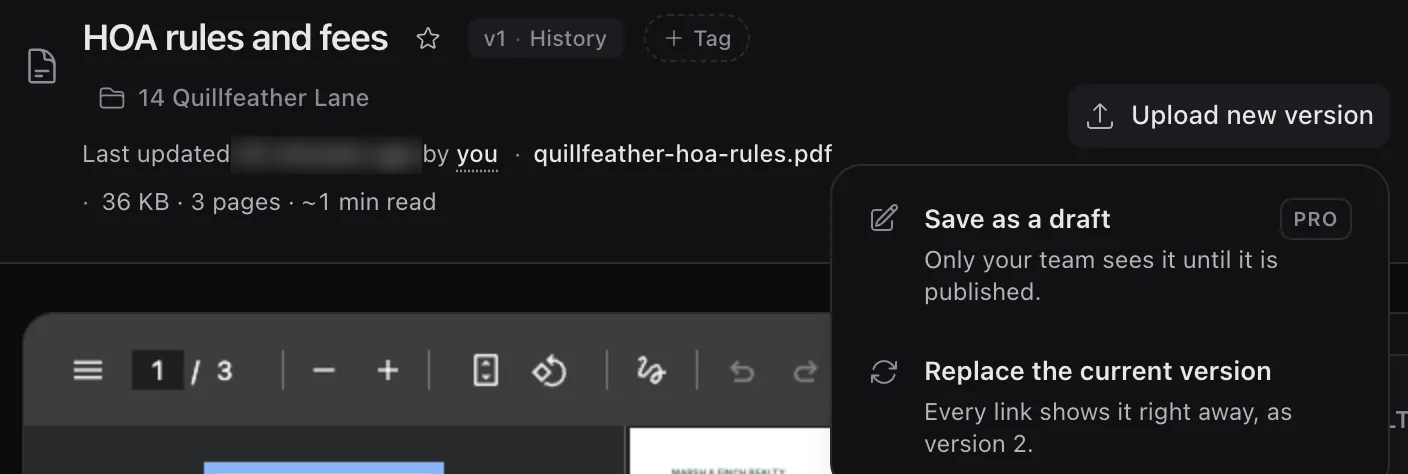 Upload new version on the document page. On Free, Replace the current version is the choice; drafts are a Pro feature. Tap to enlarge.
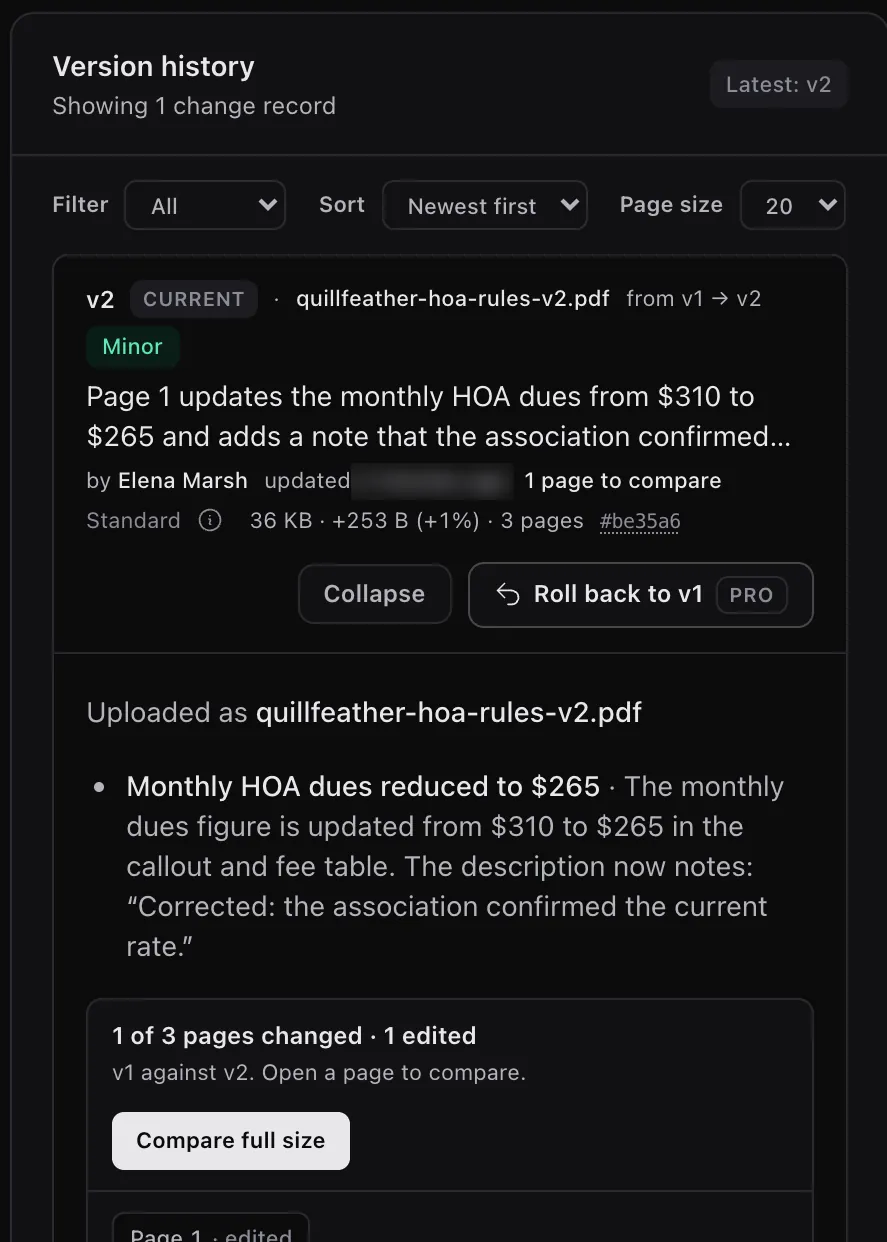 History after the replacement. The time is blurred. Tap to enlarge.
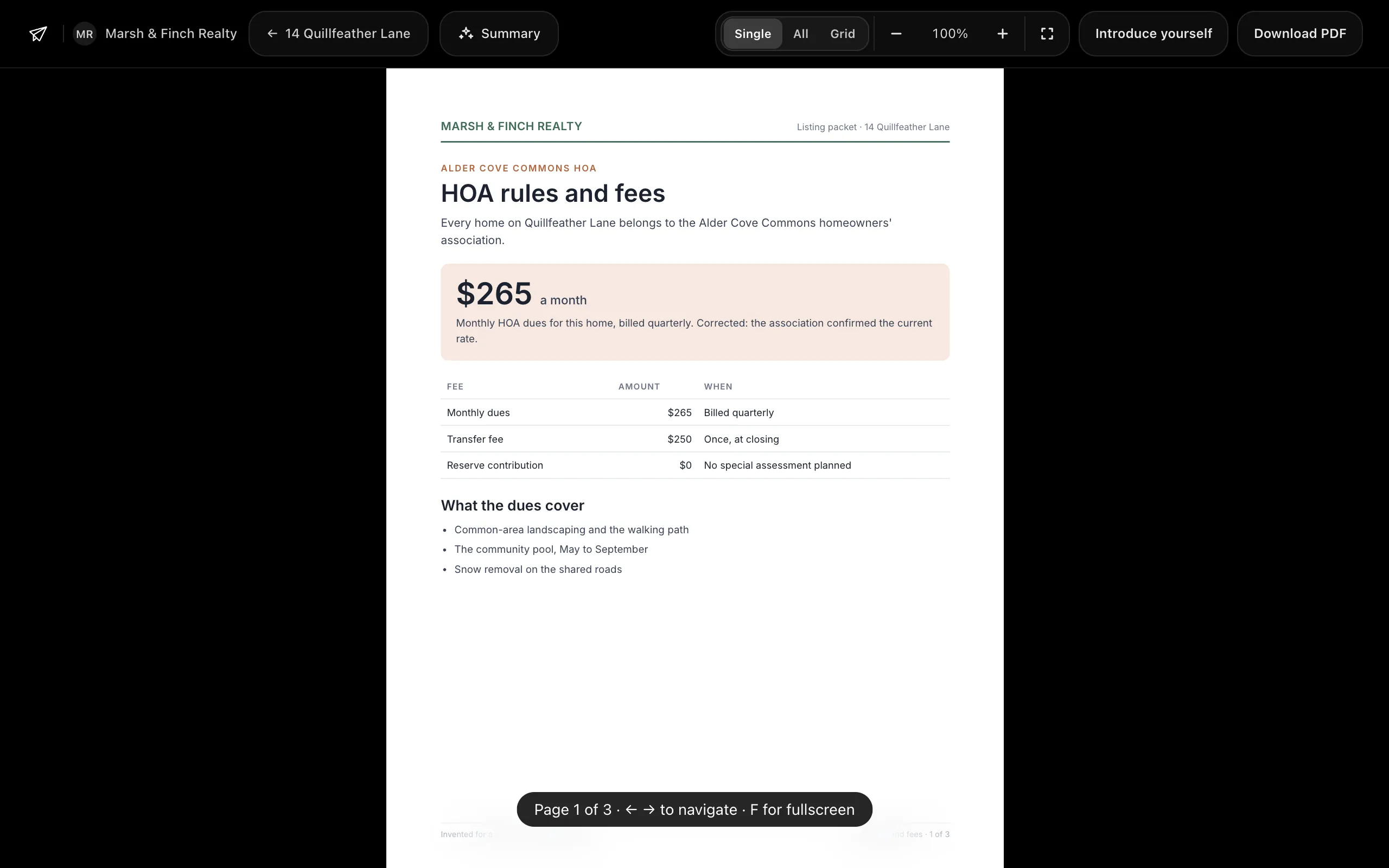 Jordan's link after the replacement, opened signed out: the same link shows $265. Tap to enlarge.
5. Add a document, and every buyer gets it
Later Elena adds a page of recent sales nearby. She clicks Upload here on the project again. There is no new link to send: the next time a buyer opens their link, the packet lists it.
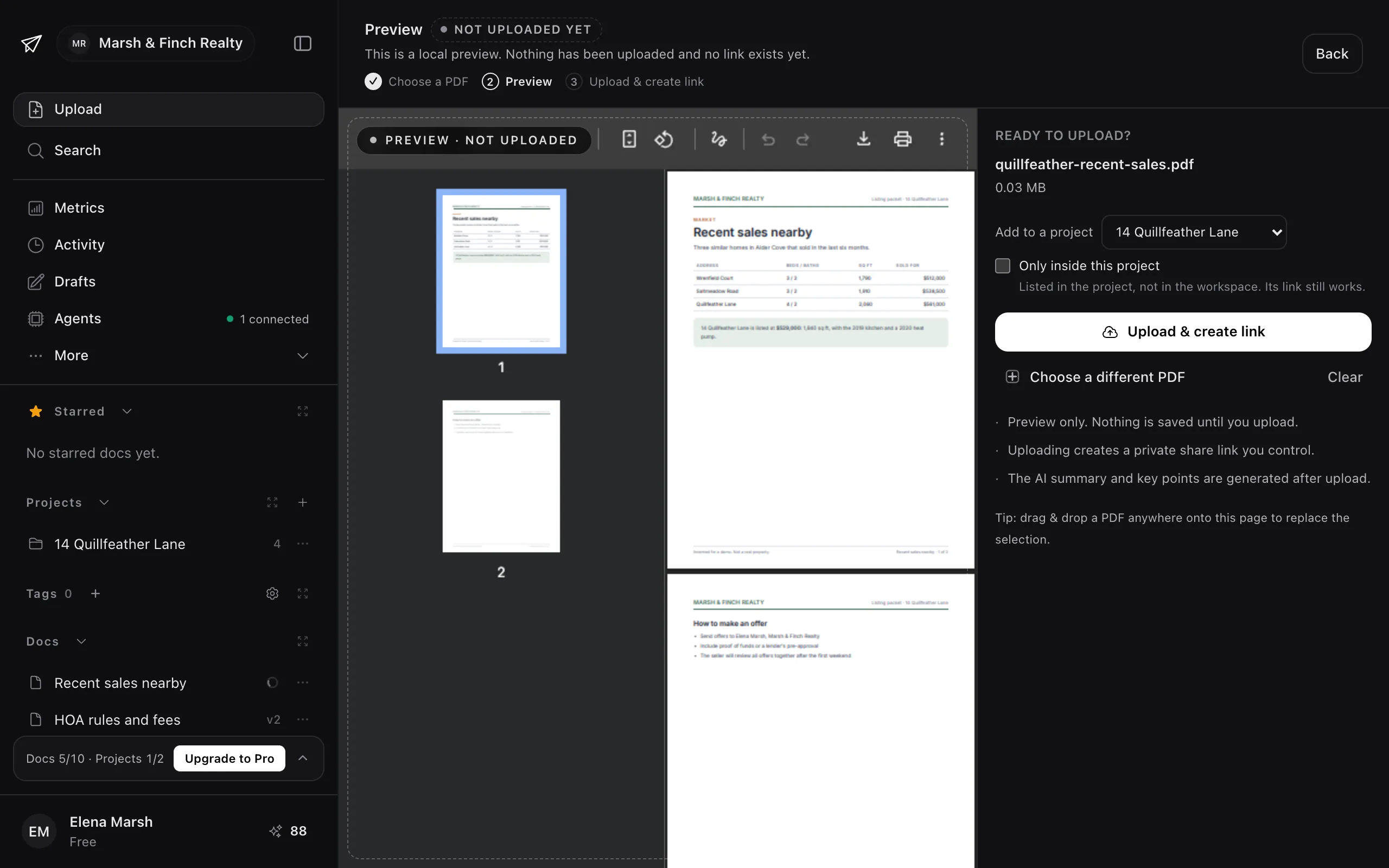 Upload here starts an upload that lands in the project. Tap to enlarge.
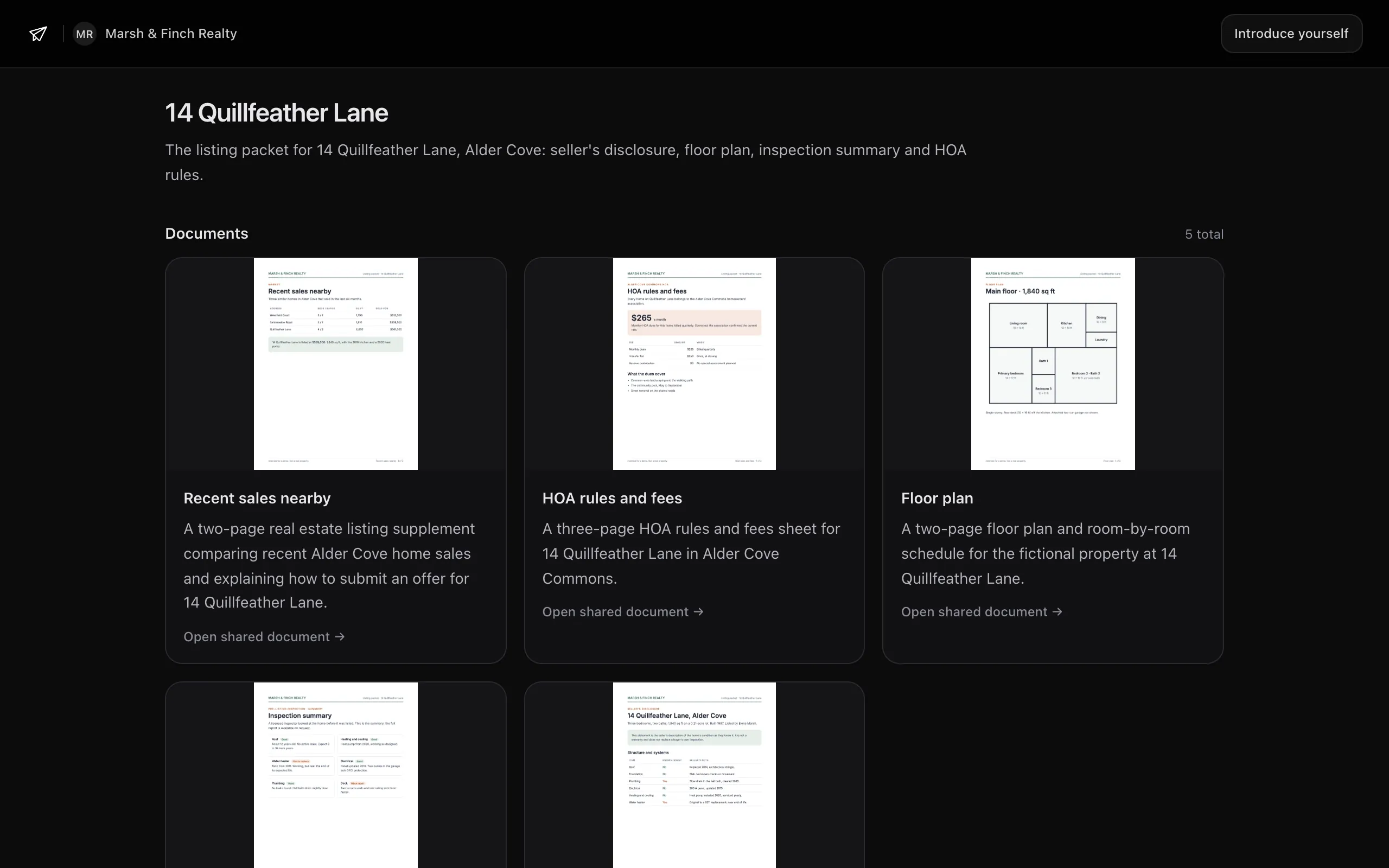 Jordan's link, opened again: five documents now. Tap to enlarge.
6. Or just ask your agent
By the way, you can do all of this through your favorite AI agent, just by talking to it. Elena has LinkDrop connected to Claude Code and asks:
Which buyers opened the listing packet for 14 Quillfeather Lane, and what did they read?
It answers link by link, sitting by sitting, with the documents and the time on each. It also noticed what Elena had not: the Parks read the HOA page before the correction, so they saw $310.
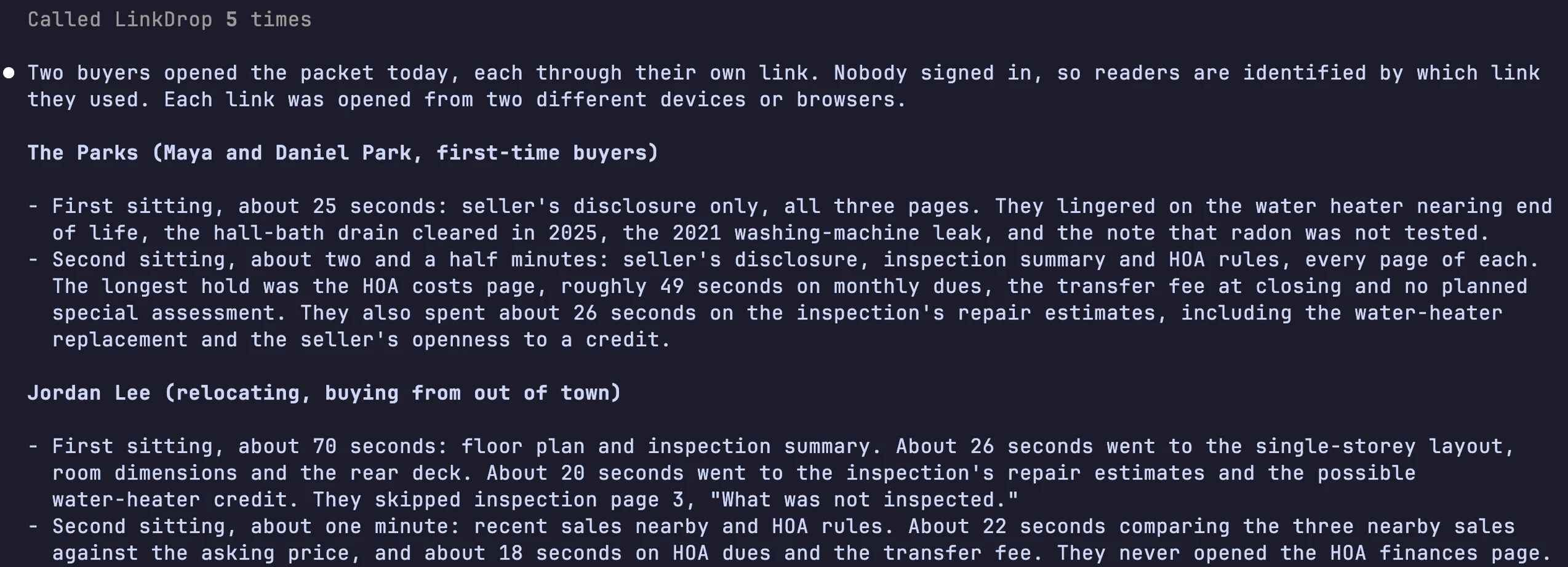 Claude Code's answer, first part. Tap to enlarge.
 The end of the answer. Tap to enlarge.
An agent can also create the project, add documents to it and make a link for a new buyer. It acts only in the workspace it is connected to, and deleting a project or a project link asks you first. See Projects and your agent and Connect your agent.
The result
Each buyer had one link for the whole packet, and it was always the current packet. Elena knew the Parks cared about carrying costs and Jordan about the layout and the comparables, so her follow-ups were specific, and she knew exactly who had seen the old HOA figure.
The same idea with a single document: a founder sends her pitch deck to three investors. With a team: a startup shares one sales deck and reviews every change.
Free and Pro
On Free you get everything in this example:
- 2 projects and 10 shared documents. A document counts while sharing is on; archive it or turn sharing off to free the slot. A deleted project stops counting straight away.
- As many links per project as you need, each with its own label, password, expiry, download setting and numbers. Links are not a plan limit.
- Full reader analytics on every link: who opened which document, the time on each page, every visit.
- 100 credits to start, once, for the AI summaries, compares and visit briefs. Your first visit brief is on us.
At the limit, New project tells you so and offers Manage projects or an upgrade, and a new upload past the document limit shows You're at the Free document limit. Existing links never stop working.
Pro adds:
- Unlimited projects and shared documents, so every listing can have its own packet.
- 500 credits a month.
- Teammates: you plus up to 3 people who can upload and share, plus unlimited free viewers. See Teams and workspaces.
- Drafts: a new version waits for review before buyers see it. See Versions and history.
- A Slack channel for each project. See Slack.
See Credits and plans and Pricing.
Good to know
- Only inside this project. A document can be kept out of the rest of the workspace and listed only in its project: tick Only inside this project when you upload, or use Keep inside its project on the document.
- Take the packet away from one buyer. Turn off Link enabled on their link; other buyers' links keep working. The Project sharing switch turns every project link off at once.
- Passwords and expiry. Each project link can have a password and an Expires date. Allow download on a link governs every document opened through it.
- Testing your own link. Opens while you are signed in to LinkDrop are counted as team previews, not as readers. Open the link signed out to see what a buyer sees.
- Who can make links. Only workspace owners and admins can create or change project links.