
By the LinkDrop team.
The short answer
Add LinkDrop to ChatGPT as a custom MCP server, sign in once, and then attach a PDF to the chat and ask in plain words:
Share this deck with Priya at Northwind as a LinkDrop link. Password "northwind-q3", no downloads.
ChatGPT hands the file to LinkDrop, makes a link labelled for Priya, and gives you the link to send. Nothing leaves the chat as an attachment. A week later you can ask "Has Priya opened the deck?" and ChatGPT reads the answer from LinkDrop: when her link was opened, which pages she read, and for how long.
LinkDrop connects to ChatGPT over MCP, the standard way ChatGPT uses outside tools. The server is remote, so there is nothing to install. Connecting works on every LinkDrop plan, Free included.
Before you start
- A LinkDrop account. If you do not have one, request access first.
- A ChatGPT account where Settings, then Apps, offers Add custom MCP server. That needs ChatGPT's Developer mode, which is available on Plus, Pro, Business, Enterprise and Edu. On Business and Enterprise an owner of the ChatGPT workspace turns it on first. OpenAI's own steps are in Developer mode and MCP apps in ChatGPT.
- Optional: Google Drive connected on LinkDrop's Integrations page, so ChatGPT can share files straight from your Drive without you attaching anything.
LinkDrop is not in ChatGPT's app directory yet, so you add it by URL. The steps take about two minutes.
Step 1: Add LinkDrop to ChatGPT
- In ChatGPT, open Settings, then Apps. Some versions call it Plugins or Apps & Connectors. Choose Add custom MCP server (Create in some versions). If the option is not there, turn on Developer mode under Advanced settings first.
- Name:
LinkDrop. Server URL:https://mcp.lnkdrp.com/mcp. Authentication: OAuth. Leave the advanced OAuth settings as ChatGPT discovered them. - Tick the box to confirm you understand the risk of a custom server, then click Create.
- ChatGPT opens LinkDrop in your browser. Sign in if you are not already, pick the workspace ChatGPT should work in, and click Allow.
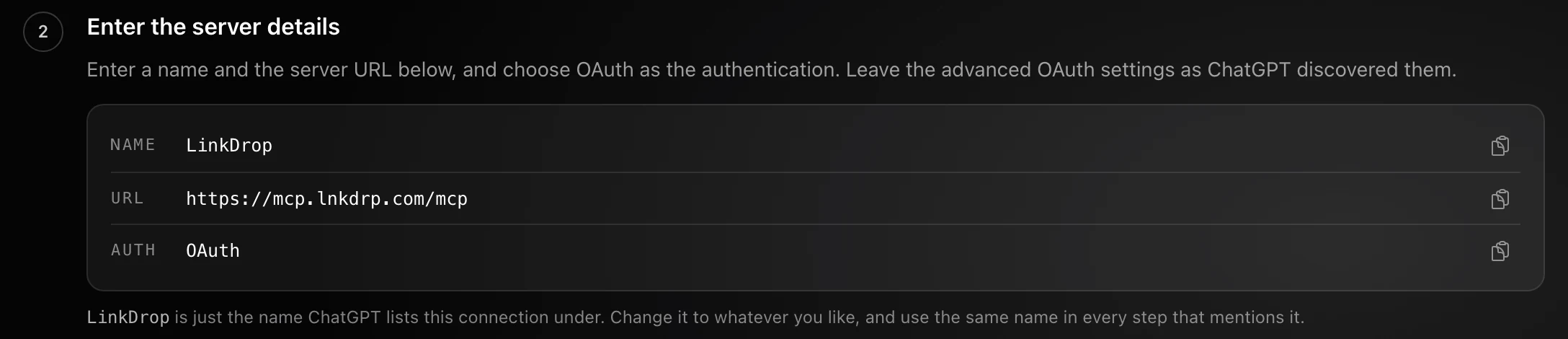 The details to enter in ChatGPT, as LinkDrop's ChatGPT setup page shows them, each with a copy button. Tap to enlarge.
The name is only what ChatGPT lists the connection under. Any name works, as long as you use the same one when you talk to it.
Step 2: Check it worked
Ask ChatGPT:
Which LinkDrop workspace are you connected to?
It answers with the workspace name, the plan and the credits left. Back on LinkDrop's Agents page, ChatGPT is listed under Connected agents as "Signed in", and you can revoke it there at any time. Everything ChatGPT does from now on appears in your activity feed under its own name, so you can always see what it did.
If ChatGPT says it has no LinkDrop tool, or cannot do something this guide describes, remove LinkDrop from Apps, add it again and start a new chat. ChatGPT keeps the list of what a server can do from the moment you connected, and does not reload it. When ChatGPT or Claude can't do something walks through it.
Step 3: Share a PDF
There are three ways to get the file to LinkDrop from ChatGPT. Use whichever fits where the file is.
Attach it to the chat. Click the paperclip, pick the PDF, and ask for it to be shared. ChatGPT passes LinkDrop a private download link for that file, and LinkDrop fetches it. The file never goes through ChatGPT's sandbox. The document is named after the file unless you give it a title.
Name it in Google Drive. Once Drive is connected on LinkDrop's Integrations page, ask "Find the Q3 board deck in my Google Drive and share it with Priya". ChatGPT searches your Drive by name and asks which file if more than one matches. Google Docs, Slides and Sheets are turned into a PDF on the way; PDFs are shared as they are. The new document keeps a link back to the Drive file, and you can later ask ChatGPT to update it from Drive.
Paste a public link. If the PDF is already online, give ChatGPT the link and LinkDrop downloads it.
If none of these work, for example when the attachment did not hand over, ChatGPT gives you an upload link that starts with https://www.lnkdrp.com/u/. Open it signed in, choose the PDF, and tell ChatGPT it is done. The link works once, for an hour, and only for your account. Getting a file to your agent explains every route.
Whichever route you use, say what the link should be like:
Share the attached proposal with Marco at Acme. Label the link "Marco, Acme", set the password "acme-2026", turn off downloads, and expire it in 14 days.
ChatGPT comes back with the link. Send it however you like: email, Slack, a message. A password-protected link is safe to paste anywhere, because the password travels separately.
One link per person is the habit worth keeping. Each link has its own label and its own numbers, so when three people have the same deck, you know which of them read it. Ask for "one link each for Priya, Marco and Dana" and ChatGPT makes three.
Step 4: See who read it
Ask whenever you want to know:
Who has opened the proposal? Which pages did Marco spend the most time on?
ChatGPT reads the link's stats from LinkDrop: views, whether the file was downloaded, the pages each reader looked at, and the time they spent on each. Readers who sign in or introduce themselves are named. With one link per person, the label names the rest. Time per page is on every plan, including Free.
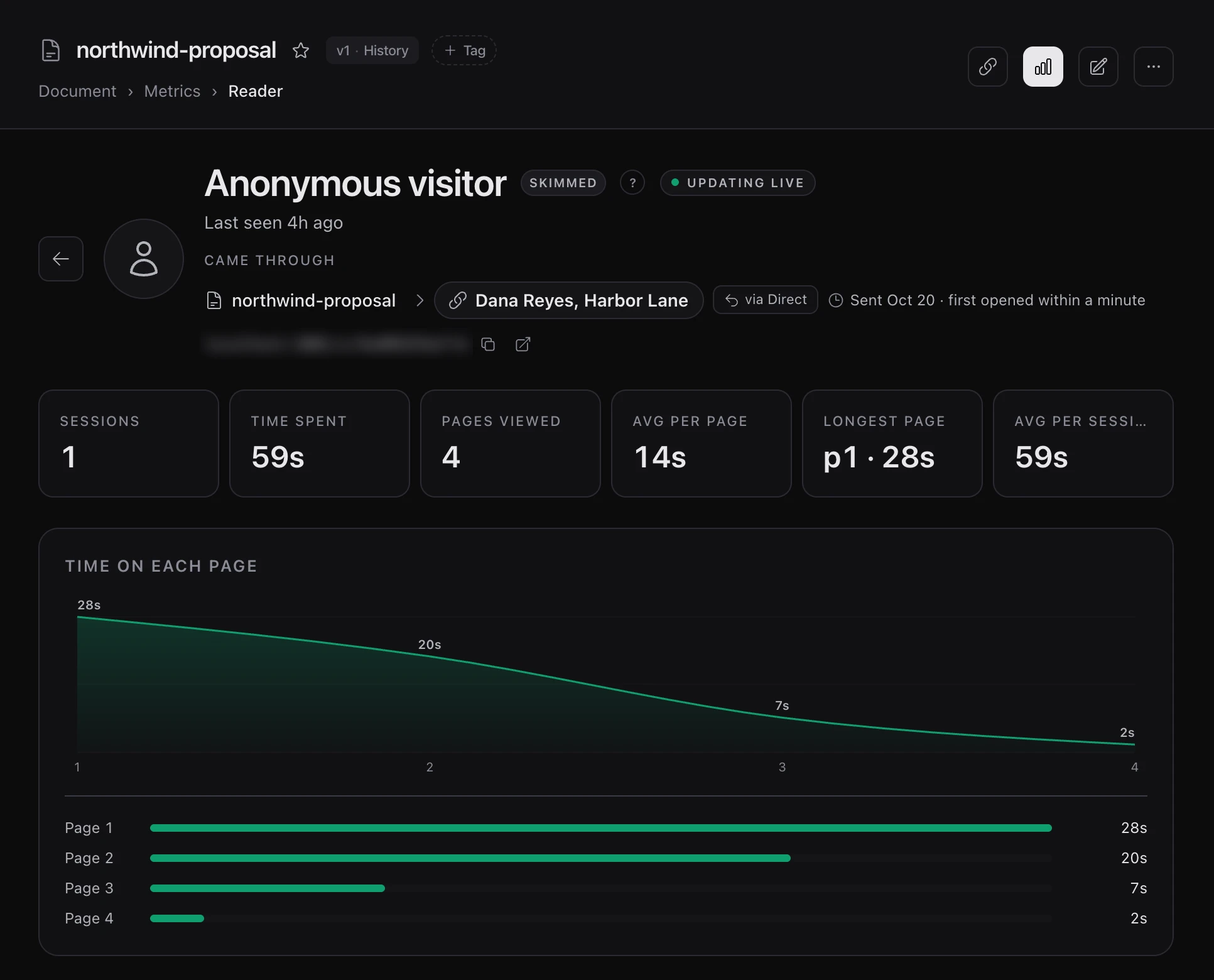 The same numbers in LinkDrop, on the reader's page: the link they came through, the totals and the time on each page. Recorded on 20 October 2026 on a LinkDrop test workspace; the link's address is blurred. Tap to enlarge.
You do not have to ask. LinkDrop can email you when a link is opened, immediately or as a daily digest, and it writes a short brief of each visit once the reader leaves. How to track when someone opens your PDF covers the notification settings and what the numbers mean.
Step 5: Fix the file without a new link
Found a typo on page four after you sent it? Attach the corrected PDF and say:
Replace the proposal I sent Marco with this version.
Every link keeps its address, its password and its history. Marco opens the same link he already has and sees the new file. LinkDrop keeps the earlier version, and ChatGPT can tell you what changed between the two.
If the new version should be checked by a teammate before readers see it, ask ChatGPT to add it as a draft instead. Nothing changes on any link until someone who can publish the document publishes it. Drafts are a Pro feature. Versions and history explains both.
When ChatGPT asks you to confirm
Some actions are hard to undo, so LinkDrop asks you before ChatGPT goes ahead with them. When you ask ChatGPT to delete a link or a document, a LinkDrop card appears in the chat with Delete, Always allow and Cancel, and it shows what would be affected, such as how many people have opened the link. Only your click on the card counts. ChatGPT saying yes on your behalf deletes nothing.
Archiving a document asks the same way, but only when someone has already opened it. Archiving takes every link offline and keeps the analytics, and you can bring it back. A deleted document can be restored for 30 days, file and links included.
Prompts to start with
Share the attached deck with each of our four board members, one link each, labelled with their names. Passwords on, downloads off. Give me the four links.
Which of the board members has not opened the deck yet?
Make a link to the Series A memo for Priya that expires in a week.
List my LinkDrop documents tagged Fundraising, and tell me which ones were read this week.
Turn off the link I sent to Acme Capital.
ChatGPT picks the right LinkDrop action for each. The documents and people above are examples.
Where this fits
If you work in a terminal, How to send a PDF from Claude Code does the same thing from Claude Code. Track pitch deck views shows the one-link-per-investor habit end to end. Everything ChatGPT does, you can also see and change on lnkdrp.com: the links, the readers, the versions and the activity feed that names ChatGPT as the one who did it.