
By the LinkDrop team.
The short answer
Send the document as a LinkDrop link and put every new version on the same document with Upload new version. The link keeps its address and its numbers, and it always shows the current version. Turn on Let recipients browse versions on a link, and the person reading it can see each recent version with its date and what changed, and compare the pages side by side. If the wrong file goes up, Roll back on the History page puts an earlier version back on every link, and can take the wrong one out of the history altogether.
Your own version history and the AI compare of what changed work on every plan, Free included. Letting recipients browse versions and rolling back are Pro features.
The walkthrough, recorded in October 2026 on a LinkDrop test workspace. Ines Calloway, Calloway Advisory, Marco and Wrenfield Bakeries are invented, and so is every figure in the statement of work. Narrated with a synthetic voice, with word-by-word captions under the picture. Marco's visits are sped up and marked on screen; dates, clock times, relative times and link addresses are blurred. Watch on YouTube
Prefer slides? Flip through this example as a LinkDrop presentation: the same steps, shared the way this page describes.
The deal
Ines Calloway runs Calloway Advisory, a one-person operations consultancy. She is about to start an inventory system rollout for Wrenfield Bakeries, and Marco, their head of operations, has to sign the statement of work. Everyone here, both companies and every figure are invented for this example.
Before
Ines emailed the statement of work as a PDF. When the scope changed she sent "SOW_v2_final.pdf", and Marco had to work out for himself what was different, or forward the wrong attachment to his finance team. Once, she attached her own working copy by mistake, with her pricing notes in it, and could not take it back.
With LinkDrop
1. One link for the client, with versions on
Ines uploads the statement of work: three pages, six bakeries, eight weeks, a $24,000 fixed fee. On the document's Links page she clicks New link, labels it "Wrenfield – Marco", and turns on Let recipients browse versions. The label is private: Marco never sees it.
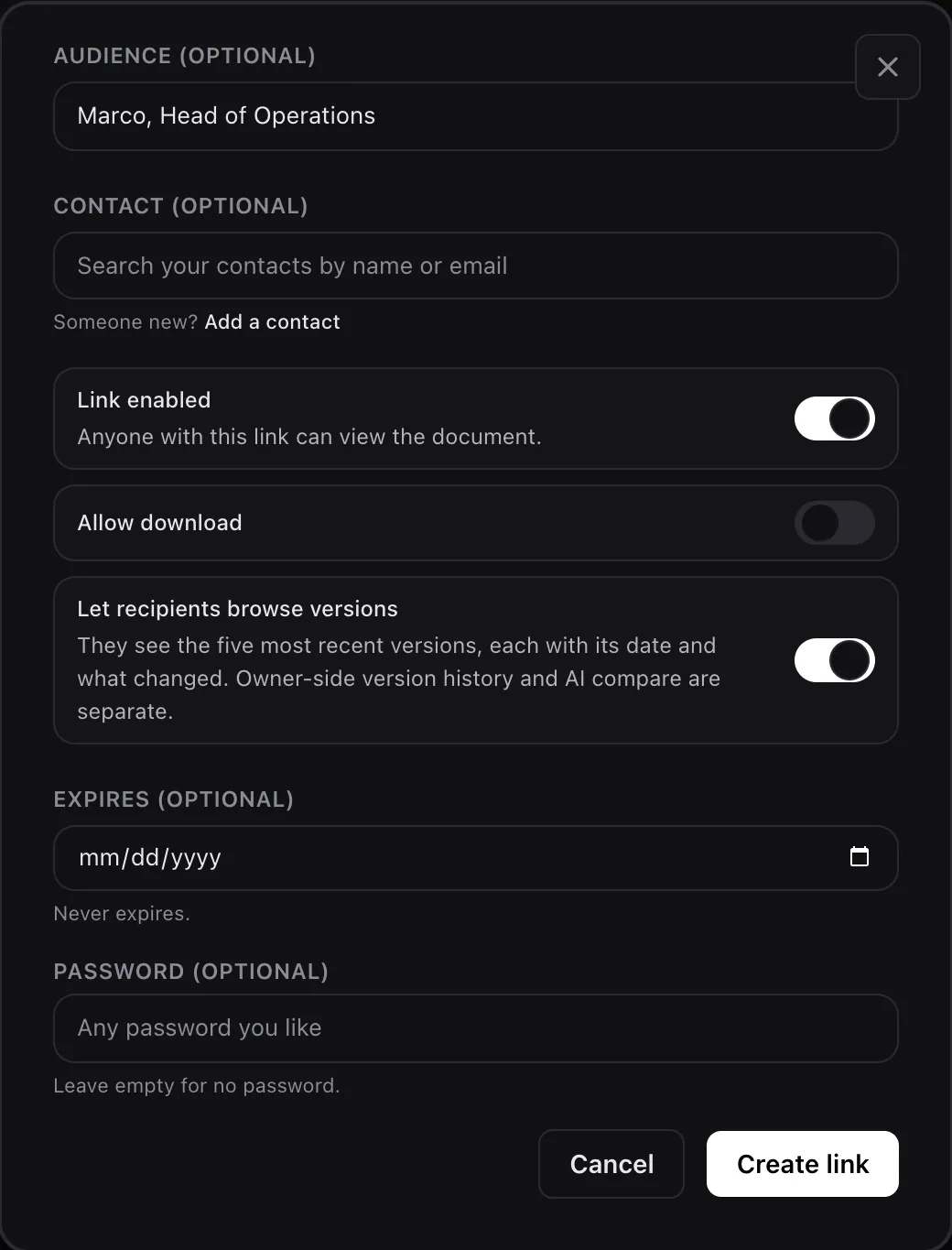 New link with Let recipients browse versions turned on. It is a setting of each link. Tap to enlarge.
Marco opens it in his browser, with no account, and reads all three pages.
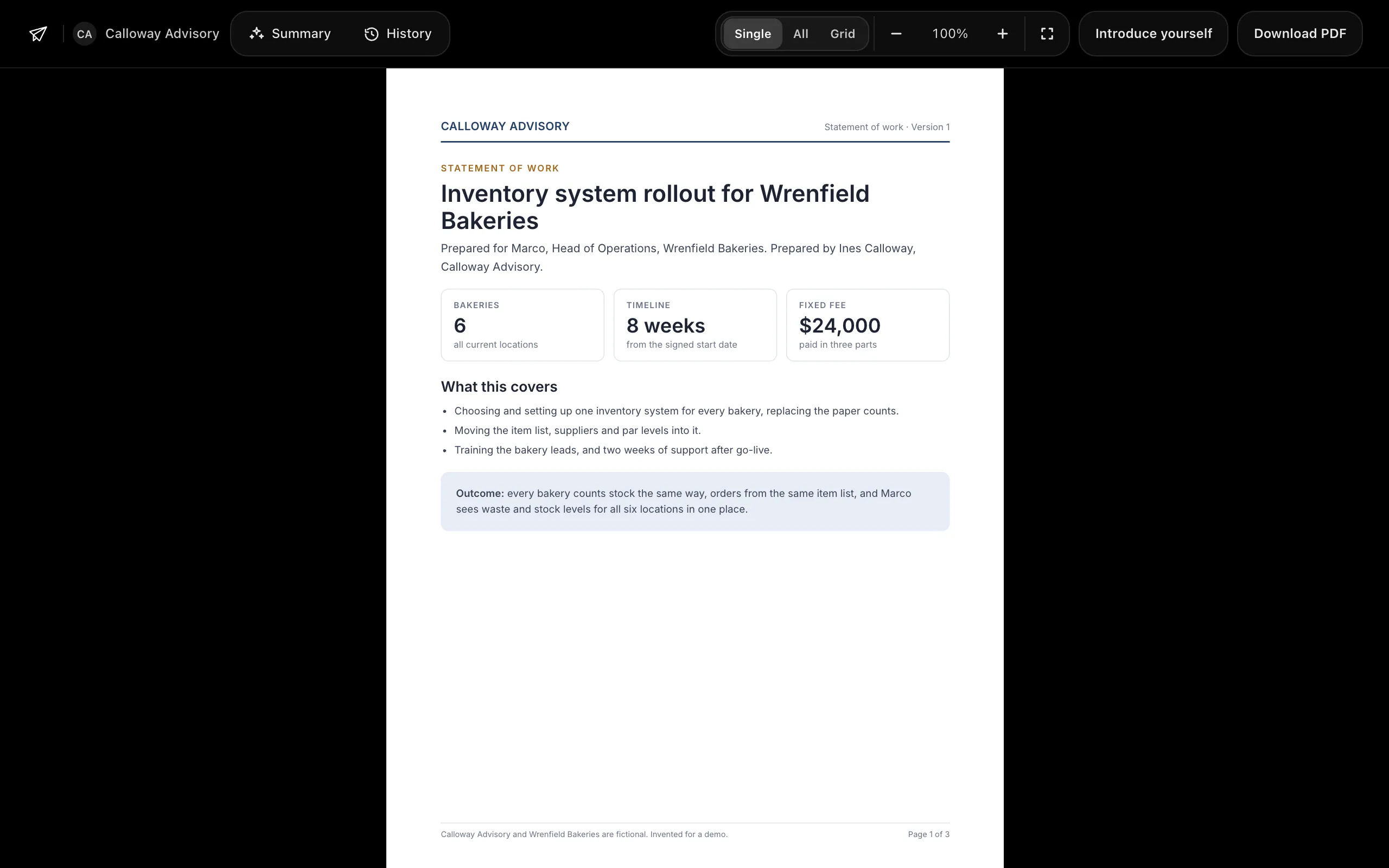 Marco's link, opened signed out: version 1. Tap to enlarge.
2. The scope changes: a new version on the same link
Wrenfield adds two new bakeries. Ines clicks Upload new version, chooses Replace the current version and picks the new PDF. It becomes version 2, and Marco's link shows it straight away, at the same address.
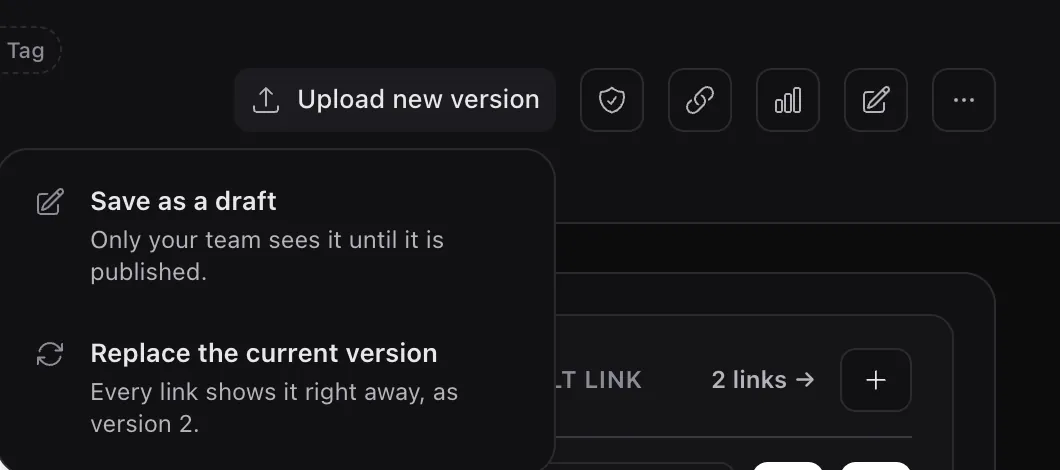 Upload new version. Drafts are another way in: only your team sees a draft until someone publishes it. Tap to enlarge.
History (the v2 · History pill in the header) lists every version and says what changed in each, page by page. That is LinkDrop's AI compare, which uses credits.
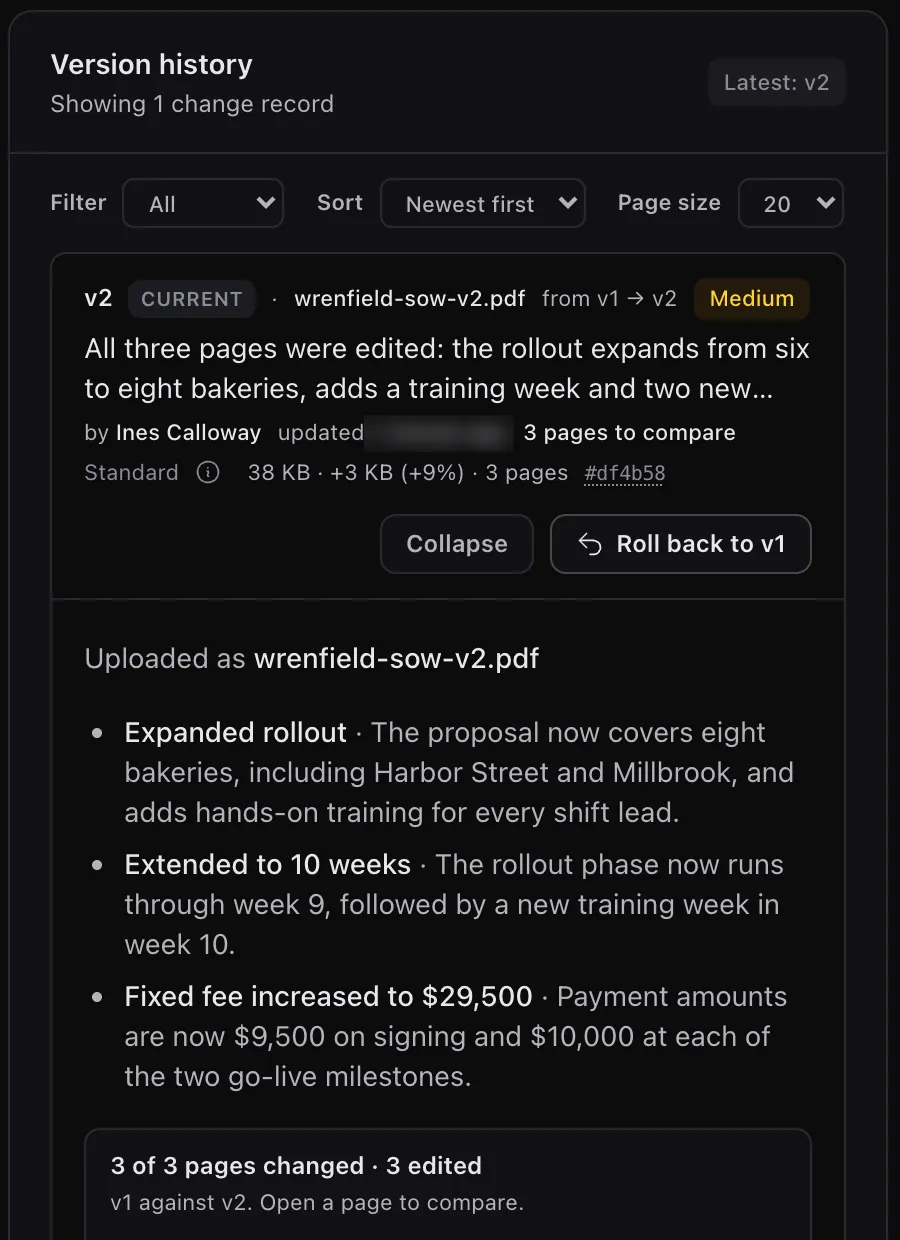 History after the replacement. The time is blurred. Tap to enlarge.
3. The client sees what changed
Marco opens the same link again and gets version 2: eight bakeries, ten weeks, $29,500. Because his link lets him browse versions, the viewer has a History button. It shows the recent versions, each with its date and what changed on each page, before and now.
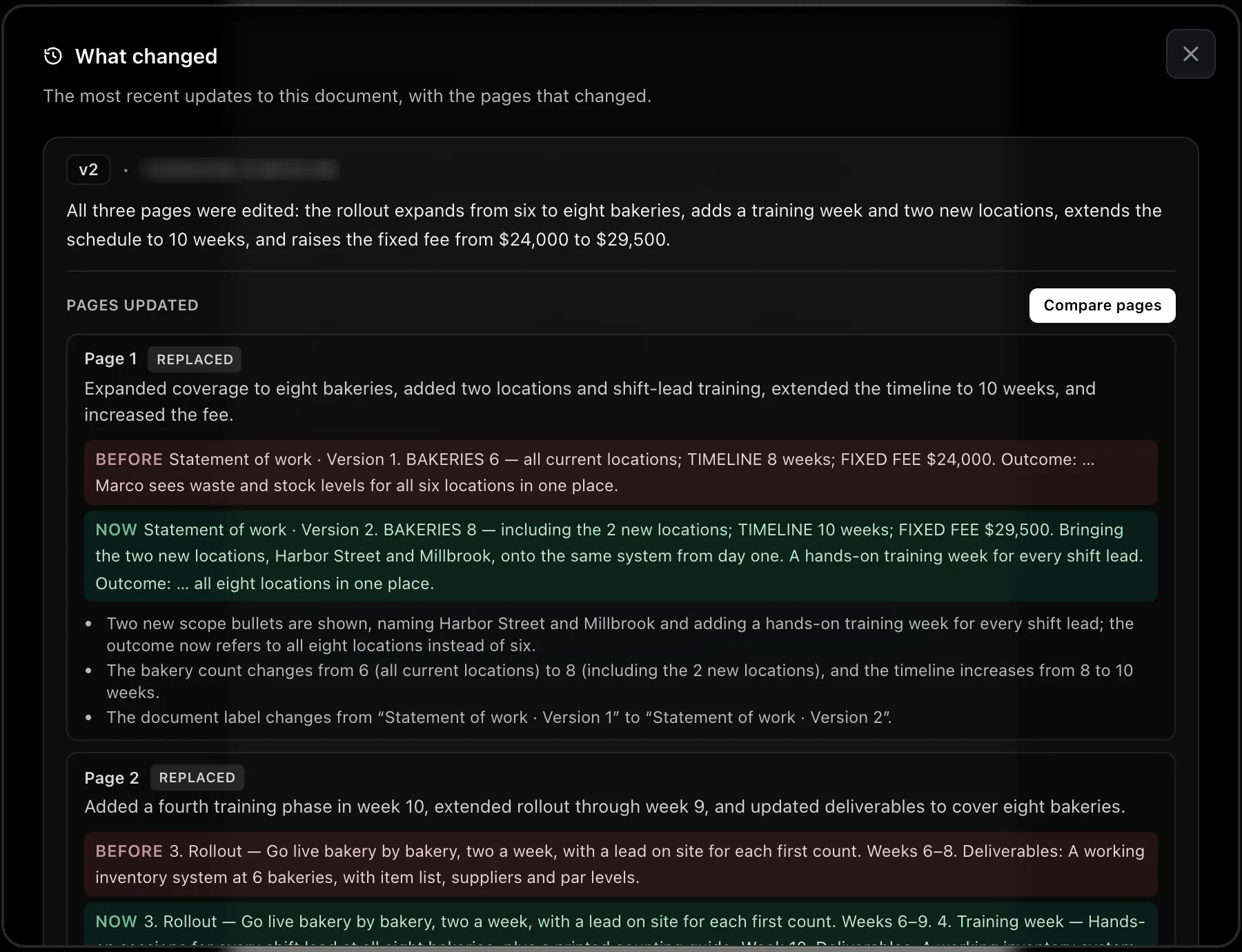 History in the viewer, as Marco sees it. The date is blurred. Tap to enlarge.
Compare pages puts the two versions side by side, with the changed areas marked.
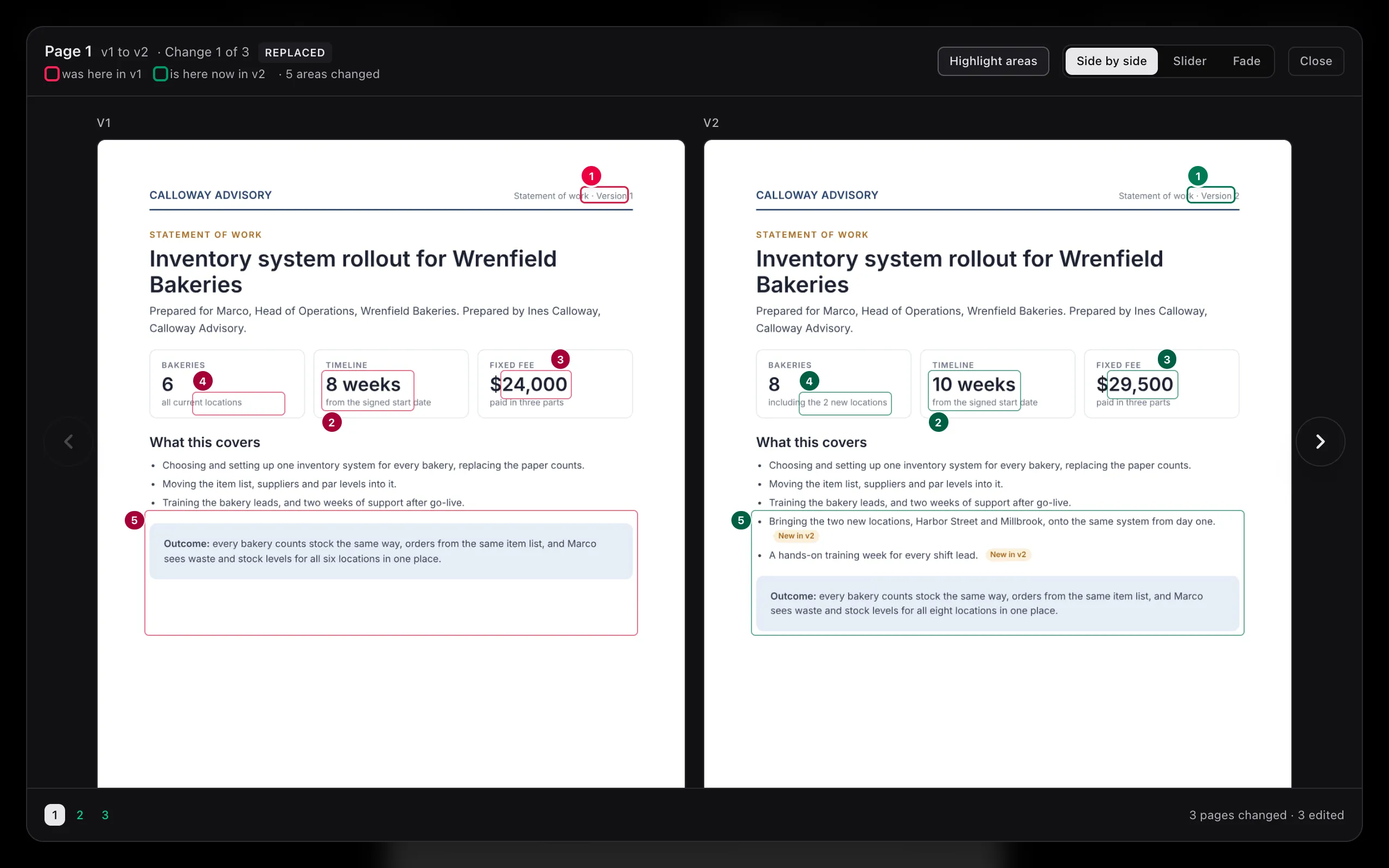 Marco compares page 1 of the two versions. Tap to enlarge.
4. The wrong file: roll it back
A few minutes later Ines uploads the wrong file: her internal working copy, with a red "do not send" banner and her pricing notes. History spells out exactly what it added.
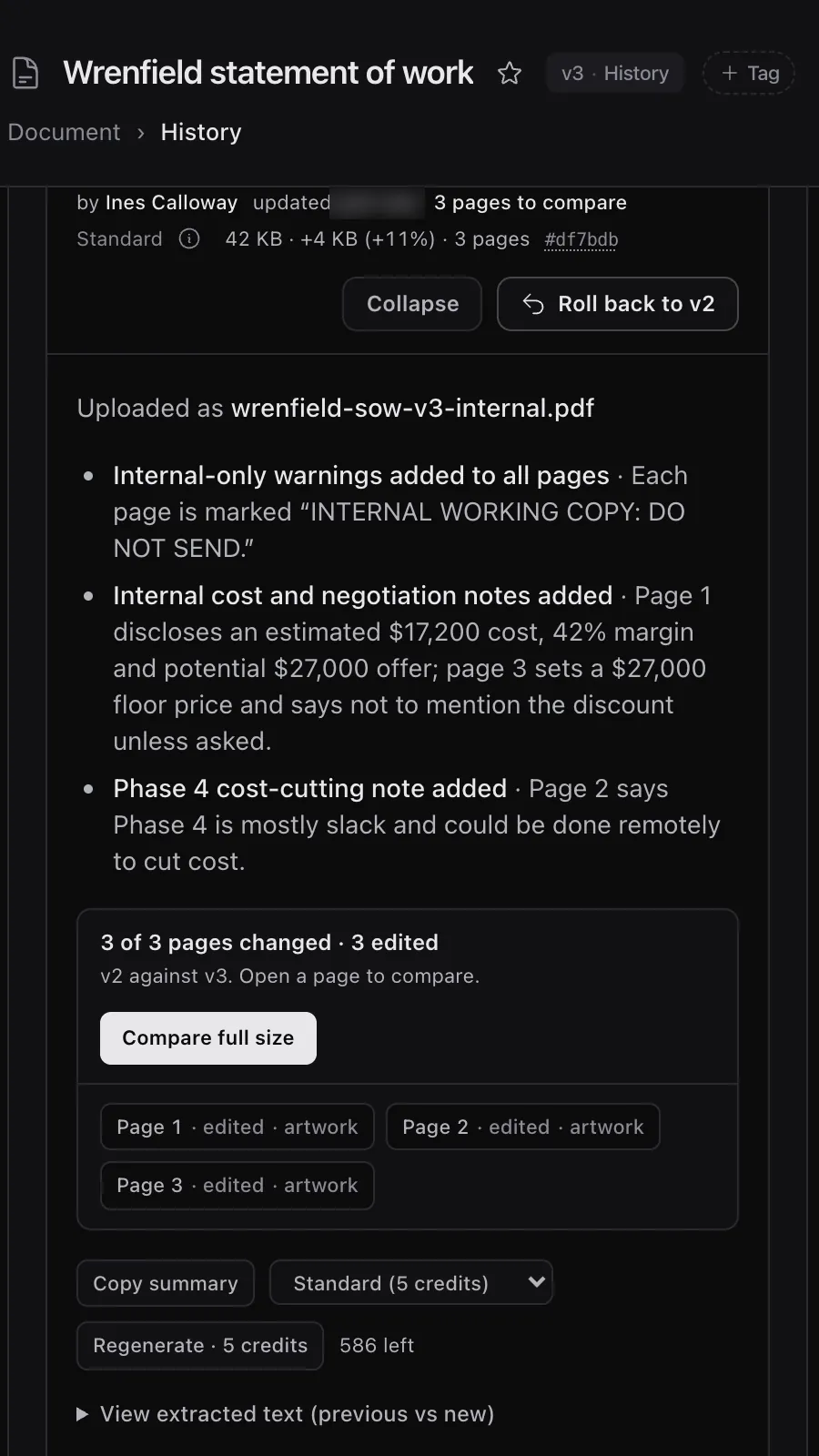 History on the wrong upload: the AI compare lists what the internal copy added. Tap to enlarge.
She clicks Roll back to v2. The confirm offers two ways:
- Keep v3 in history: adds a new version with version 2's file, and deletes nothing.
- Remove v3 from history: version 3 leaves the history, and the next file she uploads is compared against version 2. The confirm says who opened the version being removed.
Nobody had opened it, so she removes it.
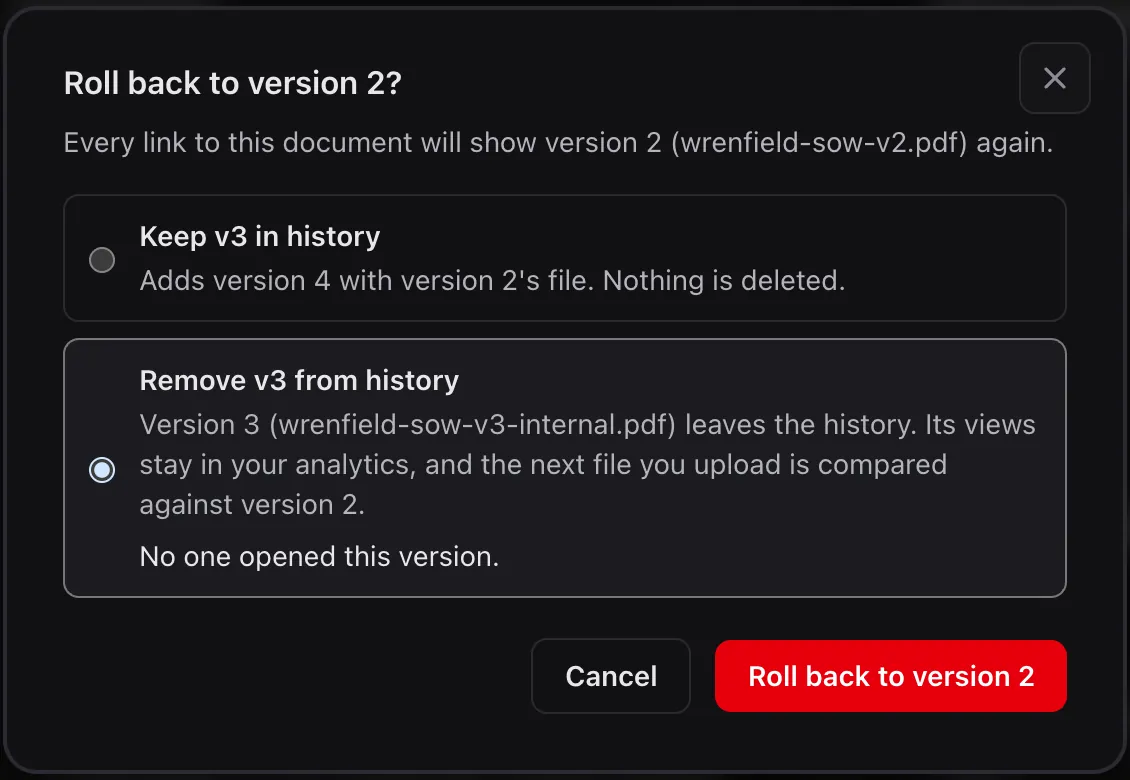 The rollback confirm, with Remove v3 from history chosen. Tap to enlarge.
Every link shows version 2 again straight away. On Marco's link, the version list never mentions version 3, and the document's Activity records who rolled it back.
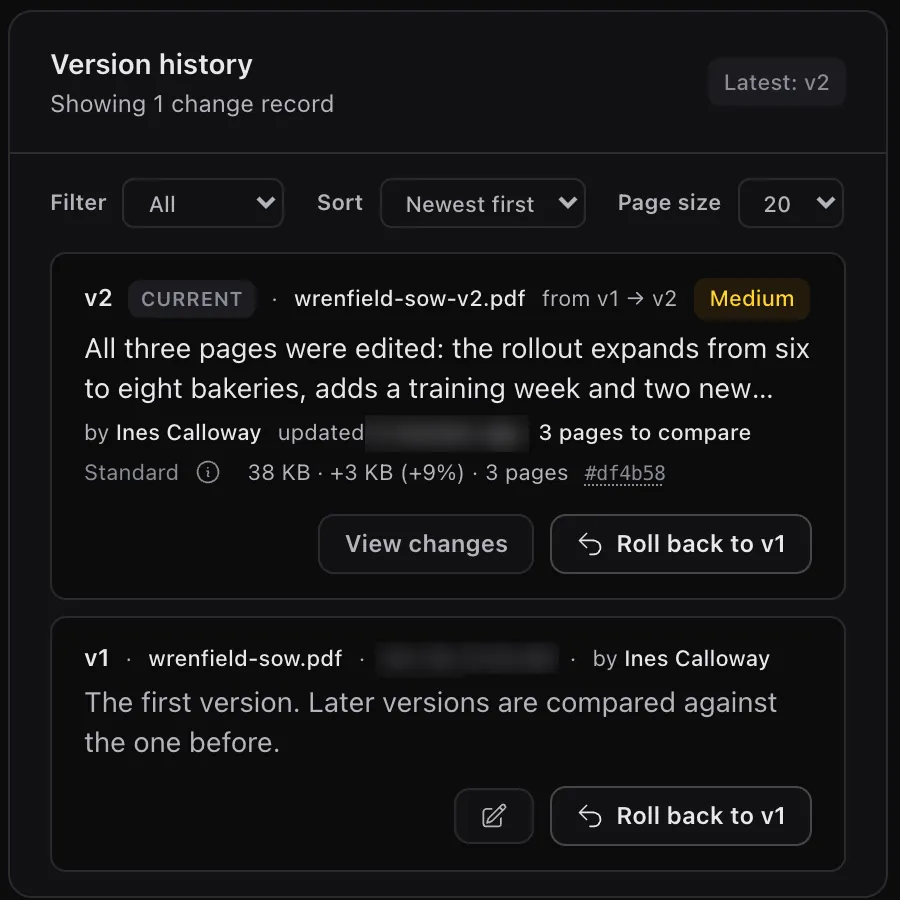 History after the rollback. Times are blurred. Tap to enlarge.
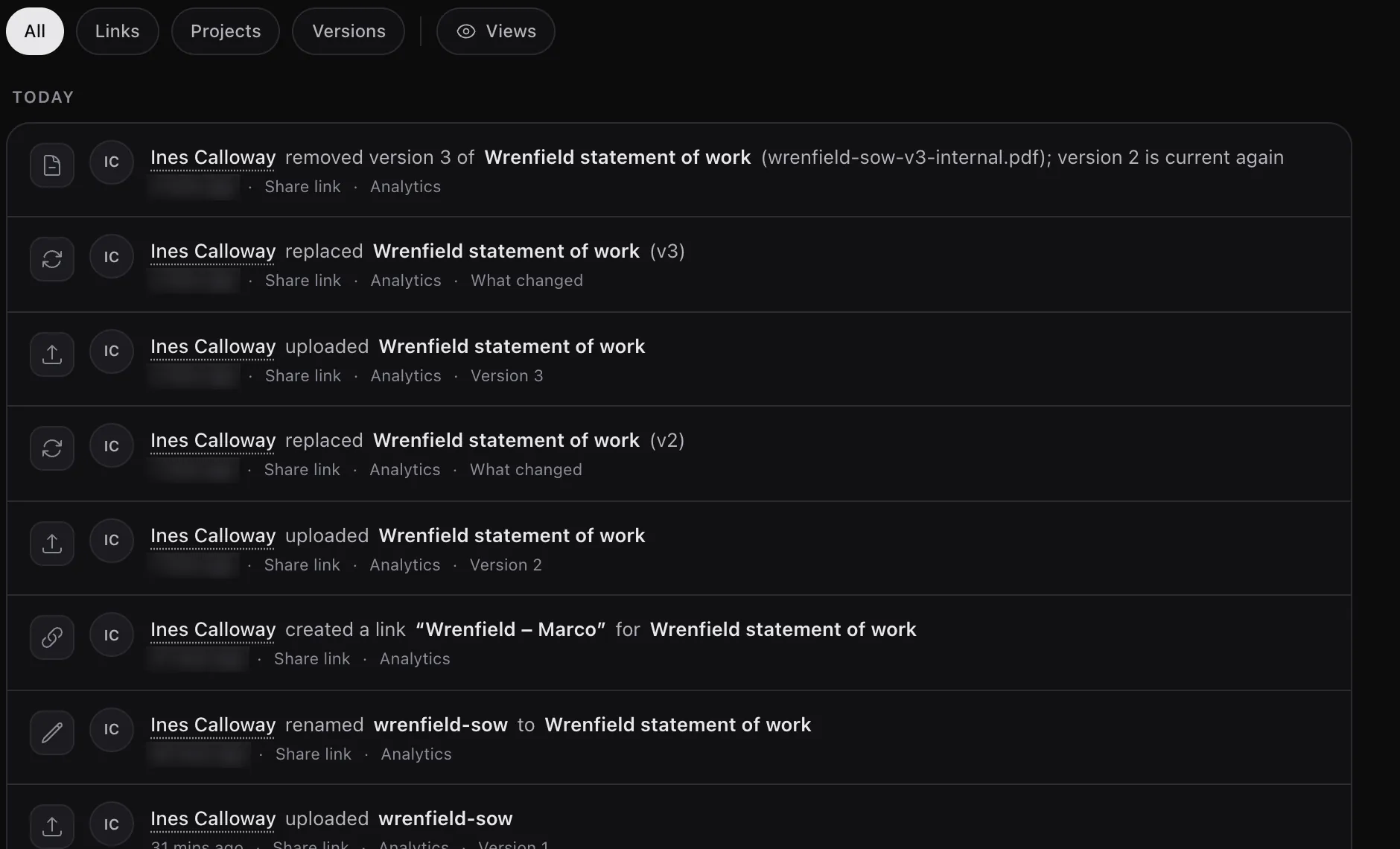 The document's Activity. Relative times are blurred. Tap to enlarge.
5. Or just ask your agent
By the way, you can do all of this through your favorite AI agent, just by talking to it. Ines has LinkDrop connected to Claude Code and asks:
What changed in each version of the Wrenfield statement of work, and which version does Marco's link show now?
It answers version by version, page by page, and says that Marco's link shows version 2.
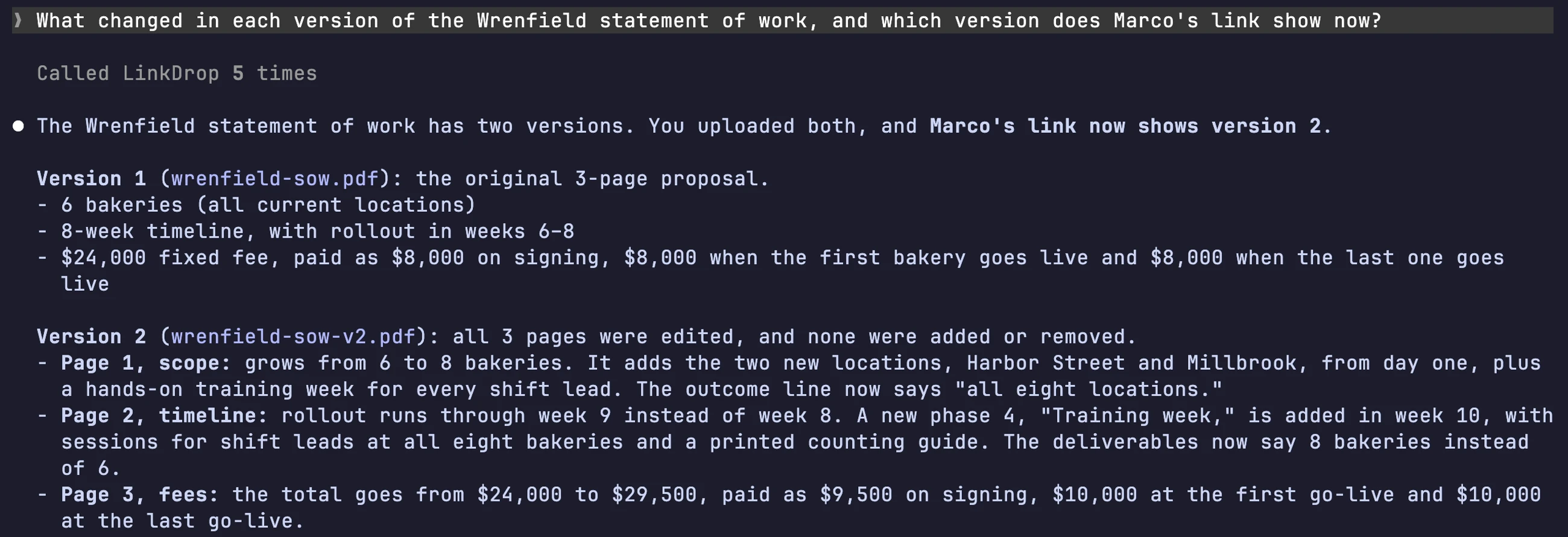 Claude Code's answer, first part. Tap to enlarge.
 The end of the answer. Tap to enlarge.
An agent can also replace the file, make an earlier version current again and remove the latest version. It asks you first before making an earlier version current when recipients have opened the document, and always before removing a version. See Versions and history and Connect your agent.
The result
Marco always had one link, and it always showed the current statement of work. When the price went up he could see exactly why, page by page, without asking. The wrong upload was gone from every link before anyone opened it.
The same idea with a team: a startup shares one sales deck and reviews every change. With measurements that change on site: contractor quotes from one PDF of photos.
Free and Pro
On every plan, Free included:
- Upload new version on the same document: every link keeps its address, settings and numbers, and shows the new version straight away.
- Your own History: every version, its file name, what changed in each, and the page compare.
- The AI compare of what changed, paid with credits. Free starts with 100 credits, once.
Pro adds:
- Let recipients browse versions on a link, so the reader sees the recent versions and what changed in each. If the workspace moves to Free, the button disappears from the viewer.
- Roll back: make an earlier version current again, or remove the latest one.
- 500 credits a month, unlimited documents and projects, and drafts that wait for review before readers see them.
See Credits and plans and Pricing.
Good to know
- Drafts instead of replacing. On Pro, Save as a draft keeps a new file away from readers until someone who can publish reviews it. See Drafts.
- Keep or remove. Keep v3 in history deletes nothing and adds a new version with the earlier file. Remove v3 from history cannot be undone; the removed file counts toward storage for at least 30 days, and version numbers are not reused, so the next upload after removing v3 is v4.
- Who can roll back. The same people who can replace the file: the document's owner and the workspace's owners and admins, or anyone listed under Who can publish on Pro.
- Rolling back is free. It uses no credits: the earlier version's file, pages and summary are reused.
- Testing your own link. Opens while you are signed in to LinkDrop count as team previews, not readers. Open the link signed out to see what your client sees.